dPanel launches Ubuntu Compute Engine VMs in one of your Google Cloud projects. It signs in with the JSON key of a service account that you create for it, in a dedicated project, with only the permissions listed on this page.
What you need first
- A Google Cloud project with billing linked. A new project just for dPanel is best.
- The Compute Engine API enabled in that project.
- Permission to create service accounts, custom roles and keys in that project.
- An SSH key in dPanel. See Before you start.
1. Create a dedicated project and service account
Run these with the gcloud CLI, signed in as a project owner. Replace my-dpanel-project and BILLING_ACCOUNT_ID.
# A project only dPanel uses
gcloud projects create my-dpanel-project
gcloud billing projects link my-dpanel-project --billing-account=BILLING_ACCOUNT_ID
gcloud services enable compute.googleapis.com --project=my-dpanel-project

# The custom role with only what dPanel calls (see the list below)
gcloud iam roles create dpanelCompute --project=my-dpanel-project \
  --title="dPanel Compute" \
  --permissions=compute.regions.list,compute.zones.list,compute.machineTypes.list,compute.machineTypes.get,compute.subnetworks.list,compute.subnetworks.use,compute.subnetworks.useExternalIp,compute.networks.get,compute.networks.create,compute.networks.updatePolicy,compute.firewalls.get,compute.firewalls.create,compute.firewalls.update,compute.firewalls.delete,compute.instances.list,compute.instances.get,compute.instances.create,compute.instances.delete,compute.instances.setMetadata,compute.instances.setTags,compute.instances.setLabels,compute.disks.create,compute.images.useReadOnly,compute.globalOperations.get,compute.zoneOperations.get

# The service account, with that role and nothing else
gcloud iam service-accounts create dpanel --project=my-dpanel-project \
  --display-name="dPanel"
# A new service account takes a few seconds to appear, and binding it too
# early fails with "does not exist". This retries for up to a minute.
for attempt in 1 2 3 4 5 6; do
  gcloud projects add-iam-policy-binding my-dpanel-project \
    --member="serviceAccount:[email protected]" \
    --role="projects/my-dpanel-project/roles/dpanelCompute" \
    --condition=None && break
  sleep 10
done

# The JSON key you upload to dPanel
gcloud iam service-accounts keys create dpanel-key.json \
  [email protected]
Keep dpanel-key.json safe, upload it, then delete your local copy.
Prefer the console? Google's guides: Create a project, Create a custom role, Create a service account, Create a service account key.
Minimum permissions
Read from dPanel's code:
| Where | What it does | Permissions |
|---|---|---|
| dPanel API (discovery) | Lists regions, zones, machine types, subnets and VMs | compute.regions.list, compute.zones.list, compute.machineTypes.list, compute.subnetworks.list, compute.instances.list, compute.instances.get |
| Network, first launch only | Creates dpanel-network (auto-mode VPC) | compute.networks.get, compute.networks.create |
| Firewall, every launch | One ingress rule per server, TCP 22, 80, 443 | compute.firewalls.get, compute.firewalls.create, compute.firewalls.update, compute.networks.updatePolicy |
| Instance | Creates the VM with your SSH key, network tag and labels | compute.instances.create, compute.instances.setMetadata, compute.instances.setTags, compute.instances.setLabels, compute.disks.create, compute.images.useReadOnly, compute.subnetworks.use, compute.subnetworks.useExternalIp, compute.machineTypes.get |
| Delete | Removes the VM and its firewall rule | compute.instances.delete, compute.firewalls.delete |
| Waiting on operations | Polls create and delete until they finish | compute.zoneOperations.get, compute.globalOperations.get |
dPanel attaches no service account to the VMs it creates, so you don't need roles/iam.serviceAccountUser.
If you'd rather use predefined roles, the closest set is roles/compute.instanceAdmin.v1 plus roles/compute.securityAdmin (firewall rules) plus roles/compute.networkAdmin (the network, first launch only). Those roles grant far more than dPanel uses.
2. Connect it to dPanel
- In the sidebar, open Cloud Projects. The page is titled Cloud accounts.
- Press Connect a cloud account.
- Fill in Connection name, for example
GCP production. - Under Cloud provider, pick Google Cloud.
- Upload
dpanel-key.json. dPanel shows the Project ID and Client Email it found, and masks the Private Key. - Press Connect cloud account.
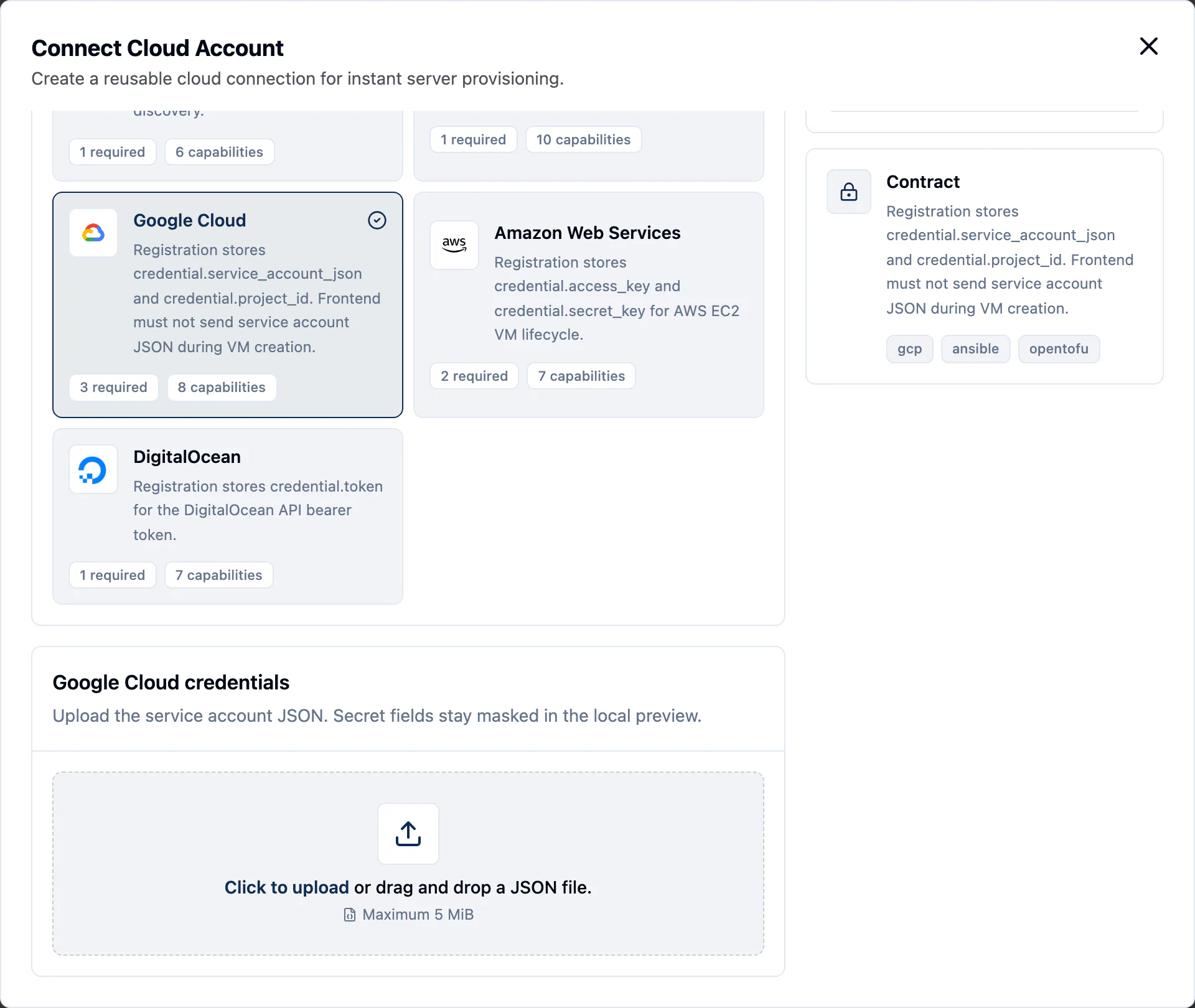
dPanel saves the account as Ready without testing it. The launch form is the first real test: if Region stays empty or errors, check the key and the role.
3. Google Cloud fields in the launch form
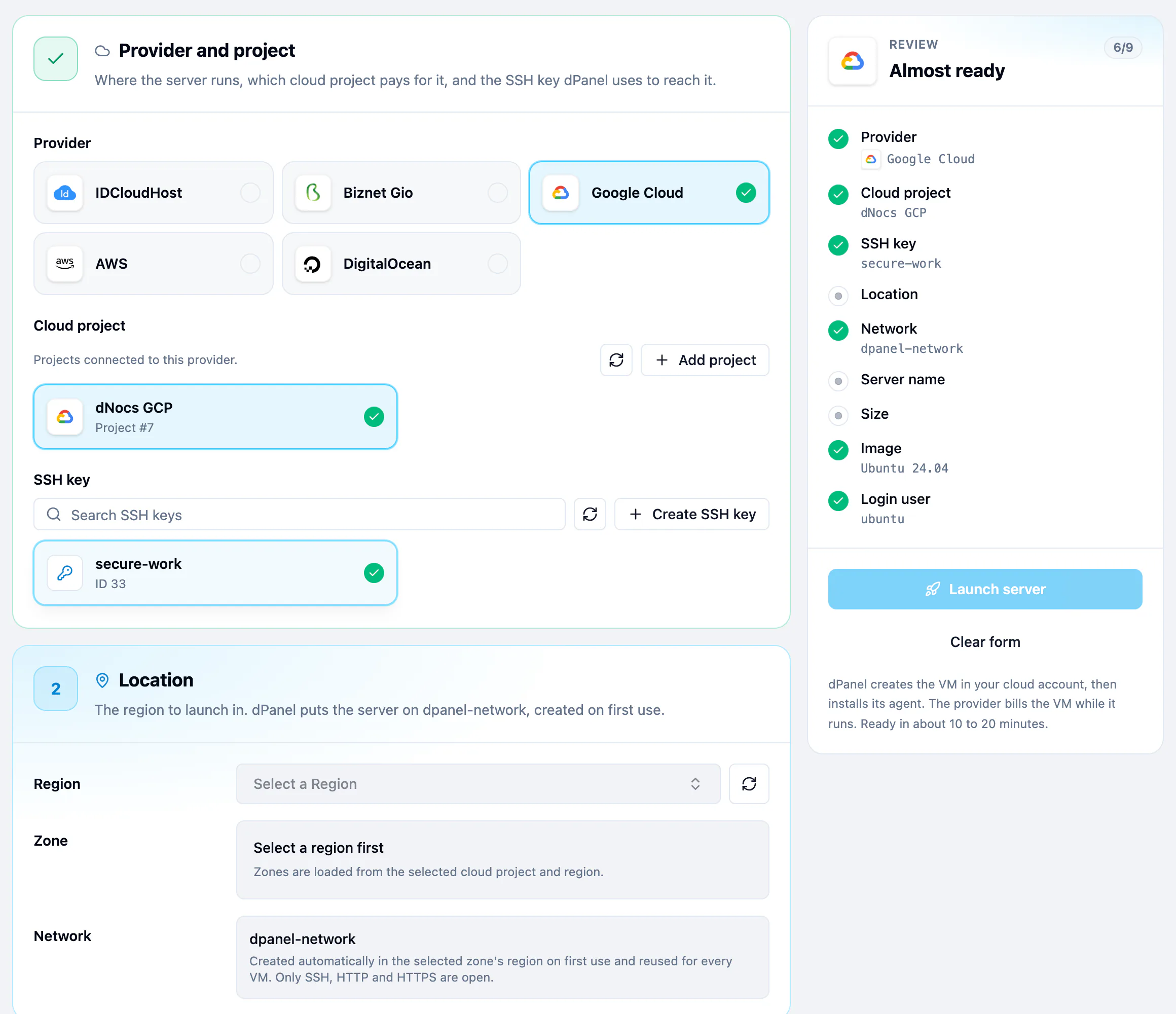
| Field | What to pick |
|---|---|
| Region | Where the VM runs, such as asia-southeast2. |
| Zone | One zone in that region, such as asia-southeast2-a. |
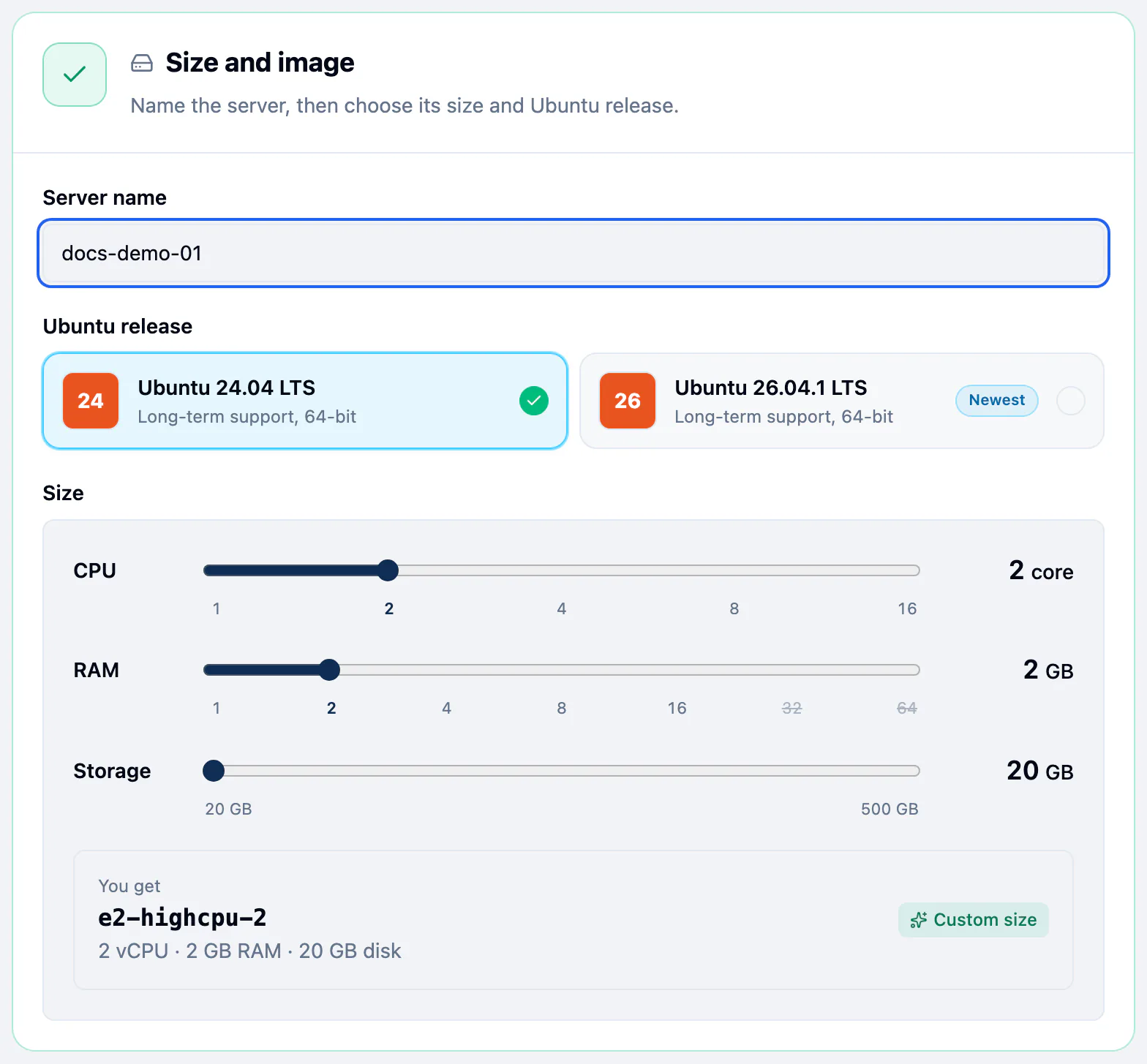
| Size | Move CPU and RAM. dPanel picks an E2 machine type: e2-micro, e2-small or e2-medium (shared core) for 1 vCPU, a standard E2 type when one matches, or an E2 custom type. |
| Ubuntu release | 24.04 LTS or 26.04 LTS, from Google's public Ubuntu image family. |
| Storage | Boot disk size, 20 to 500 GB. 20 by default. |
| Network | dpanel-network. You don't choose it. |
There is no Access step for Google Cloud. dPanel signs in as ubuntu.
4. Launch
Follow Create a cloud server. Pick Google Cloud in step 1.
Google Cloud gotchas
- Enable the API first. Without the Compute Engine API, every list in the launch form fails.
- The network appears on first launch. The first launch creates an auto-mode VPC named
dpanel-network, which has a subnet in every region. Later launches reuse it. Deleting a server never removes it. - One firewall rule per server, named
dpanel-c-<cloud account ID>-m-<server ID>-ingress, open to the internet on TCP 22, 80 and 443 for that server's network tag only. dPanel deletes it with the server. - Quotas. New projects have low CPU and external IP quotas per region. A launch that fails with
QUOTA_EXCEEDEDneeds a quota increase in the console. - Ephemeral IP. The VM gets an ephemeral external IP. It can change if the VM is stopped and started outside dPanel.
- Billing runs from launch. You pay for the VM, its disk and its external IP while they exist.
Security
- The key can create and delete VMs, disks and firewall rules in this one project. In a dedicated project, that's all it can reach.
- A service account key does not expire by default. To rotate it, create a new key for the same service account and replace it with Update credentials on the cloud account. The Project ID must stay the same. See Rotating a credential.
- To cut dPanel off, delete the key or disable the service account. Running servers keep running. See what happens when you revoke.
- More in Cloud credentials and security.
Frequently asked questions
Who pays for the server?
Google Cloud bills you directly, because the server runs in your own account. dPanel does not resell machines. Delete the server in dPanel when you are done, so the provider stops charging. See Delete a server.
Can I also use the dPanel firewall on this server?
Yes. The dPanel firewall runs on the server itself, behind Google Cloud's own network rules, so a port must be open in both to be reached.
What happens to my servers if I revoke the credential?
They keep running, but dPanel can no longer launch or delete machines with it. See Cloud credentials and security.