Ask dPanel is the AI assistant built into dPanel. You type a question or a request in plain language, such as "Why is my website down?" or "Create a MariaDB database for WordPress", and it looks at your workspace, answers, and prepares any change for you to approve. Nothing changes until you press Approve.
You don't need to know server commands to use it. If you have never run a server before, the assistant is a good way to learn: ask it what something means, and it answers from this documentation with a link to the page.
Where to find it
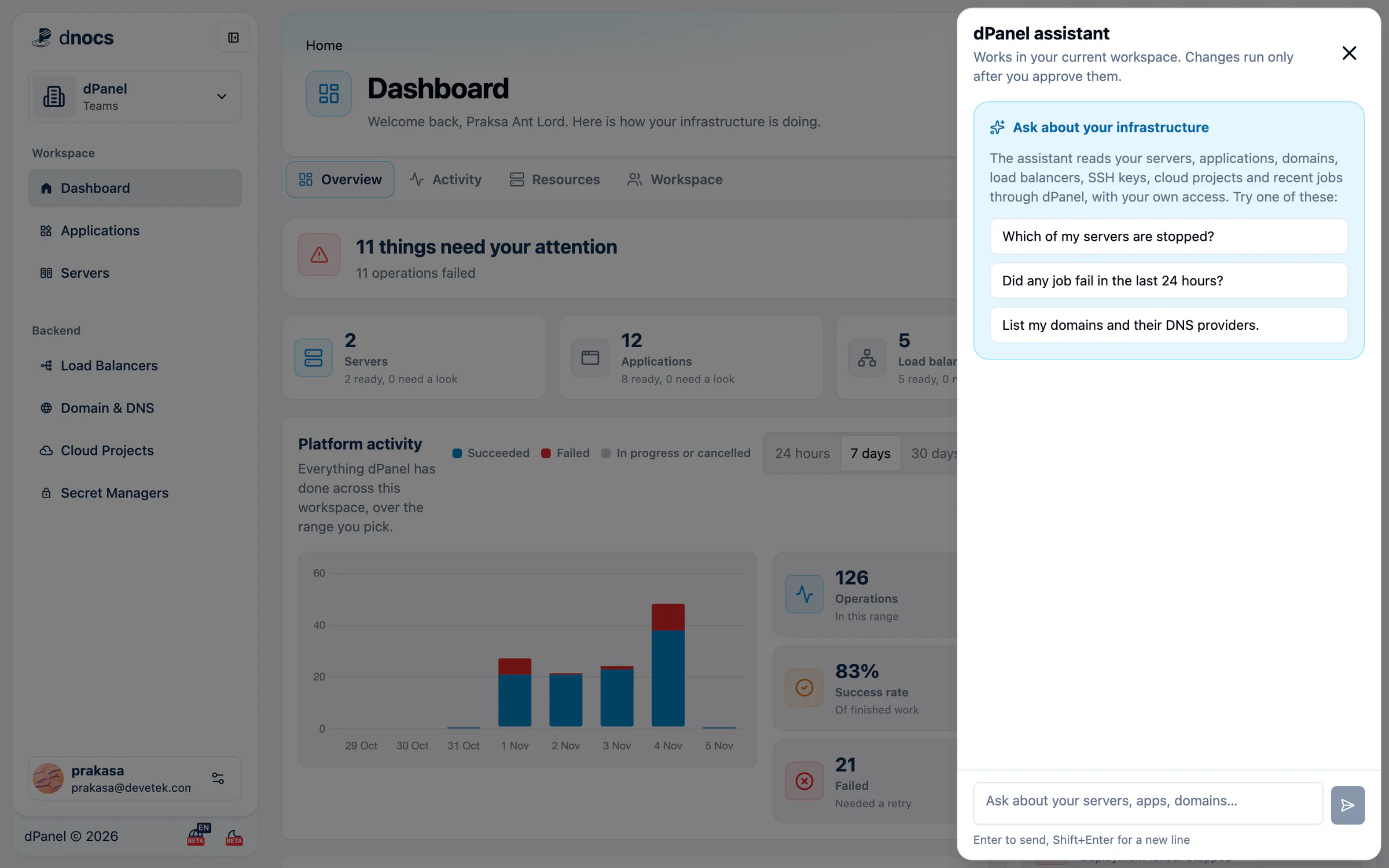
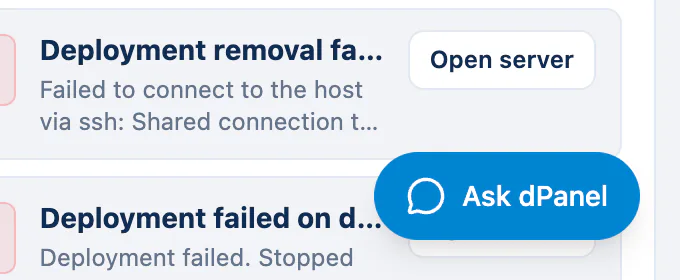
Press Ask dPanel at the bottom right of any page after you sign in. The dPanel assistant panel opens on the right. On a phone the button shows only its chat icon.
You can also talk to the same assistant from a terminal with dnocs ai chat. See Use AI in the terminal.
What it can do
| You want to… | What the assistant does |
|---|---|
| Learn how to do something in dPanel | Searches this documentation and answers with the steps and a link to the page |
| See what you have | Lists and explains your servers (with CPU, memory and disk), applications, deployments, databases, domains, DNS records, load balancers, SSH keys, cloud accounts, server groups, clusters, workers and jobs |
| Find out why something fails | Reads build and runtime logs, job errors, load balancer logs and certificates, then names the likely cause and the fix. See Diagnose problems with AI |
| Launch or set up a server | Proposes a new cloud server (with an estimated cost), runs server setup again, or installs software such as PHP, Node.js, MariaDB or PostgreSQL |
| Add a database for your app | Proposes a MariaDB or PostgreSQL database and user; dPanel generates the password and shows it to you once. It also gives you the DB Manager link to browse the data |
| Create, configure and deploy an application | Reads your GitHub repository, asks how to build and run it, picks a free port for you, sets environment variables, and proposes the deploy |
| Publish an app on a domain | Proposes a load balancer with free HTTPS on Caddy, APISIX or HAProxy, or a TCP/UDP (L4) load balancer for something like a database |
| Open or close a port | Proposes firewall rules and the apply that puts them on the server, and warns you when the firewall would block a new TCP/UDP load balancer |
| Group servers or build a Kubernetes cluster | Proposes server groups and k3s or RKE2 clusters, and can install a failed cluster again |
| Choose where jobs run | Tells you whether the workspace uses shared or private workers, and proposes switching |
| See who changed something | Reads the workspace's audit history (needs the workspace admin level) |
| Clean up | Proposes deletes in the right order, and tells you what must go first |
See the prompt cookbook for ready-to-copy requests for each of these.
What it cannot do
- It cannot change anything without you. Every change waits on an approval card. See Approve or reject changes.
- It cannot see your secrets. Passwords, tokens, keys and the values of environment variables are hidden from it; it sees variable names only.
- It cannot log in to your servers. It has no shell and no SSH access. It works only through dPanel, as you.
- It cannot read the data inside your databases or run SQL. It gives you the DB Manager link instead.
- It cannot do what your account cannot do. Your role in the workspace still applies. See Members and roles.
- It only helps with dPanel. Questions about anything else get a polite "I can only help with dPanel".
- Some things are not in chat yet, such as creating SSH keys or DNS records, editing team members, or connecting a cloud account. It tells you so and points you to the right page.
More in AI limits and privacy.
How it keeps you safe
- Reading runs right away. Questions only read dPanel, so you get an answer at once.
- Changes wait for you. Anything that creates, changes, deletes or costs money appears as a card marked Waiting for your approval, with exactly what will happen. It runs only when you press Approve, exactly as shown, and only once.
- Only you can approve. A conversation belongs to the person who started it. Your teammates cannot see it or approve its cards, and the change runs with your own access.
- Secrets stay out of the chat. A password you must supply is typed into a field on the card, never into the chat. A password dPanel generates for you is shown once on the card after you approve.
- Approvals expire. An unanswered card expires after 24 hours. Ask again to get a fresh one.
- Everything is recorded. Approved changes start ordinary dPanel jobs, which appear in the workspace's activity and audit history like any other change.
Where to go next
- Your first AI conversation: a short walkthrough with screenshots.
- Prompt cookbook: real requests for common tasks.
- Approve or reject changes: how to read a card.
- Use your own AI agent: let Claude Code, Cursor or another agent work through dPanel.
- New to the words? See the Glossary.
Frequently asked questions
Can asking a question cost me money?
No. A question only reads dPanel. Only an approved change can cost money, and it costs what it would if you made it yourself: a new cloud server, for example, is billed by your cloud provider. The assistant says so before you approve, with an estimated price.
Can the assistant change my servers without asking?
No. Questions only read. Every change waits for you to press Approve on its card, or to run dnocs ai approve in a terminal.
Which workspace does it work in?
The one you are in when you ask. Switch workspace first to ask about another one. See Workspaces.
Can I ask in Indonesian?
Yes. Ask in Indonesian or English and it answers in the same language.
Can my teammates see my conversations?
No. A conversation is private to the person who started it. Teammates see the changes you approved, because they run as ordinary dPanel jobs.