dPanel manages each server's firewall for you: you keep a list of rules in dPanel, review what will change, and dPanel applies the whole list to the server at once, without locking itself out. A firewall decides which network traffic may reach your server; with it on, only the ports you allow can be reached from the internet and everything else is blocked.
Under the hood dPanel uses ufw, the firewall built into Ubuntu. A port is a numbered door on the server that one program listens on, such as 443 for a website or 22 for SSH. New to these words? See the Glossary.
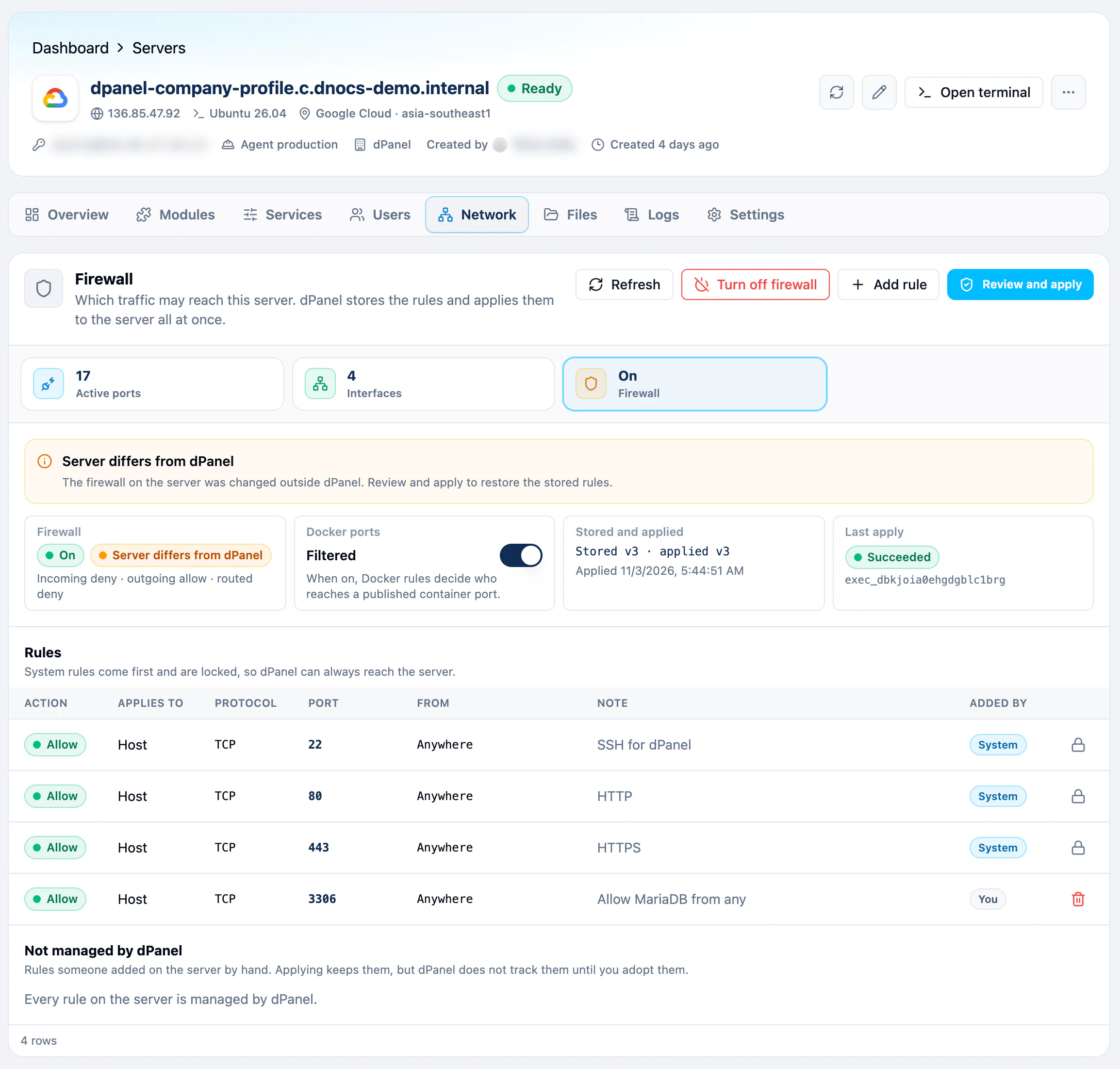
Open the firewall
- Open Servers and select your server.
- Go to the Network tab and select the Firewall tile.
If the Firewall module is installed, the Modules tab also shows Manage firewall on its row, which opens the same view.
How it works
- Add rule for each port people must reach, such as 443 for a website. Nothing changes on the server yet.
- Review and apply. dPanel compares your rules with the firewall on the server and lists what it will add, remove and keep. Press Apply firewall when it looks right.
- dPanel runs a job on the server. The view shows Applying the firewall and refreshes by itself until the job finishes.
Add a rule
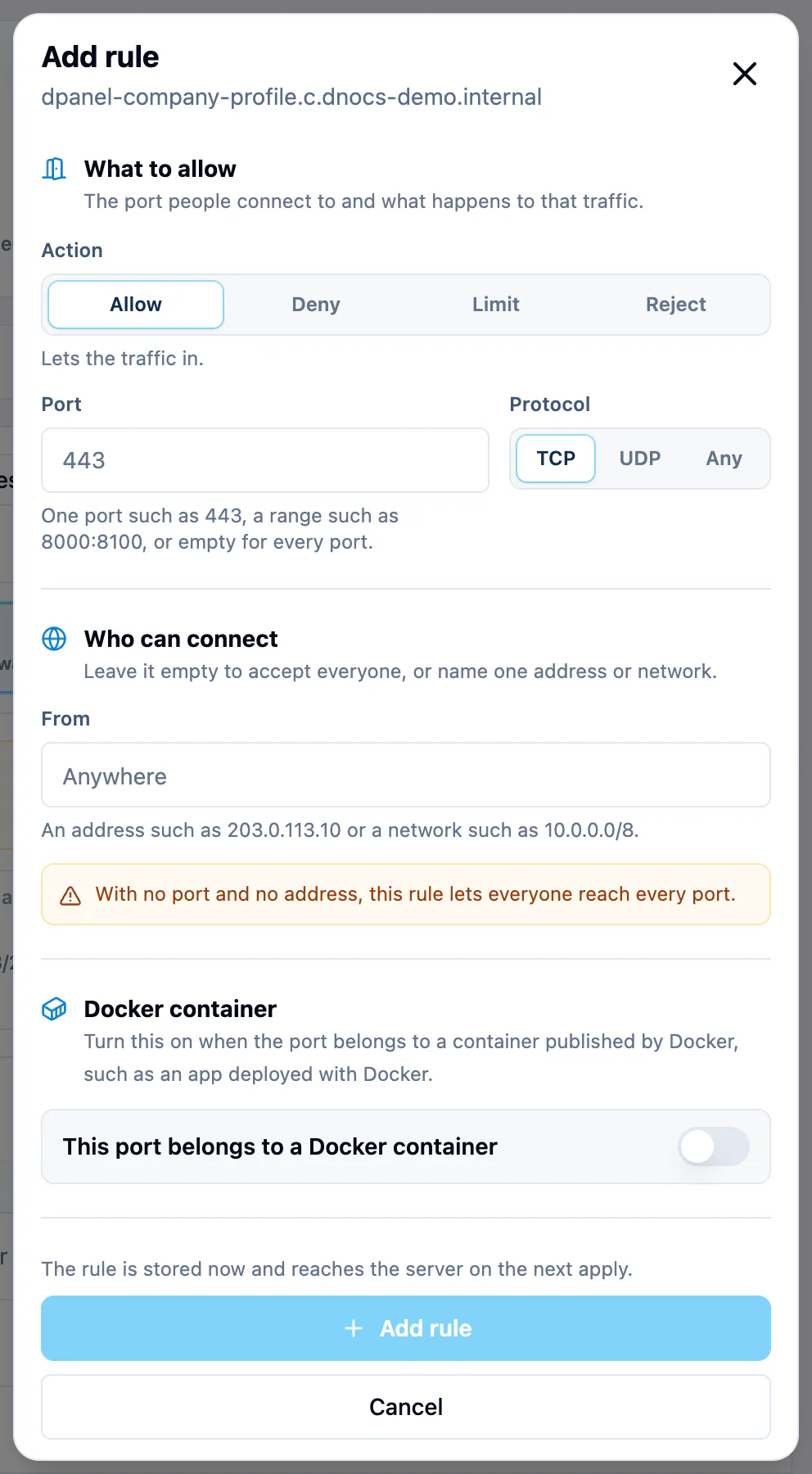
Press Add rule. The panel asks three things:
| Section | Field | What to enter |
|---|---|---|
| What to allow | Action | Allow, Deny, Limit or Reject. See the table below. |
| Port | One port (443), a range (8000:8100), or empty for every port. A range needs TCP or UDP. | |
| Protocol | TCP for almost everything (websites, SSH, databases), UDP for things like DNS or VPNs, or Any. | |
| Who can connect | From | Empty for anyone, one address (203.0.113.10) or a network (10.0.0.0/8). |
| Docker container | This port belongs to a Docker container | Turn on when the port is published by a Docker container. See Docker ports. |
| Note | Note | A reminder of why the rule exists, shown in the rules table. |
| Action | Meaning |
|---|---|
| Allow | Let the traffic in. |
| Deny | Drop it without an answer. |
| Reject | Refuse it and tell the sender. |
| Limit | Let it in, but block an address that connects too often. Useful for SSH. Host ports only. |
Adding or removing a rule only changes what dPanel stores. The server picks it up on the next apply.
Review and apply
Review and apply shows exactly what the apply would do: Changes (such as turning the firewall on or a new default), Will be added, Will be removed, and Kept, not managed by dPanel. It also confirms SSH stays open, so dPanel can always reach the server.
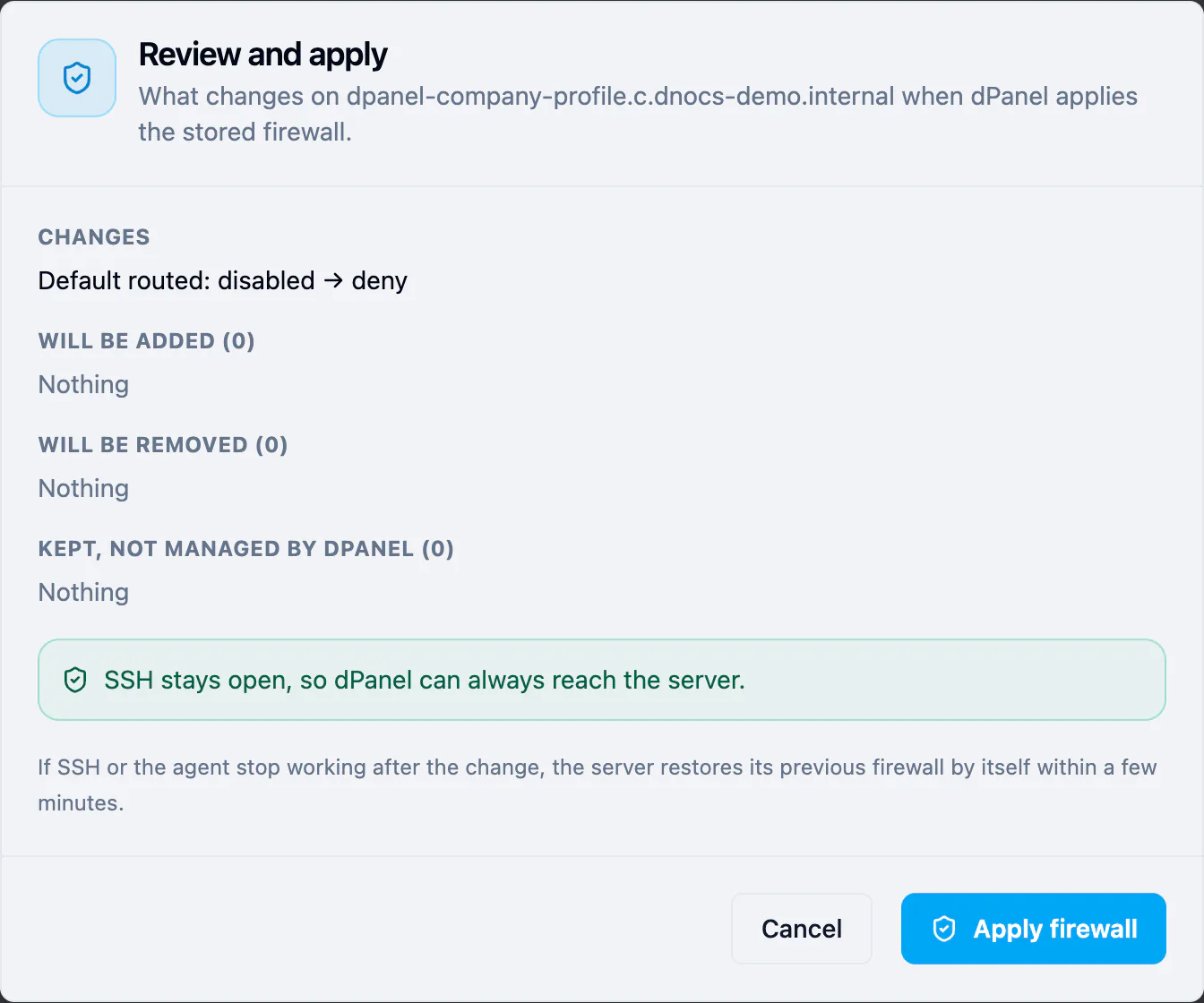
If nothing differs, it says Nothing to change: the server already matches. Opening the review changes nothing; only Apply firewall does.
The status strip
| Item | What it tells you |
|---|---|
| Firewall | On or Off, and the default for traffic no rule matches (normally: incoming deny, outgoing allow, routed deny). |
| Docker ports | Filtered or Not filtered, with a switch. See Docker ports. |
| Stored and applied | The version of your rules and the version the server runs. Changes not applied yet means you still need to apply. |
| Last apply | The result of the last job (Succeeded, Failed and so on), or Applying while one runs. |
Server differs from dPanel appears when someone changed the firewall on the server by hand. Review and apply to put your stored rules back.
Rules and who added them
The Added by column says where each rule came from:
| Added by | Meaning |
|---|---|
| System | Rules that keep dPanel working: SSH, and ports 80 and 443 on servers that run a dPanel load balancer engine. Locked, always first. |
| Legacy | Rules adopted from an older setup and kept on purpose. Locked. |
| You | Rules added in the web, the CLI or by the assistant. You can remove them. |
| Other | Rules dPanel generates for a TCP/UDP load balancer on this server: its port, open to the addresses in its allow list. Locked; they change with the load balancer. |
You cannot remove locked rules. Removing other rules on a workspace server needs the workspace admin role; if you lack it, dPanel shows the reason.
Docker ports
Docker publishes container ports past the normal firewall, so a host rule does not protect them. To control them:
- Turn on the switch in Docker ports in the status strip.
- Add a rule with This port belongs to a Docker container turned on, using the container's port.
- Review and apply.
While Docker filtering is off, Docker rules are stored but have no effect.
Rules not managed by dPanel
Not managed by dPanel lists rules someone added on the server by hand. Applying keeps them. Adopt stores them in dPanel so they show up as your rules; it adopts every rule dPanel can represent at once, not only the one you selected. Rules dPanel cannot represent are skipped and left alone.
If this section says the live firewall cannot be read, the firewall module is not installed yet or the server's agent is too old. That is normal before the first apply.
Safety: SSH and automatic rollback
- SSH always stays open, so dPanel can still reach the server. If a change would close SSH, the review says so and dPanel refuses to apply it.
- If SSH or the dPanel agent stop working after a change, the server restores its previous firewall by itself within a few minutes, and the job is marked failed.
Turn the firewall off
Turn off firewall queues a job that switches the firewall off, so every port can be reached again. Your rules are kept for the next time you apply.
See which ports are open
On the Network tab, the Active ports view has a Firewall column: for each port in use it says Allowed from anywhere, Allowed from a number of sources, or No allow rule. While the firewall is off it says Not enforced: the firewall is off. See Your server page.
From the terminal
The dnocs CLI manages the same firewall. Install it with AI in the terminal; find the server ID with dnocs server list.
dnocs server firewall show --server-id 140           # the rules dPanel stores
dnocs server firewall allow --server-id 140 --port 443 --proto tcp --comment "Website"
dnocs server firewall plan --server-id 140           # what an apply would change; changes nothing
dnocs server firewall apply --server-id 140 --wait   # add --enable the first time, to turn it on
| Command | What it does |
|---|---|
show | The firewall dPanel stores, with each rule's ID. |
live | The firewall as it is on the server right now, read through the agent. |
allow | Adds an allow rule. --rate-limit makes it a Limit rule. |
deny | Adds a deny rule. |
remove | Removes a stored rule by --rule-id from show. |
plan | Shows what an apply would change. |
apply | Applies the stored rules as a job. --enable turns a disabled firewall on. |
disable | Turns the firewall off as a job; rules are kept. |
import | Adopts the rules already on the server. |
allow and deny take --port, --proto (tcp, udp or any), --from, --comment and --docker (for a Docker-published port).
You can also ask Ask dPanel to add a rule and apply it; it warns you when the firewall would block a new TCP or UDP load balancer. See Prompt cookbook.
Frequently asked questions
Will turning the firewall on lock me out of my server?
No. SSH is a locked System rule, the review refuses any change that would close it, and the server rolls back by itself if SSH or the agent stop working after an apply.
I added a rule but the port is still blocked. Why?
Adding a rule only stores it. Press Review and apply and then Apply firewall; the rule reaches the server when the job reads Succeeded.
Do I need rules for my websites?
Not for ports 80 and 443 on a server that runs a dPanel load balancer: dPanel adds them as System rules. Add rules for other ports people must reach, such as a database you open to one office address.
Why can't a server with the firewall on join a Kubernetes cluster?
Kubernetes manages its own network rules and would clash with the host firewall. Turn the firewall off before you add the server to a cluster. See Server groups and clusters.
Does the firewall replace my cloud provider's firewall?
No, it works on the server itself. A provider firewall (such as an AWS security group) still applies in front of it, so a port must be open in both.