dPanel runs in your browser at dnocs.devetek.app, so there is nothing to install. Sign in with Google or a username and password, and you land on the dashboard. New to dPanel? Read What is dPanel - dNocs? first.
Sign in
The sign-in panel on the home page offers two ways in.
| Way in | What you do |
|---|---|
| Press the Google button at the top of the panel and pick your Google account. | |
| Username and password | Type your username and password under Or sign in with, then press Login. |
After a successful sign-in you go straight to the Dashboard. If you are already signed in, the home page greets you instead and offers Go to dashboard, View profile and Logout.
Create an account
- On the home page, press Sign Up under Don't have an account?.
- Fill in your email, a username, a password, and the password again.
- Press Sign Up. dPanel registers the account and redirects you once it is ready.
Forgot your password
Press Forgot password? next to the password field. dPanel does not reset passwords by email yet; the dialog gives you the support contact to write to.
Your profile
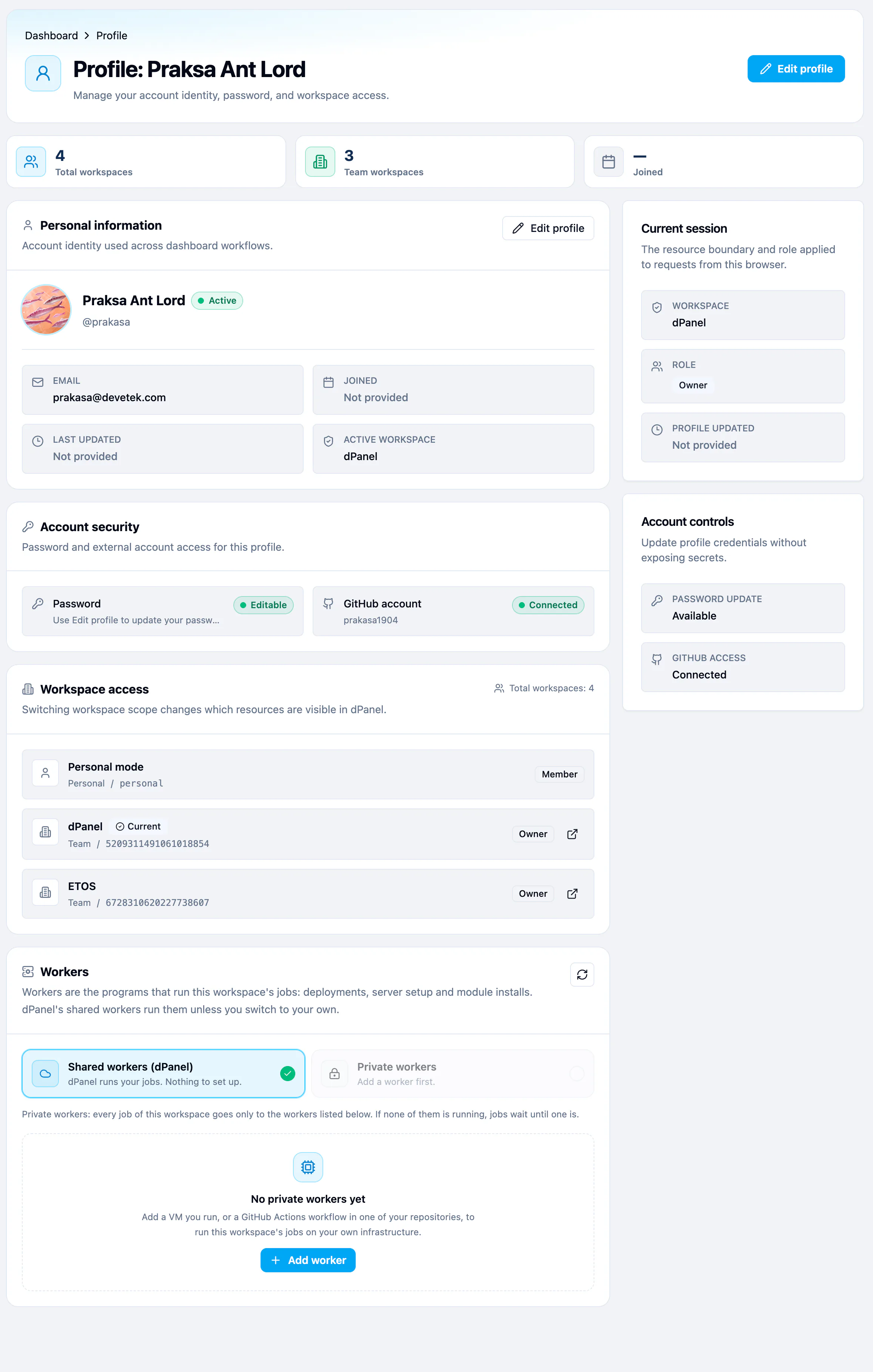
At the bottom of the sidebar, press the settings icon on the card with your name, then View Profile. The same two buttons include Logout. The profile page has these parts:
- Personal information: your name, username, email and the workspace you are working in now.
- Account security: your password, and the GitHub account dPanel uses to read repositories. It reads Connected once you have linked GitHub.
- Workspace access: every workspace you belong to, with your role in each.
- Workers: where the jobs of the workspace you are in run. See Workers on your profile.
- Current session and Account controls, on the right: the workspace and role this browser uses, and whether your password and GitHub access can be changed.
Change your name, avatar or password
- Press Edit profile.
- Change Full name or Avatar URL. Email and username cannot be changed here.
- To change the password, fill in New password and Retype password. It must be at least 8 characters. Leave both blank to keep the current one.
- Press Save changes.
Workers on your profile
A worker is the program that runs a workspace's jobs: deployments, server setup and module installs. The Workers card shows the choice for the workspace you are in:
- Shared workers (dPanel): dPanel runs your jobs. Nothing to set up. This is the default.
- Private workers: only workers you run yourself, on a VM or as a GitHub Actions workflow, take this workspace's jobs. Press Add worker to add one first.
In a team workspace, only team owners and admins can change it. See Workers.
Your public profile
Every account has a public profile page at /u/ followed by the username, such as https://dnocs.devetek.app/u/prakasa. It shows your name, avatar, username and the date you joined, and never your email address. Only people signed in to dPanel can open it.

Across dPanel, a person's name links to this page: the owner of a server, an SSH key or a cloud account, who ran a build, and who started an operation in Recent activity. Change what it shows with Edit profile.
What happens next
Pick the workspace you want to work in. See Workspaces. Then take a look around the dashboard, or follow Your first steps.
Frequently asked questions
Can I sign in without a Google account?
Yes. Create an account with Sign Up and sign in with your username and password.
How do I reset a forgotten password?
Press Forgot password?. dPanel does not reset passwords by email yet; the dialog gives you the support contact to write to.
Can I change my username or email?
Not from the profile page. Edit profile changes your full name, avatar and password.
Who can see my public profile?
People signed in to dPanel who open your /u/ address or press your name in a list. It shows your name, avatar, username and join date only, never your email.