Every server in dPanel has one page, and everything you can do to that server is on it: live usage, installed modules, systemd services, Linux users, open ports, files, logs and settings. Open it from Servers by selecting the server's row.
The header
The header shows the name, the status, the address, the Ubuntu release and where it runs, then a line of facts: the SSH login dPanel uses (such as [email protected]:22), the agent version, the workspace, who created the server and when.
| Control | What it does |
|---|---|
| Refresh (↻) | Reads the server's status, usage, services and modules again. |
| Edit server (✎) | Changes the address, SSH login and agent ports dPanel uses. |
| Open terminal | Opens a shell in the browser. See Connect over SSH. |
| More actions (⋯) | Reinstall server runs setup again; Delete server removes it. See the table below. |
Select the status badge to see what the status means. While dPanel is setting a server up, a blue banner says so, with Follow the logs. If setup fails, a red Setup did not finish banner offers See what happened.
Overview
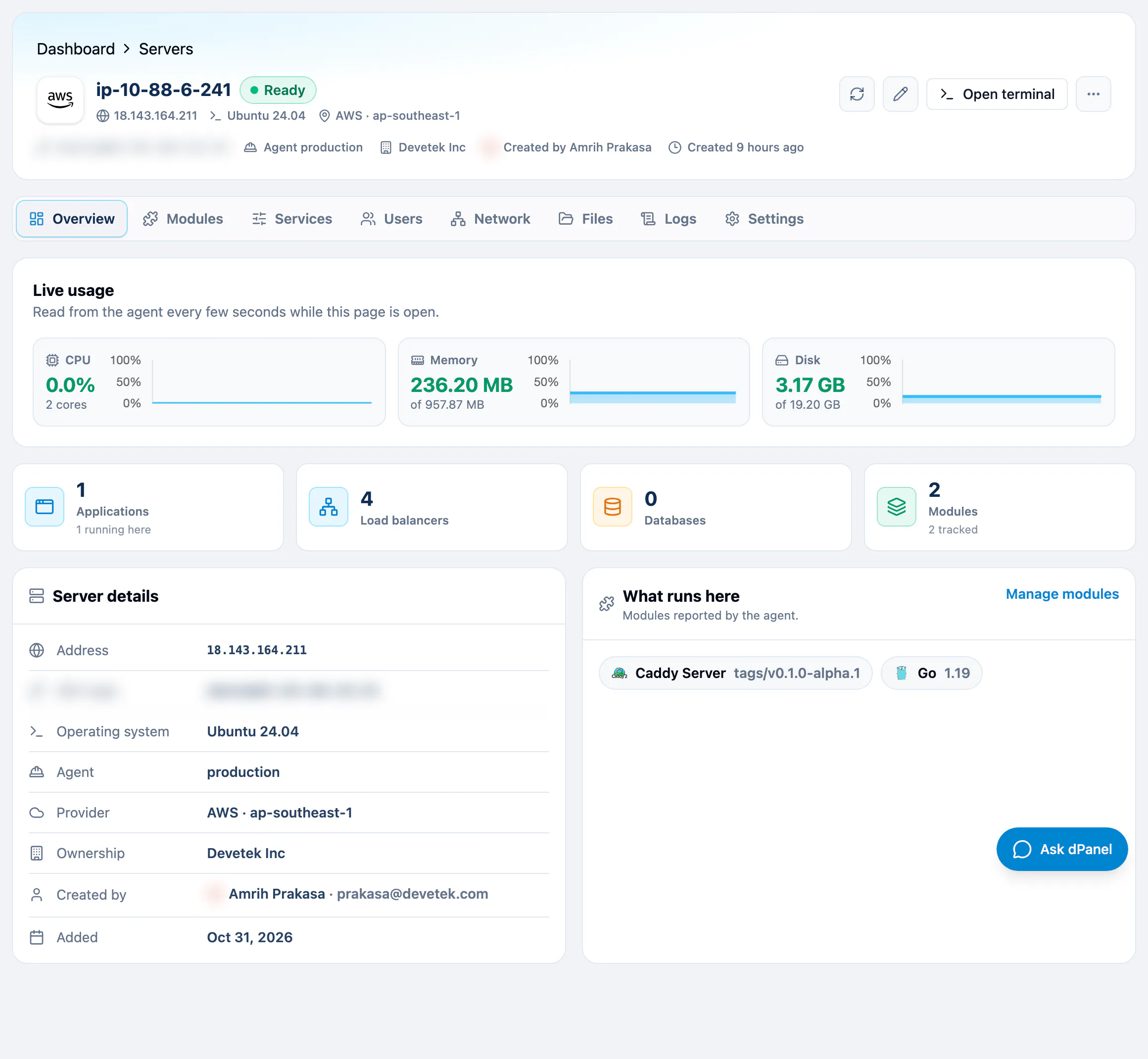
Live usage reads CPU, memory and disk from the agent every few seconds while the page is open. Below it are counts of applications, load balancers, databases and modules, then Server details (address, SSH login, operating system, agent, provider, ownership, Created by and when it was added) and What runs here.
Modules
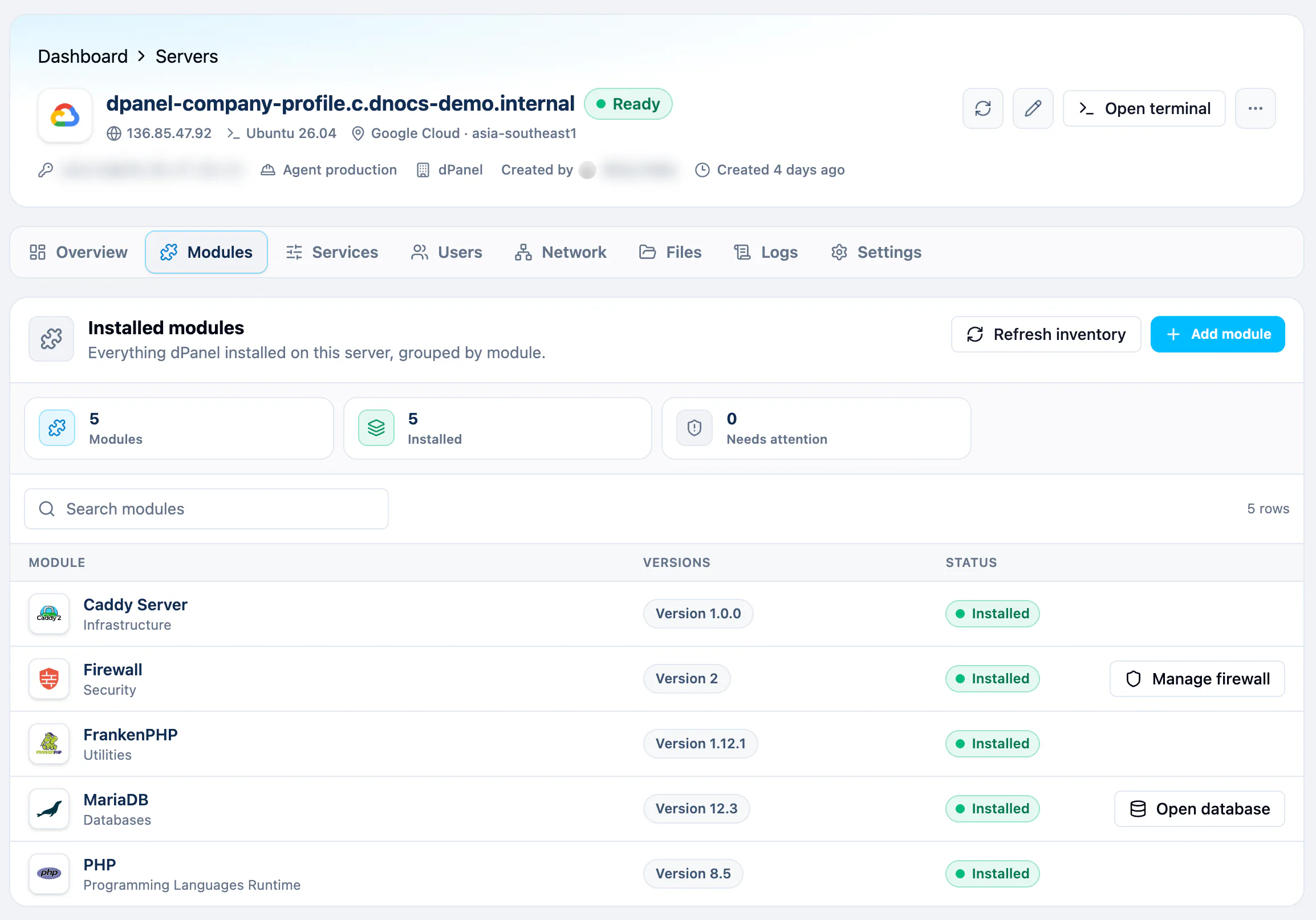
Everything dPanel installed, one row per module, with its versions and status: Installed, Installing, Failed, or Mixed. Add module opens the catalogue. Refresh inventory asks the agent again and drops modules it no longer reports. The counts include top-level modules only; databases you create on MariaDB or PostgreSQL live inside that module's Manage view.
Some rows have a shortcut: Open database on MariaDB and PostgreSQL opens DB Manager, a database tool in your browser, already pointed at this server; Manage firewall on the Firewall module opens the Firewall view. See Install software.
Services
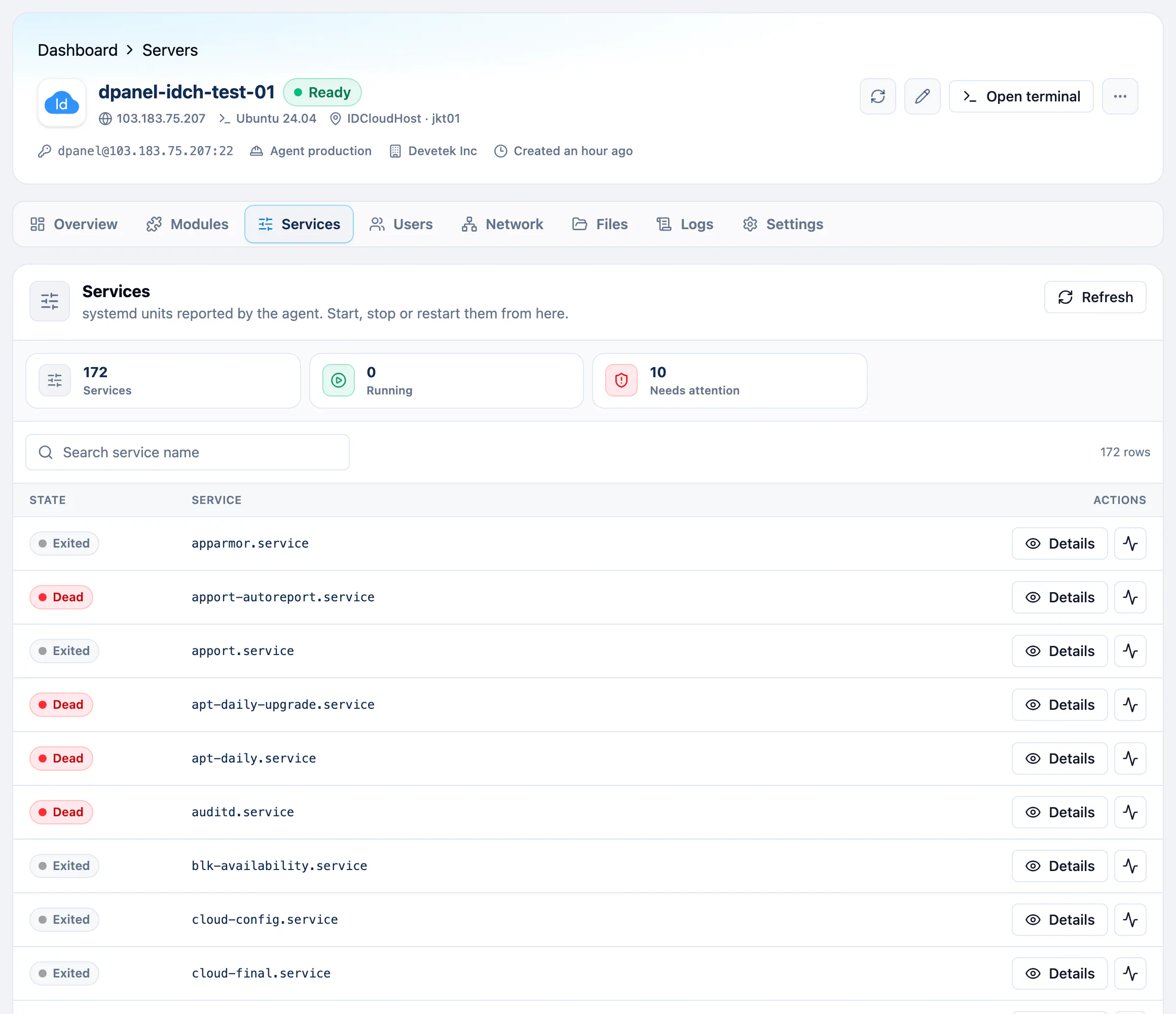
Every systemd unit the agent can see. A service is a program Linux keeps running in the background, such as a database or a web server. Use the row's actions to start, stop, restart or reload one.
Most servers have well over a hundred units, and many sit in Dead or Exited on purpose. A Needs attention count on a fresh machine is normal.
Users
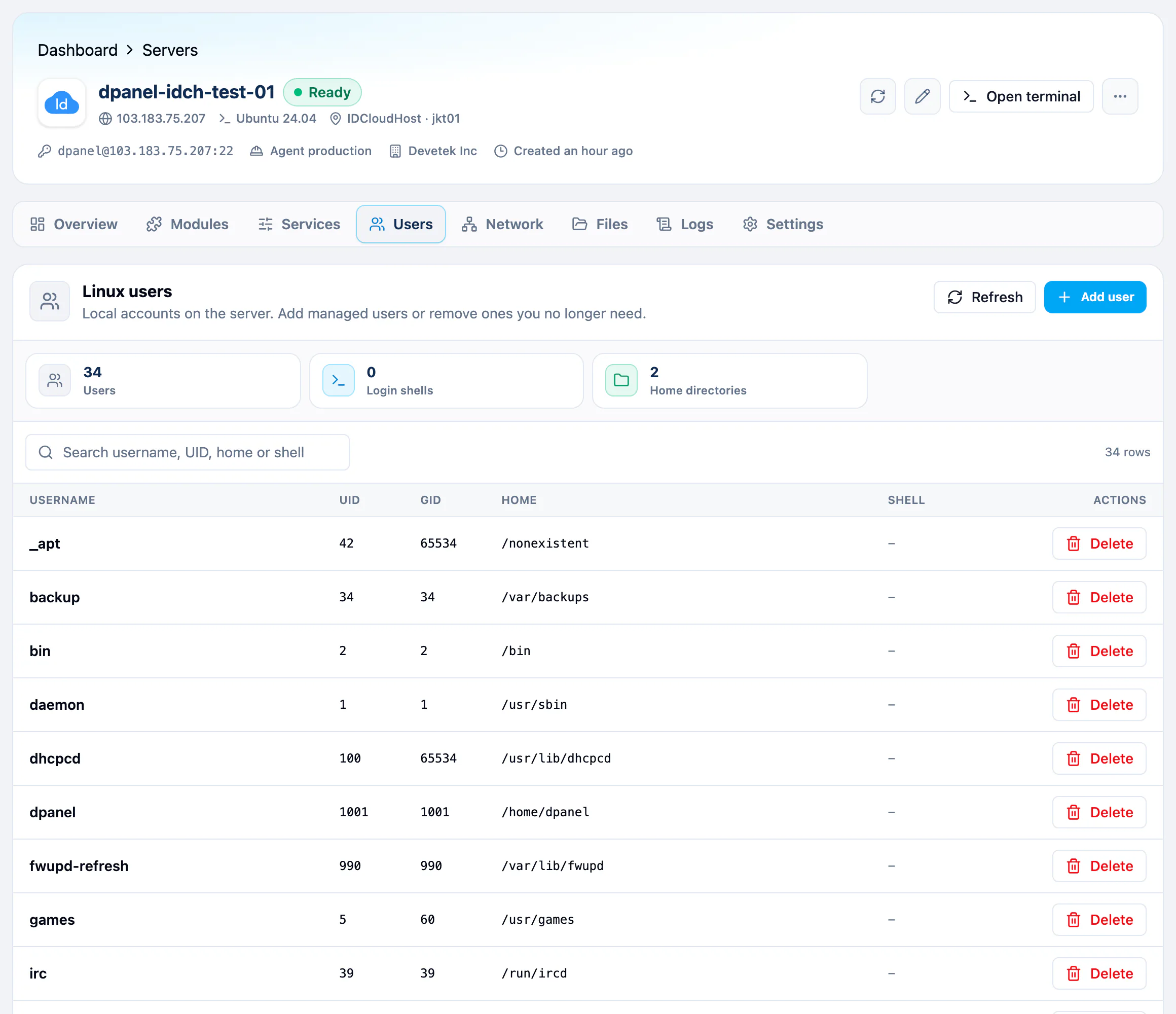
The Linux accounts on the machine, with their UID, home directory and login shell. Add user creates a managed account. Most entries on a fresh server belong to the system, so leave them alone.
Network
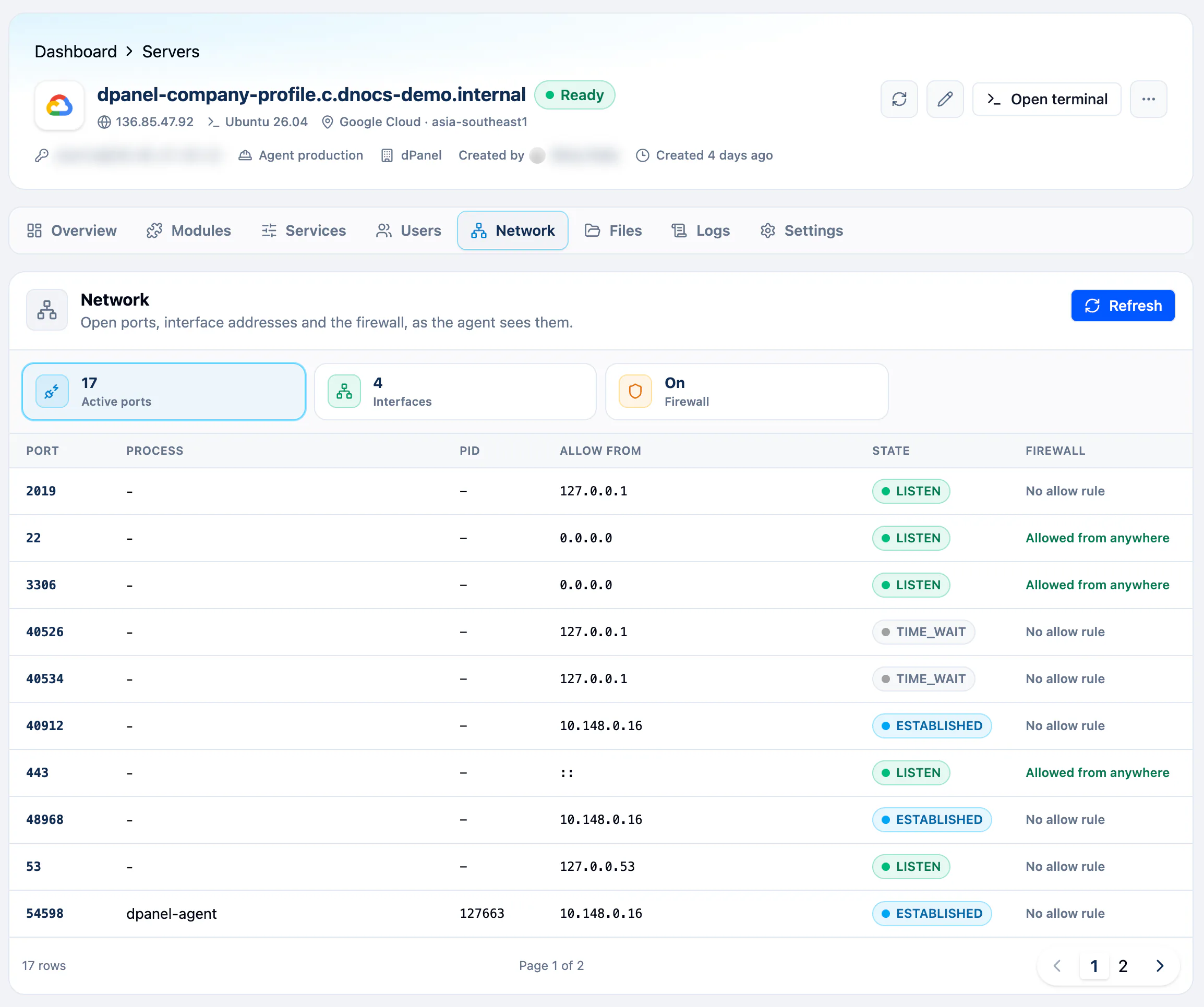
Three tiles switch the view:
- Active ports: which ports are open, which process holds each one, where connections come from (Allow from), their state, and a Firewall column that says whether a firewall rule lets the outside reach each port. An application listening on its port shows up here as LISTEN. Check this view when something can't be reached.
- Interfaces: the server's network cards and their IPv4 and IPv6 addresses.
- Firewall: whether the firewall is On or Off, its rules, and Review and apply. See Firewall.
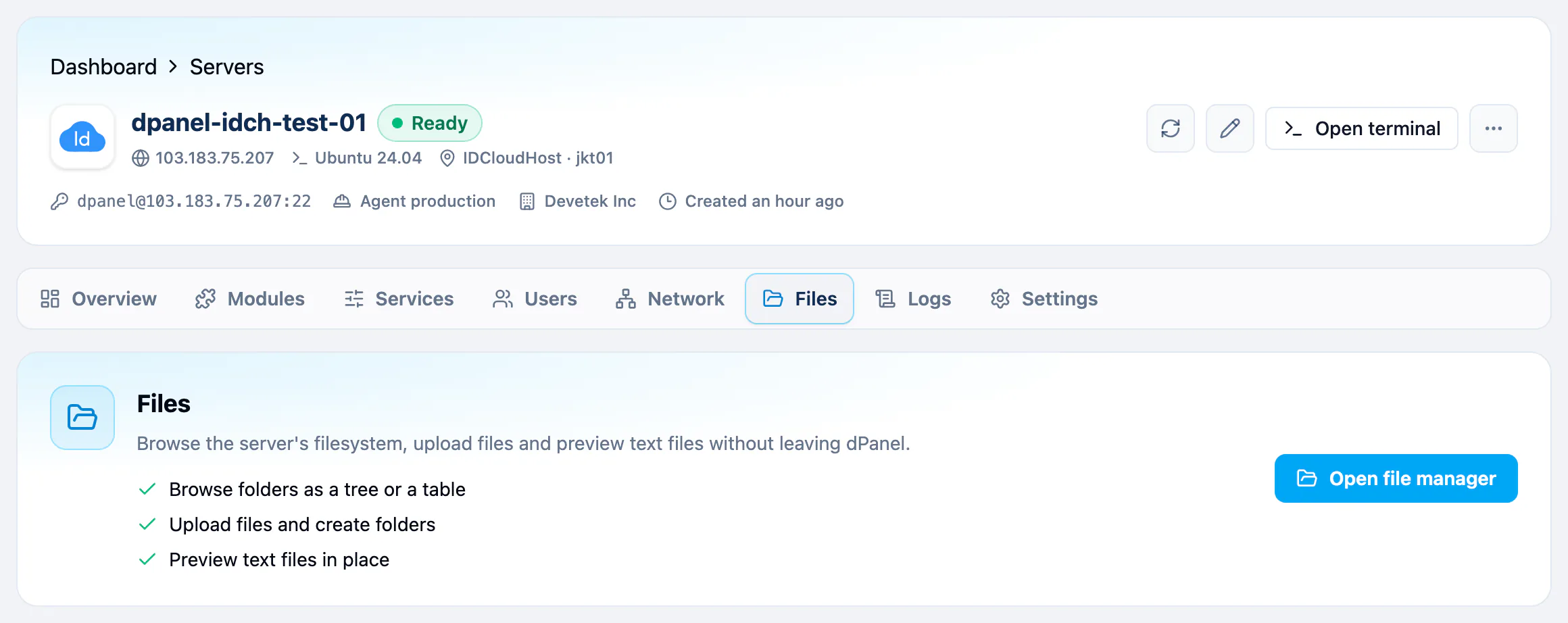
Files
Open file manager lets you browse folders as a tree or a table, upload files, create folders and preview text files.
Logs
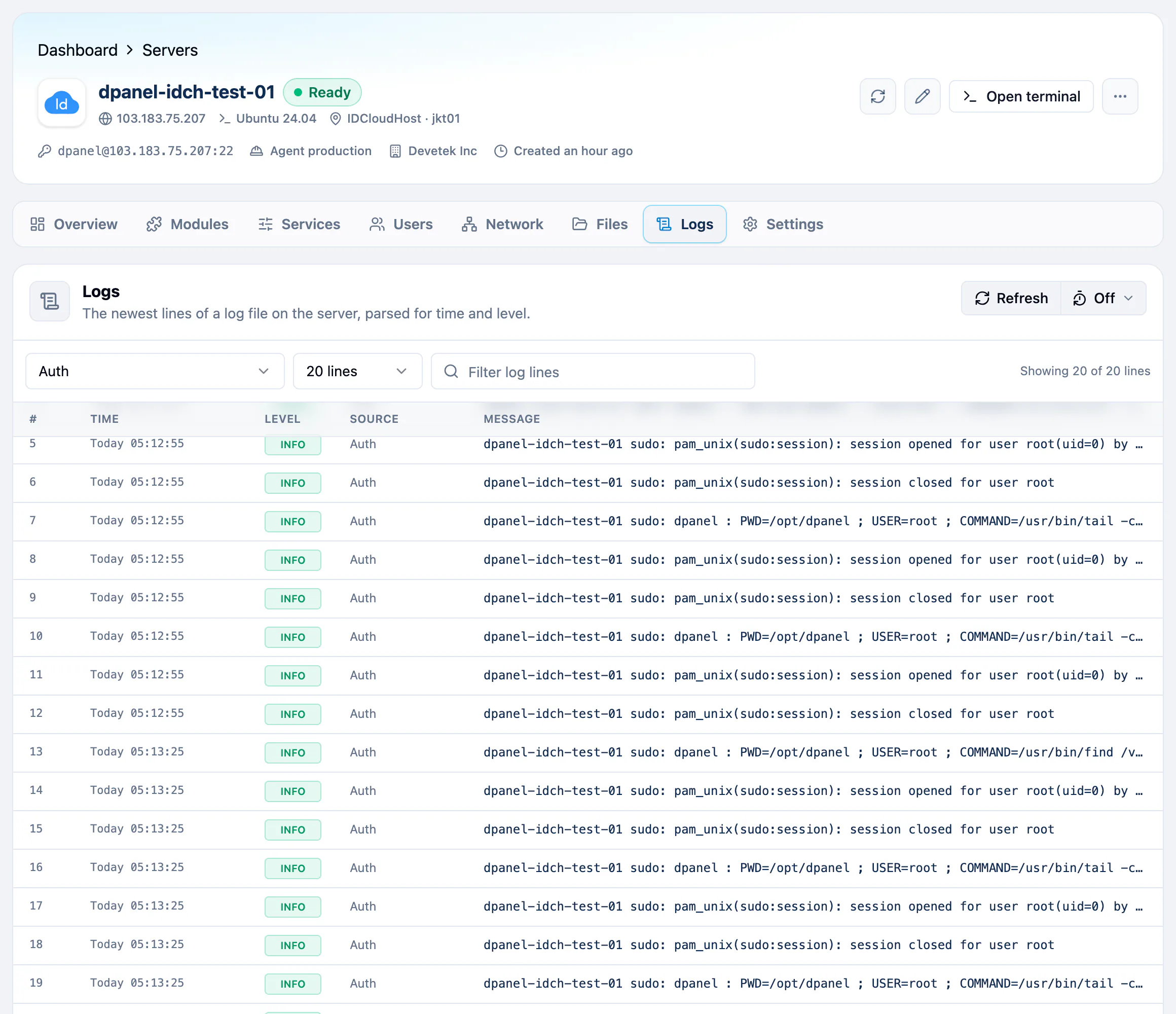
The newest lines of one log file, parsed into time, level, source and message.
- Pick a file in the log source picker. Auth is first.
- Pick how many lines to read: 20, 50, 100, 200 or 500.
- Type in Filter log lines to narrow them.
- Select a line to open the Log entry panel, with the full message and Copy raw line.
Refresh reads the file again. The menu beside it turns on Auto-refresh: off by default, or every 30 seconds, minute or 5 minutes.
Settings
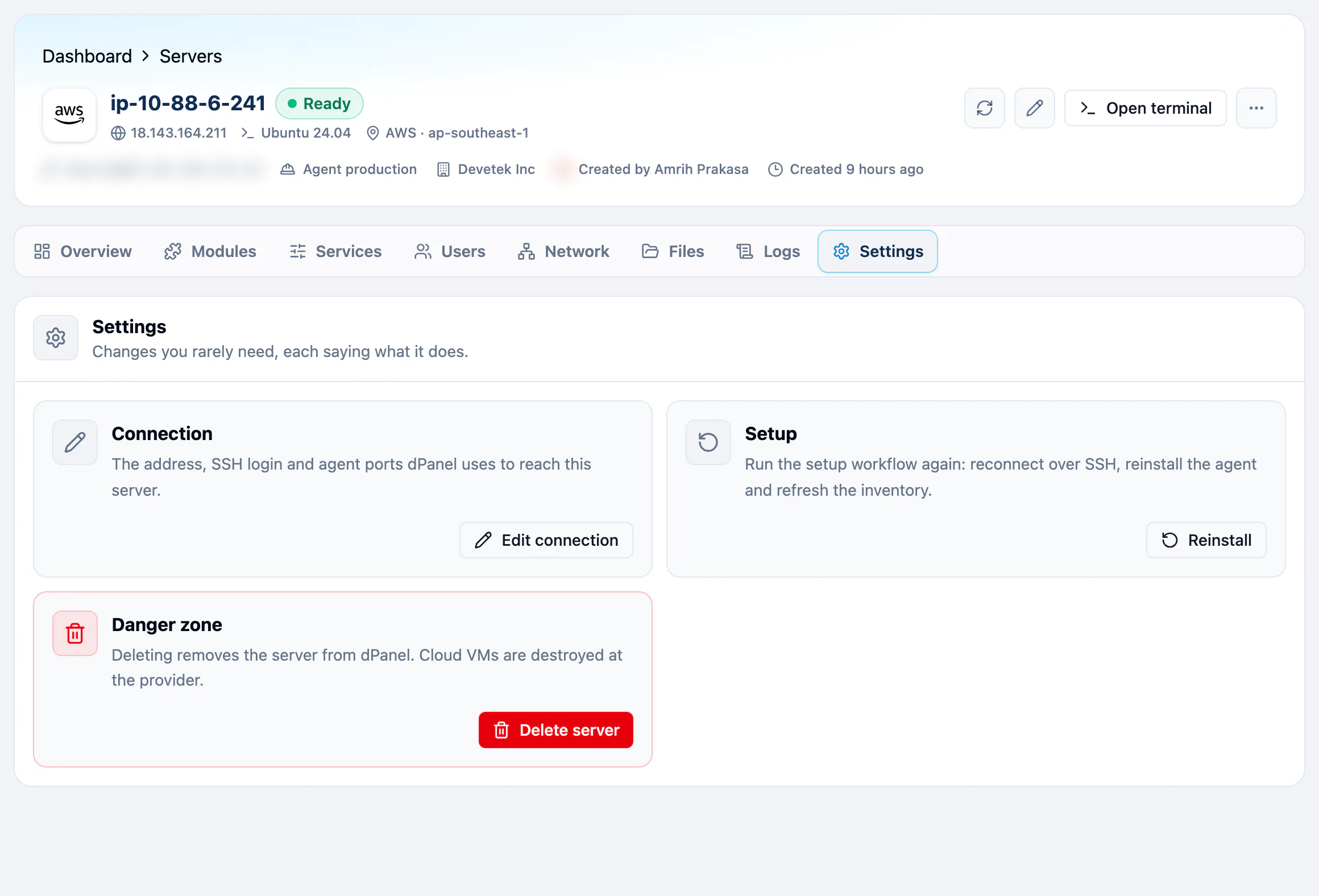
The changes you rarely need, each saying what it does.
| Card | Button | What it does |
|---|---|---|
| Connection | Edit connection | Changes the address, SSH login and agent ports dPanel uses. |
| Setup | Reinstall | Runs server setup again: reconnects over SSH, reinstalls the agent and refreshes the inventory. Installed modules and your data stay. |
| Danger zone | Delete server | Removes the server. See Delete a server. |
Setup is hidden while a server is being set up or deleted, and on a deleted server, because there is nothing to reinstall then. A server stays in the workspace it was created in; it cannot be moved to another one.
From the terminal, dnocs server setup --id 140 does the same as Reinstall. Add --force to run it even while the server still reads in progress, for example when a setup hung. See AI in the terminal to install dnocs.
Frequently asked questions
How do I find a server quickly?
Type in the search box on Servers. The search ignores letter case, so WEB finds web-01.
Why does the header show a person's name?
Created by names the person who added the server, so a team can see who to ask. Select the name to open their public profile.
What does Reinstall change on my server?
It reconnects over SSH, reinstalls the dPanel agent and refreshes the inventory. Installed modules, applications and data stay as they are.
Where do I open a database that runs on this server?
On the Modules tab, press Open database on the MariaDB or PostgreSQL row. See Install software.
Why does a port I opened not work from outside?
Check the Firewall column on Network → Active ports. No allow rule means the firewall blocks it; add a rule in Firewall. Also check that the program listens on 0.0.0.0 rather than 127.0.0.1.