A load balancer in dPanel publishes your application on a domain with HTTPS. It takes the traffic arriving at the domain, gets and renews a free Let's Encrypt SSL certificate, and forwards each request to an application or to a port on a server. With a domain managed in dPanel, it also creates the DNS record for you.
dPanel builds the load balancer on one of your own servers, the gateway, and runs a web server engine (Caddy) there. Nothing runs outside your servers.
What you need first
- A ready server to act as the gateway, with ports 80 and 443 reachable from the internet. Servers dPanel launches have them open. See Servers.
- A domain. Either add the zone to dPanel under Domain & DNS so dPanel can create the record (Domains and DNS), or use a hostname you manage yourself.
- Something to send traffic to: a dPanel application, or a service listening on a port.
Create a load balancer
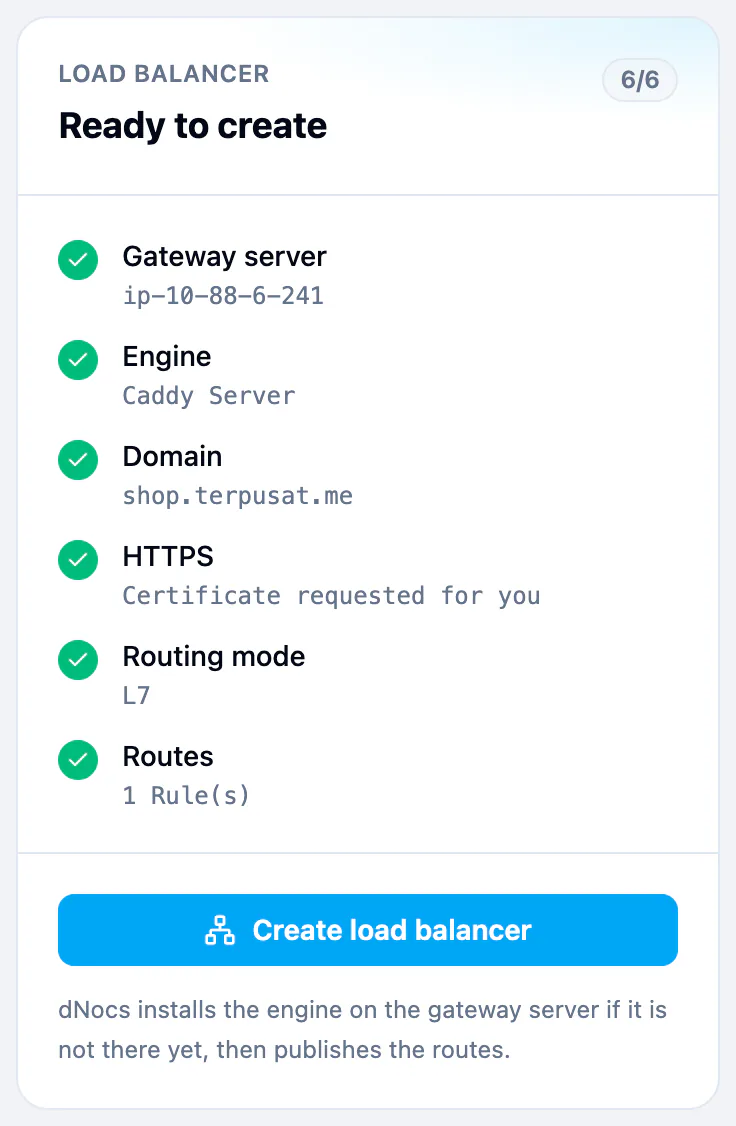
Open Load Balancers in the sidebar and press Create a load balancer. The form has three numbered steps. The Load balancer review panel on the right reads Start with a gateway server until you pick one, then counts what is still missing.
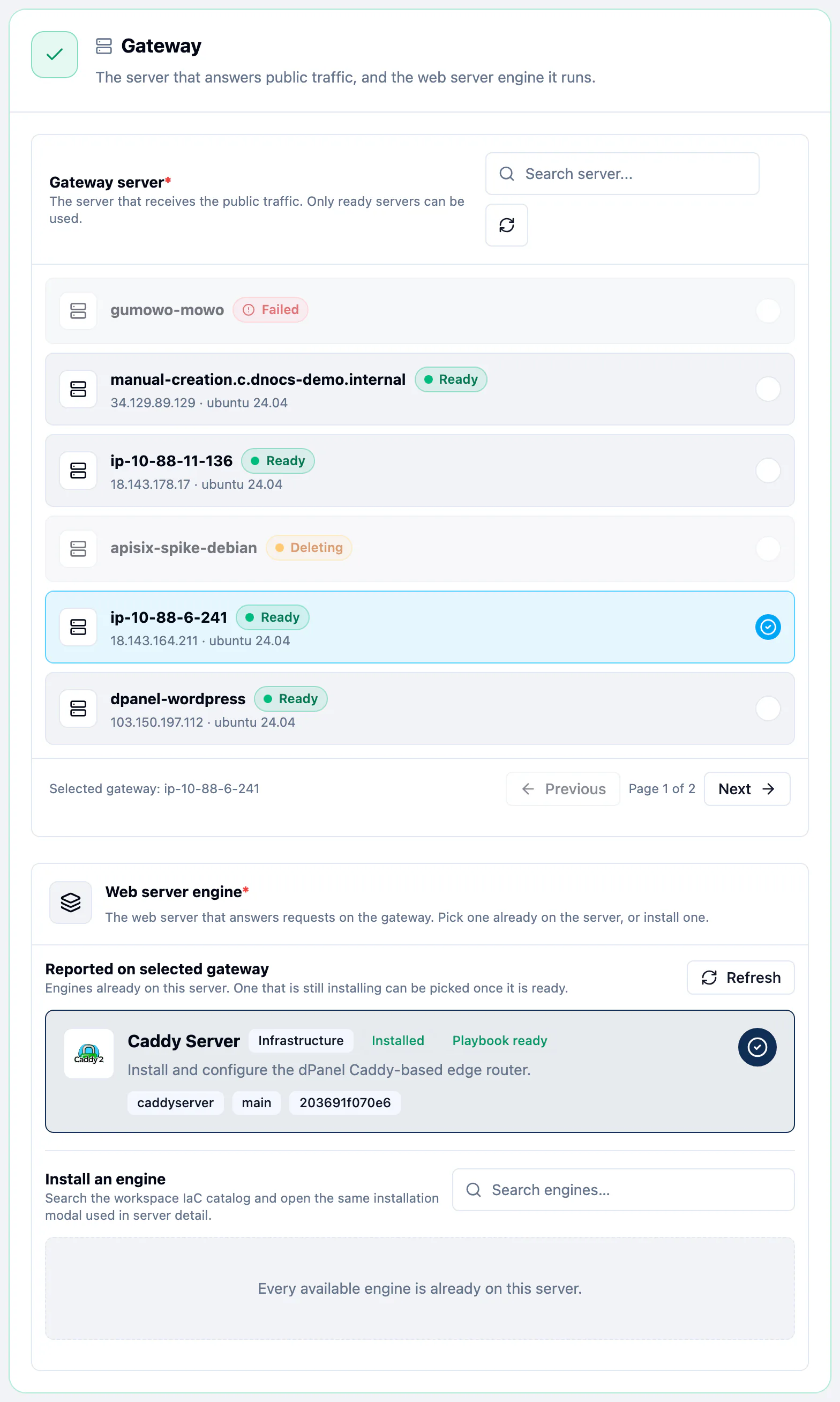
Step 1: Gateway
- Under Gateway server, pick the server that will answer public traffic. Each row shows the server's name, status, address and operating system. Only ready servers can be picked; any other row says Only ready servers can run a load balancer.
- Under Web server engine, pick Caddy Server. If it is already on the server, it is listed under Reported on selected gateway as Installed. If not, find it under Install an engine and press Install.
Step 2: Domain and HTTPS
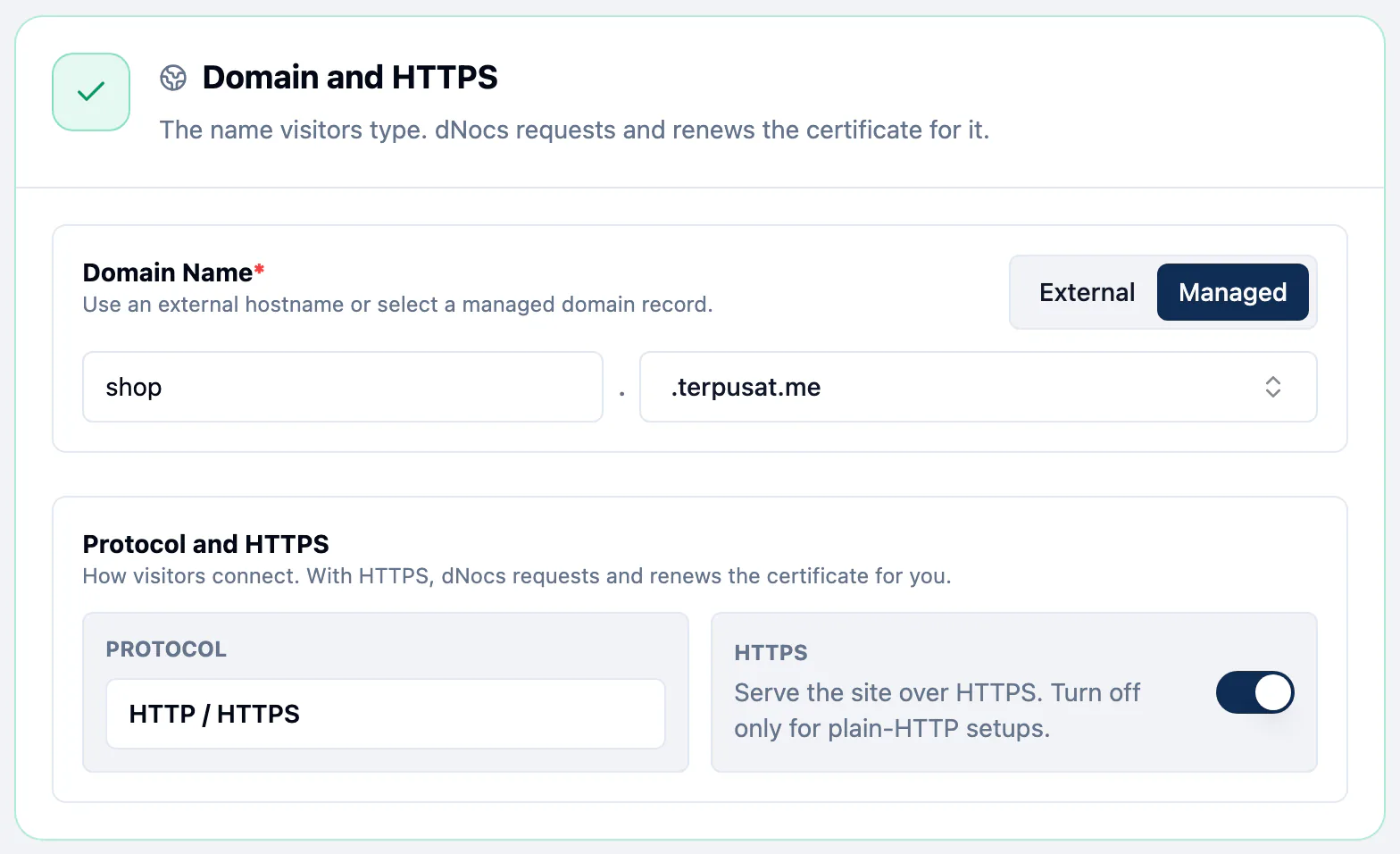
- Under Domain Name, pick the mode:
- Managed: type a Subdomain, then Select domain from your domains in Domain & DNS. dPanel creates the DNS record for you.
- External: type a hostname you manage yourself, and point its DNS at the gateway's public address.
- Under Protocol and HTTPS, the protocol is HTTP / HTTPS for websites and APIs.
- Leave HTTPS on. dPanel requests the certificate and renews it for you. Turn it off only for a plain-HTTP setup.
Step 3: Routing
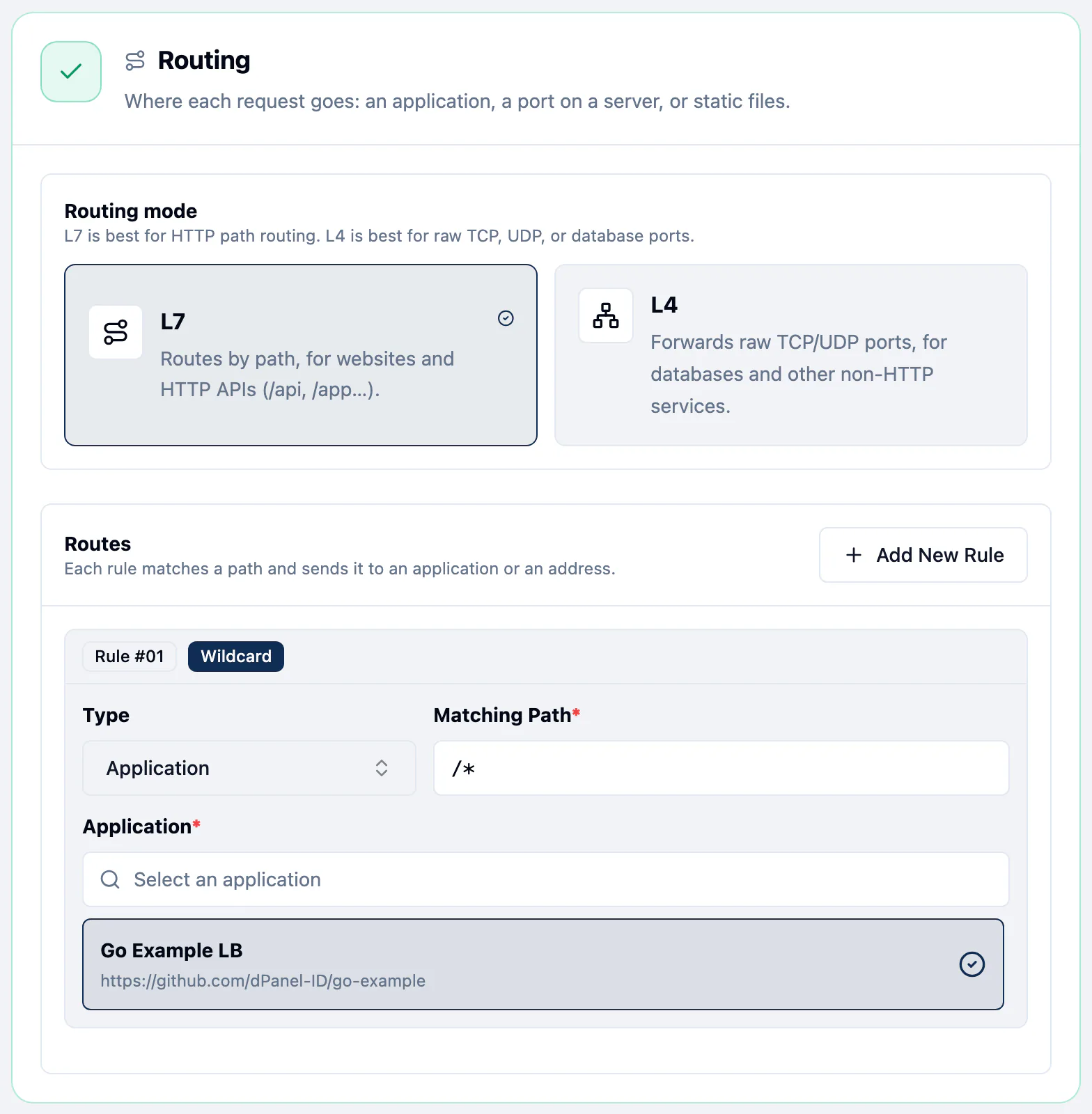
- Under Routing mode, pick L7 for websites and HTTP APIs. It routes by path, such as
/api. L4 forwards raw TCP or UDP ports, for databases and other non-HTTP services, without looking at paths. - Under Routes, set up the first Rule:
- Type: Application sends traffic to a dPanel application. Proxy Pass sends it to an address and port.
- Matching Path:
/*takes every request. A path ending in/*shows a Wildcard badge. - Application: pick the application. dPanel uses the application's server and port.
- Press Add New Rule to send other paths elsewhere, such as
/api/*.
Create it
When the review panel reads Ready to create, every answer is in: gateway server, engine, domain, HTTPS, routing mode and routes. Press Create load balancer.
What happens next
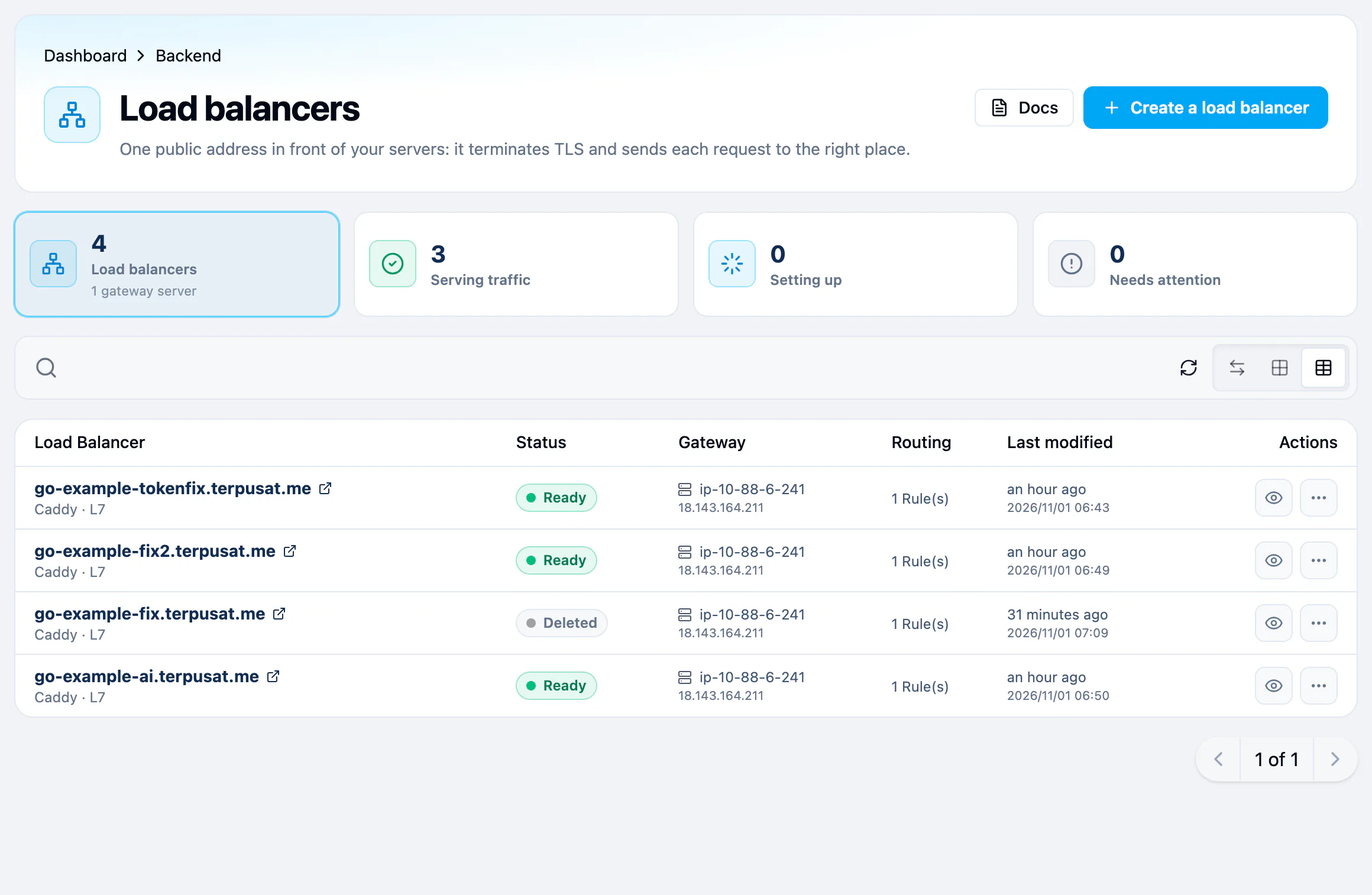
You land on the list with Load balancer created successfully. The row reads In Progress while dPanel:
- Creates the DNS record. For a managed domain this is an
Arecord from the host to the gateway's public address. - Installs Caddy on the gateway if it is not there yet.
- Publishes the routes and requests the HTTPS certificate.
This usually takes about a minute. The first load balancer on a server also installs Caddy, which takes about 10 minutes. The row then reads Ready, and the counters at the top move it to Serving traffic.
Check that it is live
Open the host in a browser, or check it from a terminal:
curl -sI https://app.example.com
A live load balancer answers like this:
HTTP/2 200
alt-svc: h3=":443"; ma=2592000
content-type: text/html; charset=utf-8
server: dPanel
What a healthy one shows:
| Check | What you should see |
|---|---|
| DNS | The host resolves to the gateway server's public address |
| Plain HTTP | 308 Permanent Redirect to the https:// address |
| HTTPS | HTTP/2 200, served by your application, with server: dPanel |
| Certificate | Issued by Let's Encrypt for your host, valid for 90 days, renewed for you |
| Protocols | HTTP/2, plus HTTP/3 (QUIC) advertised in alt-svc |
The detail page
Select a load balancer in the list to open its page. The header shows the domain, the status, when it was last updated and Open site, then four facts: Status, Routes (with the routing mode), Gateway server and Engine.
| Tab | Use it to |
|---|---|
| Graph | Follow a request from the domain to the load balancer, the gateway, the routes and the targets |
| Upstreams | See every backend in order, with its match path, destination and port. Add backend adds one |
| Logs | Read the requests the gateway handled |
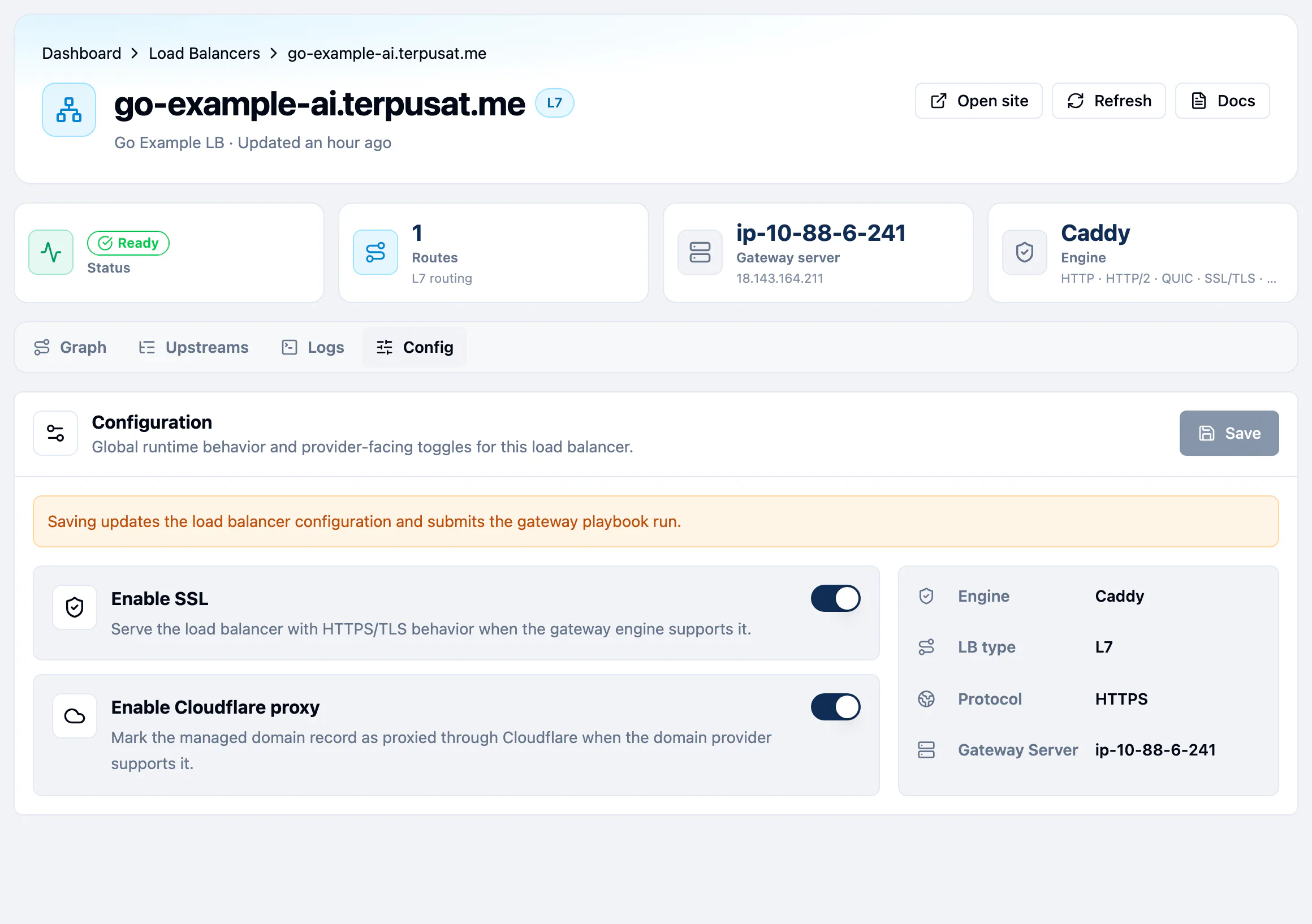
| Config | Turn Enable SSL or Enable Cloudflare proxy on or off |
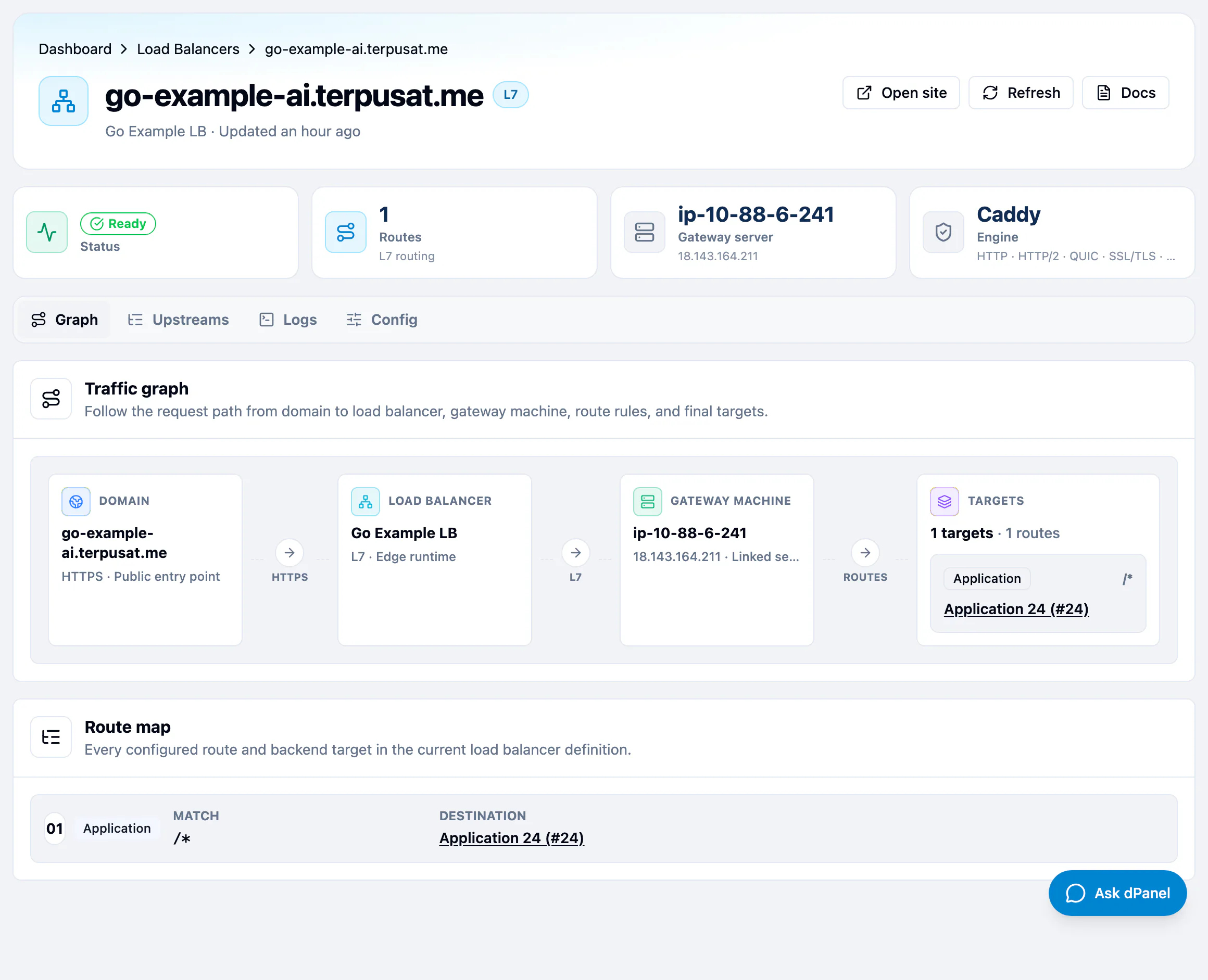
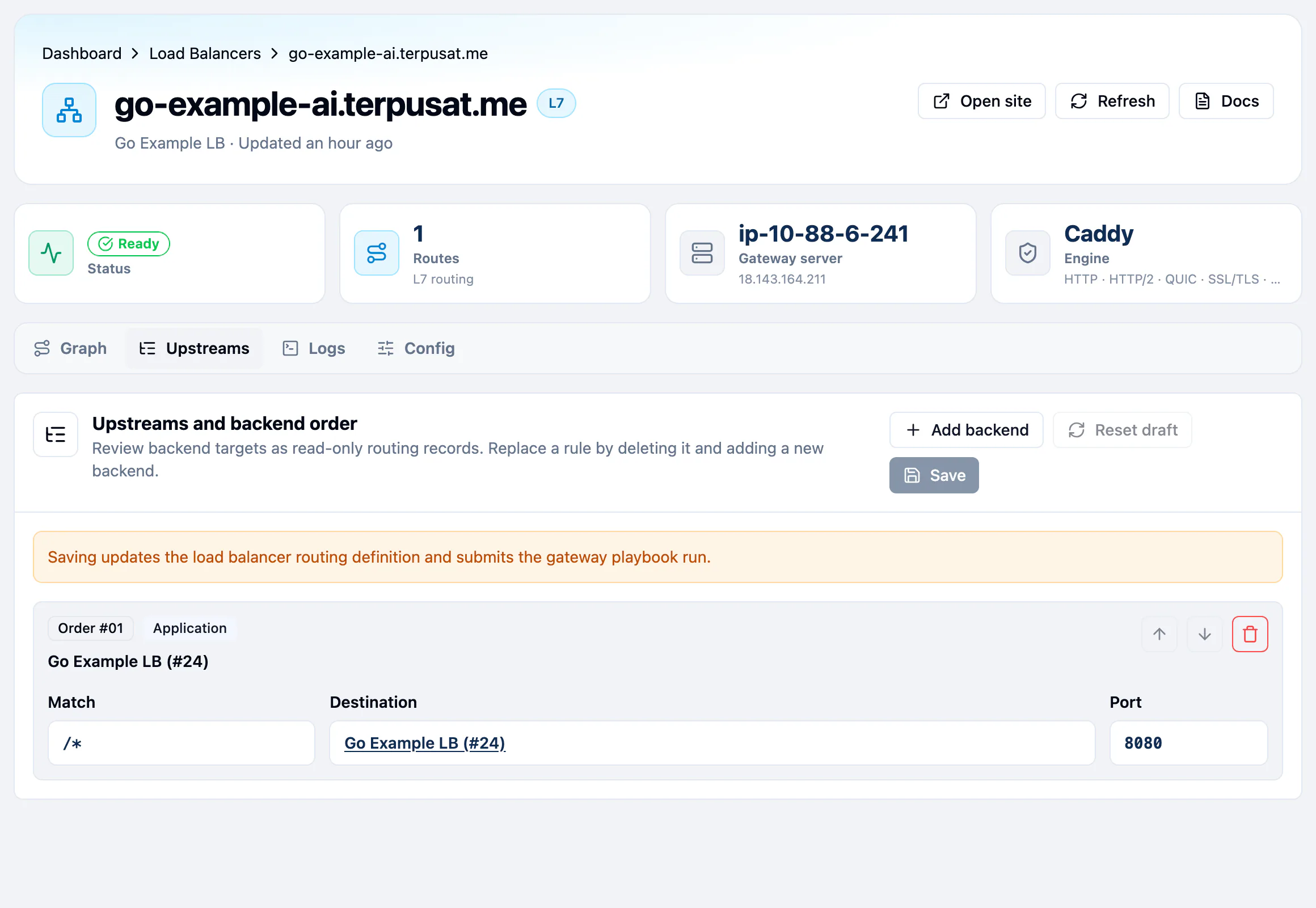
Changes on Upstreams and Config are drafts until you press Save changes. Saving updates the routing definition and runs the gateway setup again. Reset draft throws the draft away.
Load balancer logs
The Logs tab lists the requests reaching the gateway, titled Load balancer requests. The same requests appear on the application's Logs tab under the Load balancer source. See Application logs.
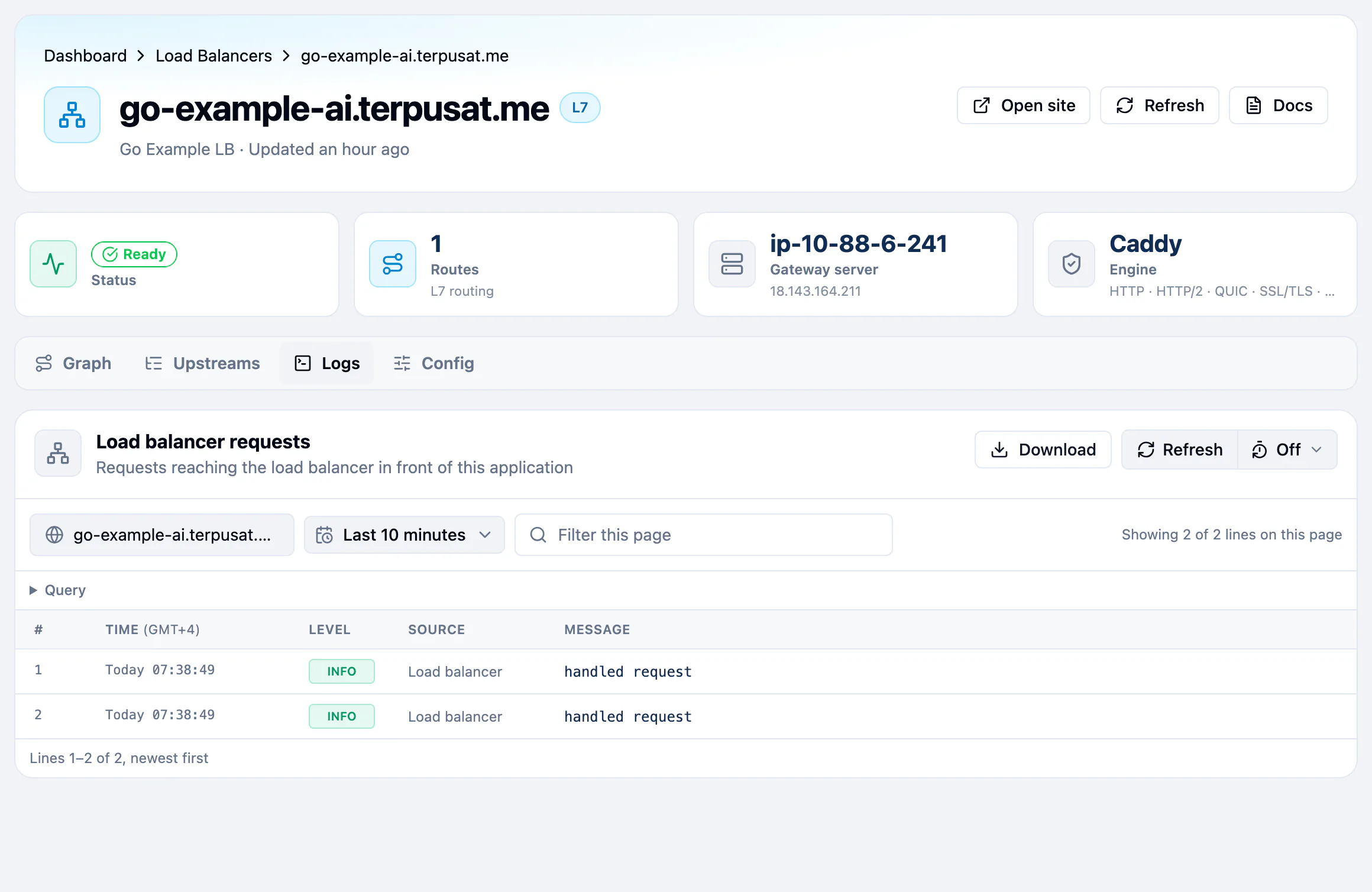
- Time range: the last 10 minutes by default. Pick a preset up to Last 10 days, or a Custom range within the last 10 days.
- Paging: 200 lines per page, newest first. The footer reads, for example, Lines 1–200 of 201, newest first, with the page buttons.
- Download: This page, or Everything in this time range, as a
.logfile. - Refresh loads the newest lines. Auto-refresh is off by default; turn it on for every 30 seconds, minute or 5 minutes.
The shared controls are explained in Time range and refresh and Download logs.
Delete a load balancer
- In the list, open the More (⋯) menu on the load balancer's row and choose Delete.
- Confirm Delete Load Balancer.
dPanel removes the routes from the gateway, and the row reads Deleted. Your application and the gateway server keep running. A load balancer stays in the workspace it was created in; it cannot be moved to another one.
Frequently asked questions
Is the SSL certificate free?
Yes. dPanel gets a Let's Encrypt certificate for your host and renews it before it expires, at no cost. It is valid for 90 days at a time.
Do I need Cloudflare?
No. dPanel can create the DNS record at Cloudflare or DigitalOcean, or you can point any hostname at the gateway yourself with External. Enable Cloudflare proxy on the Config tab is only for domains hosted at Cloudflare.
Can one load balancer serve several applications?
Yes. Add one route per path, such as /* for the website and /api/* for the API, each sending traffic to a different application or address.
Which web server does dPanel use?
Caddy. dPanel installs it on the gateway server the first time, and the response header reads server: dPanel.
Why can't I pick my server as the gateway?
Only servers that are ready can run a load balancer. A server still being set up, or one whose setup failed, is shown but cannot be picked.