In dPanel, each member of a team has one or more roles, and a role decides what that person can see, create, change and delete in the team's workspace: from Viewer, who can only look, to Owner, who can do everything.
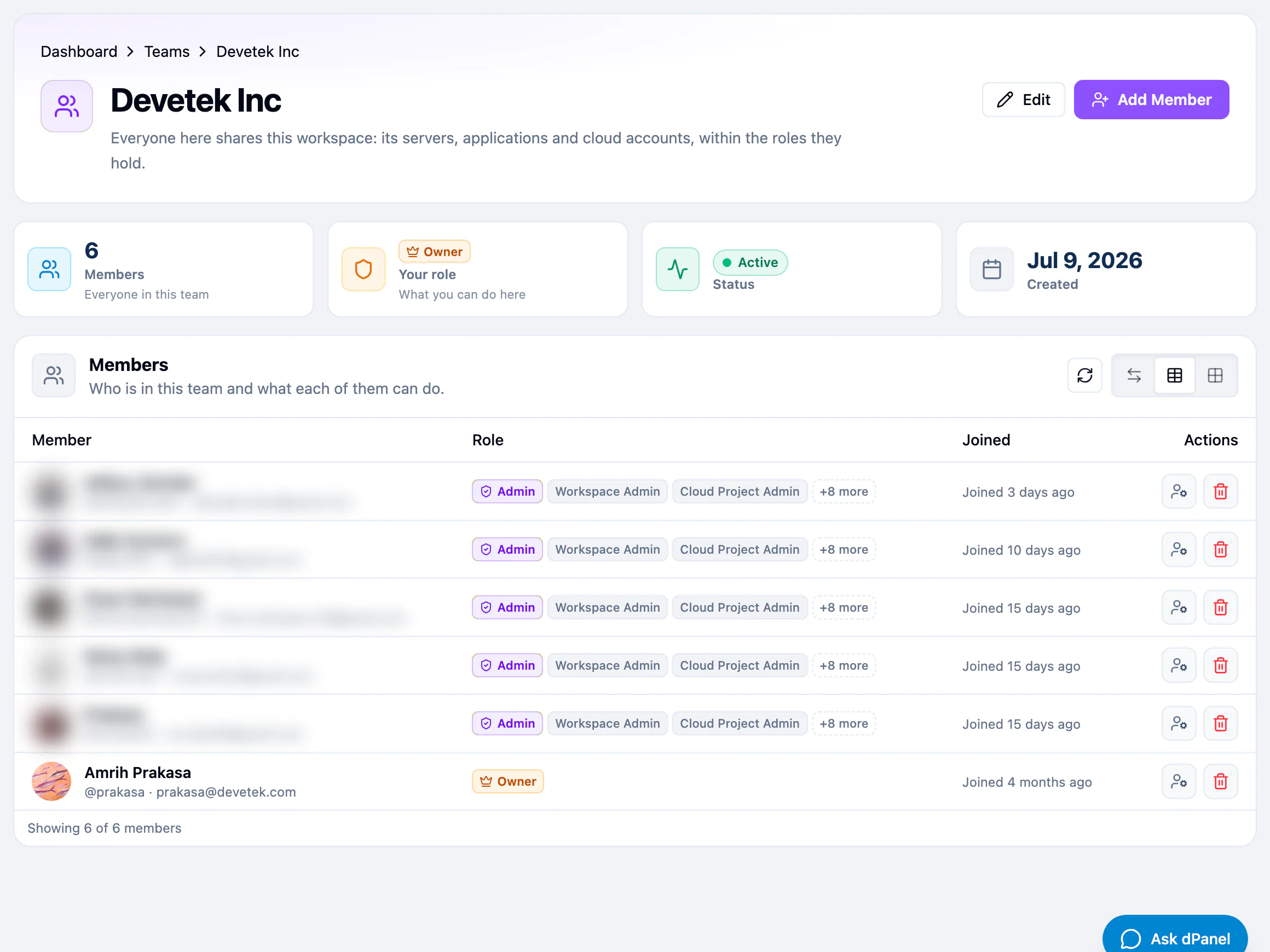
Add a member
The person needs a dPanel account first. Ask them to sign up, then:
- Open Teams and open the team.
- Press Add Member.
- In Add New People, open Select a user… and search by username or name. Upper and lower case do not matter.
- Under Workspace roles, choose what they should get. See the table below. Owner and Admin are Protected: only a workspace owner can give them.
- Press Add member.
They see the team in their workspace switcher straight away.
The roles
Every role uses the same three levels on every kind of resource:
| Level | Read | Create | Update | Delete |
|---|---|---|---|---|
| Viewer | Yes | No | No | No |
| Editor | Yes | Yes | Yes | No |
| Admin | Yes | Yes | Yes | Yes |
Preset roles apply across the whole workspace.
| Role | Can do |
|---|---|
| Owner | Everything, including members, roles, billing, destructive operations and ownership transfer |
| Admin | Create, read, update and delete every resource, and manage members |
| DevOps | Editor on cloud projects, servers, databases, load balancers, secrets, domains and applications; reads everything else; cannot delete |
| Developer | Editor on applications, builds and deployments; reads everything else; cannot delete |
| Viewer | Read-only access to every resource and its status |
| Billing | Billing, packages and subscriptions |
For finer control, each kind of resource also has its own Viewer, Editor and Admin role: Workspace, Cloud Project, Server, Application, Database, Domain, Load Balancer, Billing and Secret. For example, Application Editor can create and deploy applications but cannot delete them.
Change a member's roles
- Open the team.
- On the member's row, press Manage roles.
- Tick the roles they should have. Select group ticks a whole group; Clear unticks everything.
- Press Save roles.
Saving replaces the member's role set. A member holds one preset role, so ticking Admin replaces Developer or DevOps.
Owner and Admin are marked Protected. Only a workspace owner can tick them, or change or remove a member who holds one. For everyone else they are shown but disabled.
Remove a member
- Open the team.
- On the member's row, press Remove from team.
- Confirm Remove Member.
They lose access to the team's workspace immediately. Resources they created stay with the team.
Check your own roles
Your Profile lists every workspace with your role in it. View active workspace roles shows the full role list for the workspace you are in.
Resources stay in their workspace
Servers, applications, load balancers, domains, cloud accounts and SSH keys stay in the workspace they were created in, so create shared resources in the team workspace from the start. The one exception: a resource in your personal workspace can be moved into a team once, with dnocs transfer. See Teams and Workspaces.
See who did what
Across dPanel, people are shown by name with their avatar: who ran a build, who owns a server or a domain, who did each action in the dashboard's activity. Select a name to open their public profile.
Frequently asked questions
Which role should a developer get?
Developer. It can create applications, build and deploy them, and read everything else, but cannot delete anything.
Who can give someone the Owner or Admin role?
Only a workspace owner. Owner and Admin are marked Protected; for everyone else they are shown but disabled.
Does a new member need a dPanel account?
Yes. Ask them to sign up first, then find them by username or name in Add New People.
What happens to resources when I remove a member?
They stay with the team. The member loses access to the team's workspace immediately.