This tutorial takes you from an empty dPanel account to a Laravel application answering on your own domain with HTTPS. You launch an Ubuntu server, install PostgreSQL, PHP, FrankenPHP and Node.js on it, create a database, deploy the dPanel-ID/laravel-example repository, and put a load balancer in front of it.
Laravel differs from WordPress in two ways that matter here:
- It needs two runtimes. The build runs Composer with PHP, then
npmto build the front end with Vite. The application declares both PHP and Node.js, and dPanel puts only declared runtimes on the build's path. - The build talks to the database. It runs the migrations, so the database variables are needed while building as well as while running.
It takes about 45 minutes, most of it waiting for the server and the installs. Every step happens in the dPanel web app; you never need SSH.
What you need first
- A dPanel account, signed in, in the workspace you want to use. See Sign in.
- GitHub connected, with access to the repository you deploy. To follow along exactly, fork dPanel-ID/laravel-example into your own account. See Connect GitHub.
- An SSH key and a cloud account in dPanel, or a server of your own. See Before you start.
- A domain in Domain & DNS, so dPanel can create the DNS record for you. See Domains and DNS.
Step 1: Launch a server
- Open Servers, press Create Server, then Launch a server.
- Pick your Provider, Cloud project and SSH key, then a Region near your users.
- Set Server name, for example
laravel-1, keep Ubuntu release 24.04 LTS, and move the sliders to at least 2 vCPU and 4 GB RAM. 30 GB of storage is enough. - When the Review panel says Ready to launch, press Launch server.
Wait until the server's status is Ready, usually 10 to 20 minutes. See Create a cloud server, or connect your own server instead.
You should see: the server listed under Servers with the status Ready.
Step 2: Install PostgreSQL, PHP, FrankenPHP and Node.js
- Open the server and go to Modules. Press Add module.
- Press Install on PostgreSQL. Note the administrator user and set its password, or keep the one suggested, and copy it somewhere safe. Press Install role and confirm.
- When PostgreSQL shows Installed, install PHP with PHP Version
8.5. - Then install FrankenPHP, which serves the application through Laravel Octane.
- Then install Node.js. Note the version it installs, for example
26.13.0: the application declares the same version in step 4.
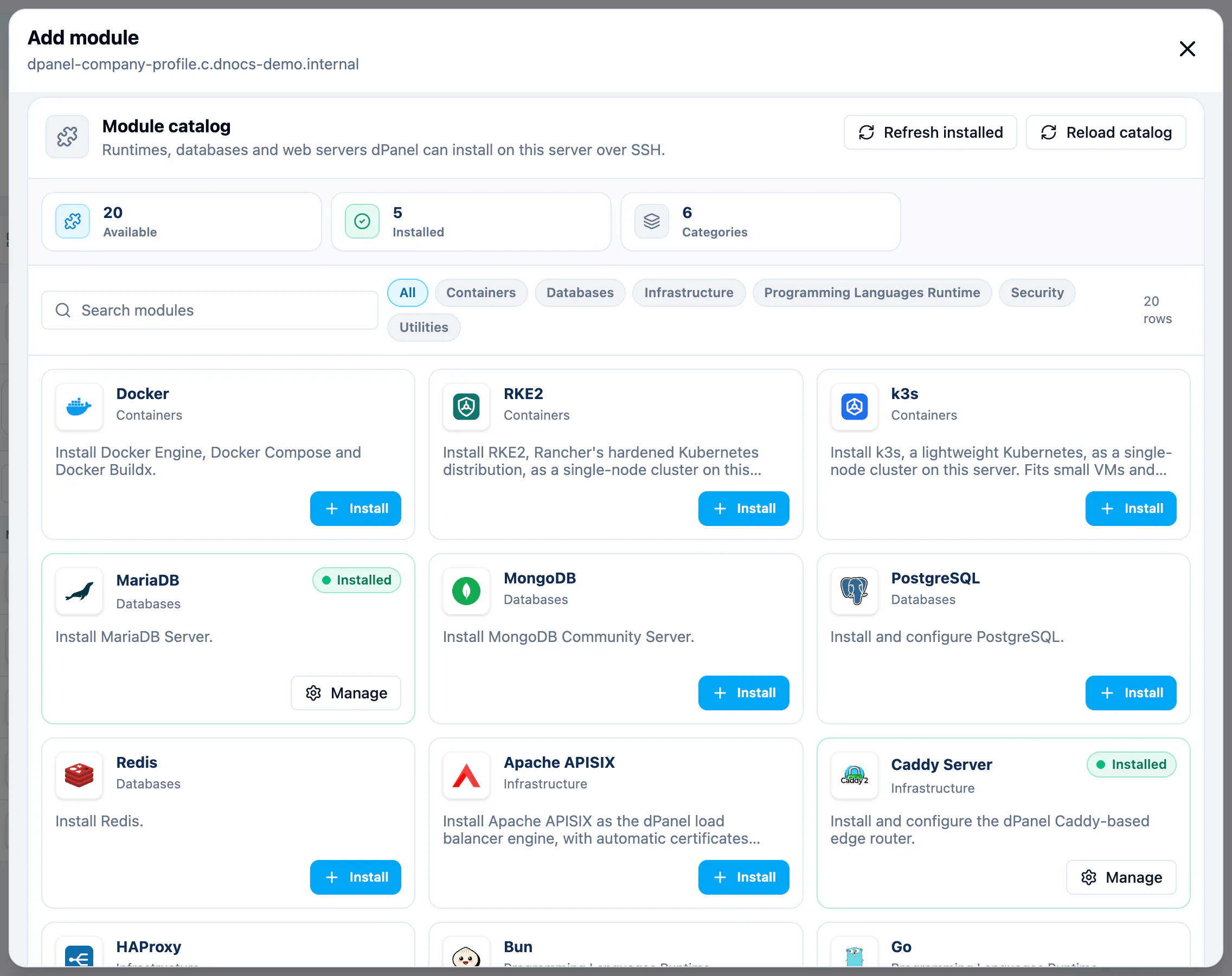
Install one module at a time and let each finish. See Install software.
You should see: PostgreSQL, PHP, FrankenPHP and Node.js on the Modules tab, each marked Installed.
Step 3: Create the Laravel database
- On Modules, press Add module, then Manage on PostgreSQL.
- Under Databases, press Create database.
- Enter Database Name
laravel, Database Userlaravel, and a Database Password of at least 8 characters. Copy the password: you need it in step 4. PostgreSQL names use lowercase letters, digits and underscores. - Press Install role.
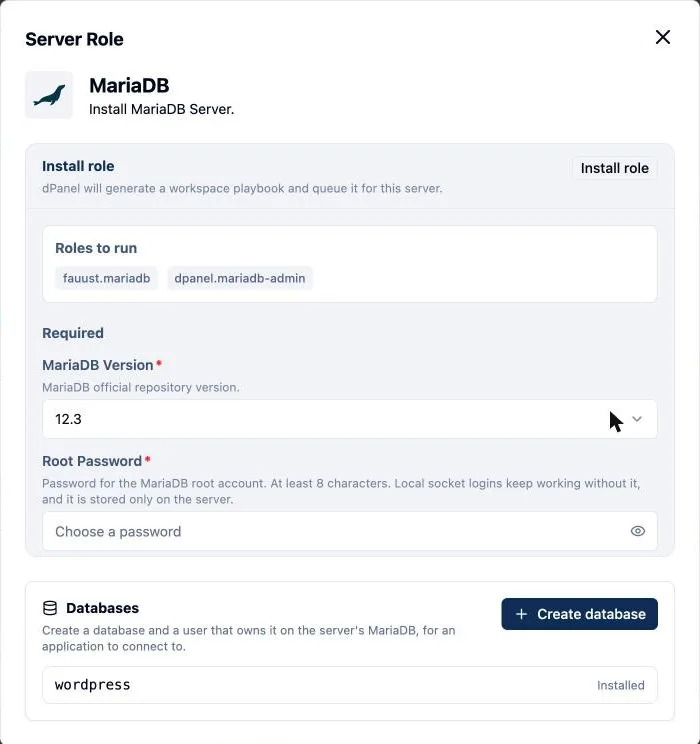
You should see: laravel listed under Databases, and the password saved somewhere safe.
Step 4: Create and deploy the application
Open Applications and press Create Application.
Repository: pick your GitHub account, search for
laravel-example, select it, keep the main branch, and press Continue.Server & modules: select your server. Under Installed on selected server, select PHP, FrankenPHP and Node.js so they are reused, not installed again. Press Continue.
App setup:
- Application name:
Laravel(letters, numbers and spaces only). - Required binaries: check that both PHP 8.5 and Node.js are selected. dPanel selects every language module you picked in step 2 and stores all of them on the application, which is what puts
npmon the build's path. FrankenPHP appears under Other dependencies. - Build steps:
./scripts/build.sh. It installs the Composer and npm packages, builds the front end, generates the application key and runs the migrations. - Runtime command:
./scripts/start.sh. It starts Laravel Octane on FrankenPHP, on the port dPanel gives it. - Application port: keep the free port dPanel suggests.
Environment: paste the database list into both Build-time variables and Runtime variables, with your password and your domain:
textAPP_ENV=production APP_DEBUG=false APP_URL=https://app.example.com DB_CONNECTION=pgsql DB_HOST=127.0.0.1 DB_PORT=5432 DB_DATABASE=laravel DB_USERNAME=laravel DB_PASSWORD=the-password-from-step-3Then add these to Runtime variables only:
textOCTANE_SERVER=frankenphp OCTANE_DISABLE_CADDY_ADMIN=true LOG_CHANNEL=stderrPreview: check the summary and press Deploy application.
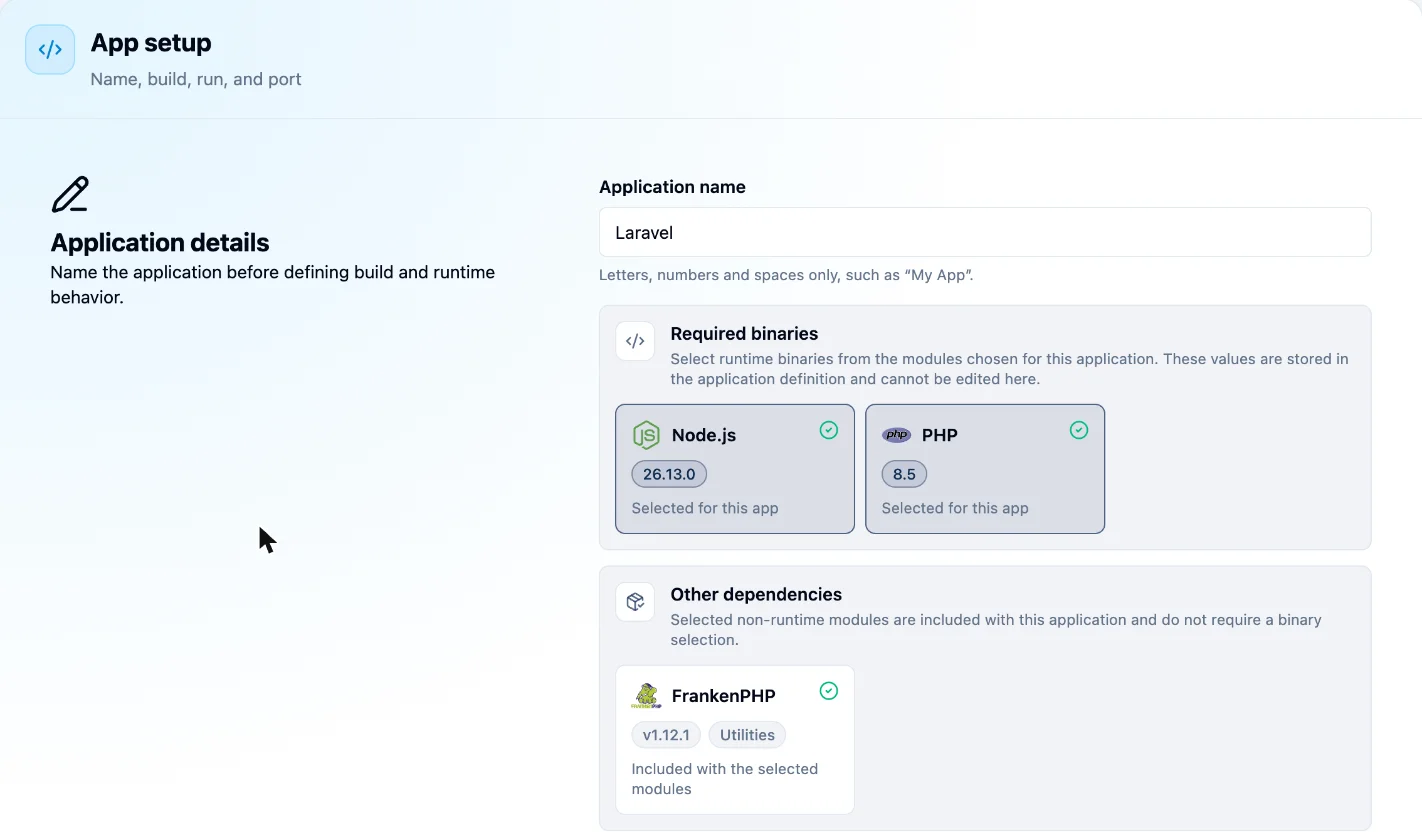
The first build takes 3 to 6 minutes. Open the application to follow it; it shows Running when the release is live. See Create an application and Environment variables.
You should see: the application marked Running. It is not on the internet yet: that is the next step.
Step 5: Publish it on your domain with HTTPS
- Open Load Balancers and press Create a load balancer. The form has four steps: Gateway, Domain, Routing and Review.
- Gateway: under Gateway server, select the same server. Under Web server engine, pick Caddy Server and press Install if it is not installed yet.
- Domain: under Domain Name, choose Managed, type the Subdomain (for example
app), and Select domain. - Routing: keep L7 under Routing mode, and HTTP / HTTPS with HTTPS on under Protocol and HTTPS. In the first rule, set Type to Application, Matching Path to
/*, and pick the Laravel application. - Review: when the review panel reads Ready to create, press Create load balancer.
After a minute or two, open https://app.example.com/: the Laravel welcome page appears. See Load balancers.
When something does not work
| What you see | What to check |
|---|---|
npm: command not found in the build log | Declare Node.js on the application, as in the warning above. |
The build fails at php artisan migrate | The DB_* variables must also be in Build-time variables, and match the database from step 3. |
| The application starts, then stops | Read its runtime log. See Application logs. |
| The domain does not answer | Wait a few minutes for DNS and the certificate, then check the load balancer's detail page and logs. A red Load balancer change failed banner has See why it failed. |
| Anything else | See Common problems and fixes. |
A variable change applies from the next release: deploy again after changing one.
Prefer to chat? Do the same with Ask dPanel
Ask dPanel can prepare every step for you to approve. Name both runtimes when you ask it to create the application, for example:
Create an application named Laravel from github.com/my-org/laravel-example on server laravel-1. Language PHP 8.5 with Node.js as an extra runtime, build command ./scripts/build.sh, start command ./scripts/start.sh.
It asks for DB_PASSWORD as a field on the approval card, so the password never goes into the chat. More ready-made requests are in the Prompt cookbook.
Clean up
Delete in this order: the load balancer, the application, then the server. See Load balancers, Update or delete an application and Delete a server.
Frequently asked questions
Why does the application need Node.js if Laravel is PHP?
The build runs npm to bundle the front end with Vite. dPanel puts only the runtimes declared on the application on the build's path, so Node.js must be declared next to PHP.
Why do the database variables go in both lists?
The build runs the migrations, so it needs the database while building. The running application needs it too. Build-time variables reach only the build; Runtime variables reach only the running service.
Can I use MariaDB instead of PostgreSQL?
Yes. Install MariaDB, create the database from its Manage page, and set DB_CONNECTION=mysql and DB_PORT=3306.