Before dPanel can launch or connect your first server, it needs an SSH key (a password-free key it signs in to the server with), and to launch a new VPS (a virtual server you rent) it also needs a cloud account. Both live under Backend in the sidebar, and both are reused for every server after that.
| You need | Where | Why |
|---|---|---|
| An SSH key | Secret Managers (opens SSH keys) | dPanel signs in to your servers with it |
| A cloud account | Cloud Projects | dPanel creates machines in your provider account |
You need a cloud account only to launch a new machine. To connect a server you already run, the SSH key is enough.
Create an SSH key
- In the sidebar, under Backend, open Secret Managers. It opens the SSH keys page.
- Press Create SSH key.
- Type a Key name you will recognise, such as
work-laptop, and pick the Key type. Keep the first one unless a server refuses it. - Press Generate SSH key. dPanel generates the key pair and keeps the private half encrypted.
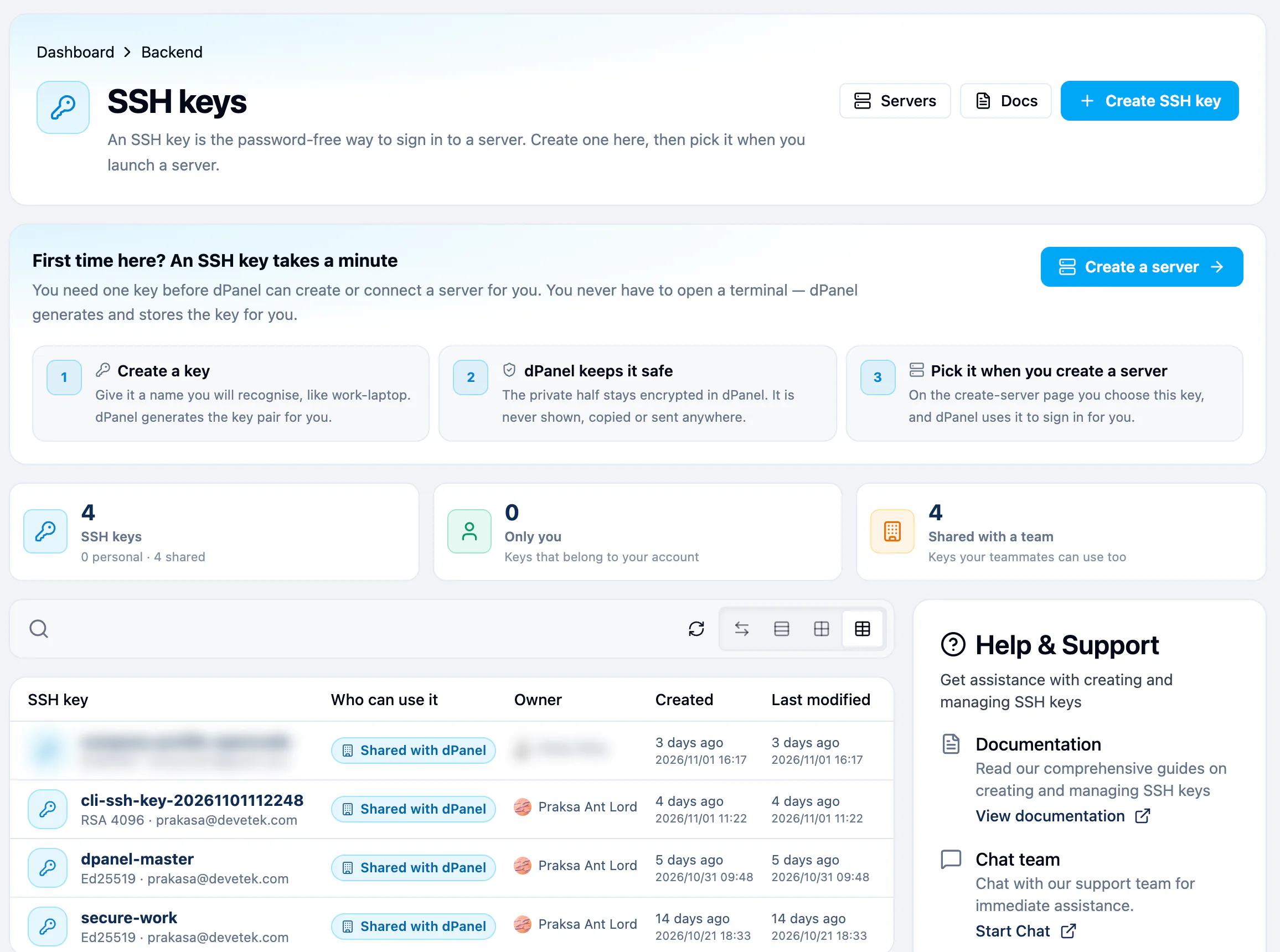
The private half is never shown, copied or sent anywhere. Open a key to see its public half and fingerprint. Create a server with this key takes you straight to the create-server page.
Connect a cloud account
The page is called Cloud accounts. In the sidebar it is Cloud Projects.
- In the sidebar, open Cloud Projects.
- Press Connect a cloud account.
- Pick your provider and paste the credential it gives you. Each provider's page shows how to create one with the least access: AWS, Google Cloud, IDCloudHost, DigitalOcean, Alibaba Cloud, Tencent Cloud.
- Save. dPanel stores the key encrypted and never shows it again. See Cloud credentials and security.
dPanel then reads which regions, sizes and images your account may launch, so the create-server form only offers real options.
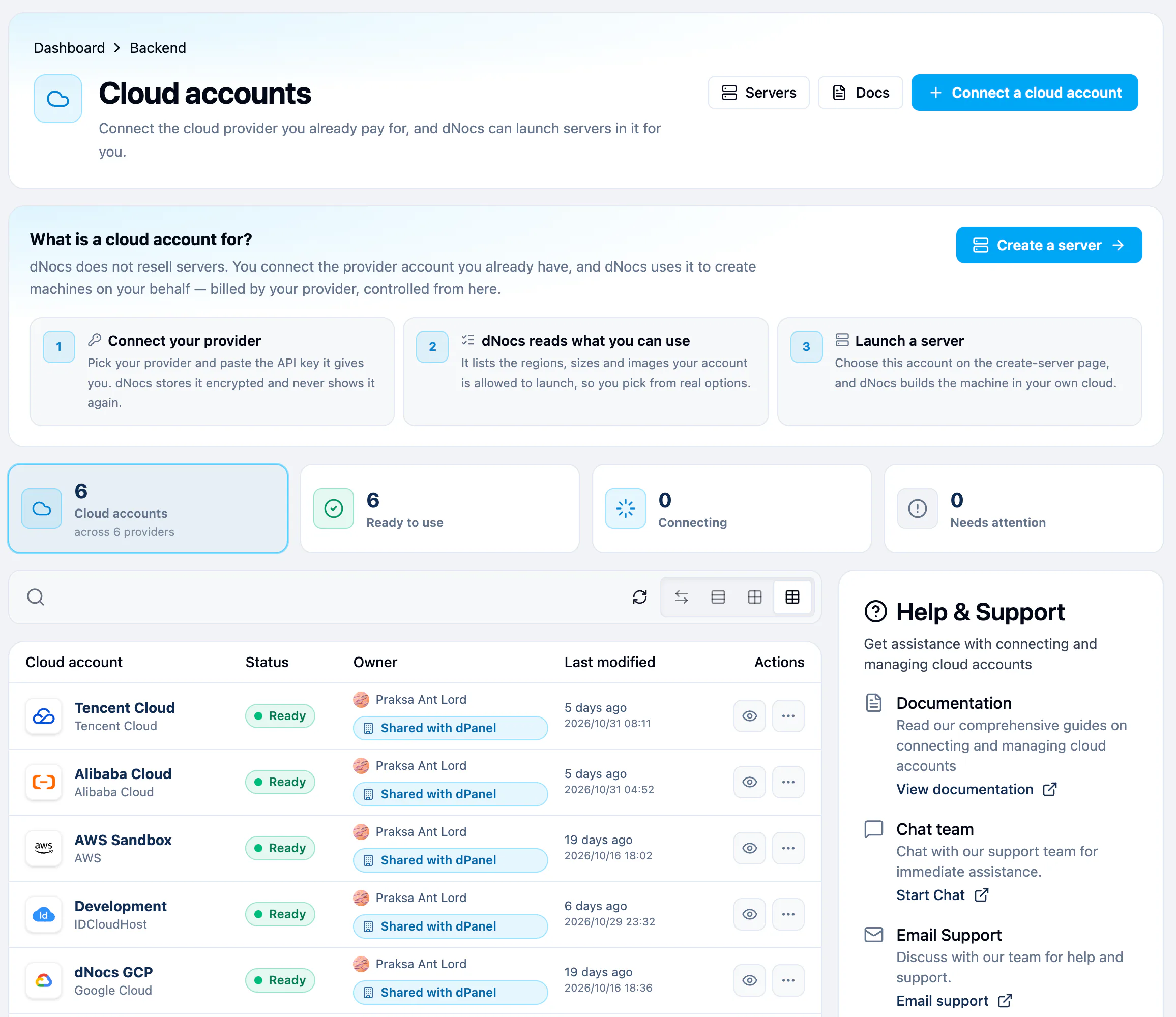
Status of a cloud account
| Status | Meaning |
|---|---|
| Ready | dPanel can launch servers with it |
| Waiting to connect / Connecting | dPanel is checking the credentials |
| Could not connect | The key was refused. Check it at the provider |
Sharing and removing
- A key or account created in a team workspace is shared with that team: Who can use it reads Shared with and the team's name. One created in your personal workspace is yours alone.
- The Owner column names the person who created it; their name links to their public profile.
- A key or account stays in the workspace it was created in. It cannot be moved to another workspace.
- Update credentials, in the More (⋯) menu on a cloud account's row, replaces the key inside the account, for example after you rotate it at the provider. Servers launched with it keep working. See Rotating a credential.
- Delete, in the same menu, disconnects the cloud account: dPanel forgets the API key after you confirm Disconnect cloud account. Servers already running at the provider keep running.
What happens next
Launch or connect your first server. Before you start explains key types and provider credentials in more detail, and Create a cloud server walks through the form.
You can also ask Ask dPanel to list your keys and cloud accounts and launch a server with them; see Prompt cookbook.
Frequently asked questions
Do I need a cloud account to use dPanel?
No. A cloud account is only for launching a new server from dPanel. To use a server you already rent, the SSH key is enough. See Connect your own server.
Can I download the private key?
No. The private half stays encrypted in dPanel and is never shown. To sign in yourself, add your own public key to the server. See Connect over SSH.
Is Secret Managers a place for passwords and API keys?
Not today. Secret Managers holds SSH keys only. Keep application passwords in the application's environment variables.
Which key type should I pick?
The first one, for current servers. Pick the other only if an older server refuses the key.