dPanel downloads application and load balancer logs as a plain .log file, either the page you are on or every line in the time range, up to 100,000 lines. Download a log when you need to search it with your own tools, or attach it to a support request.
Application and load balancer logs
- Set the time range you want. See Time range and refresh.
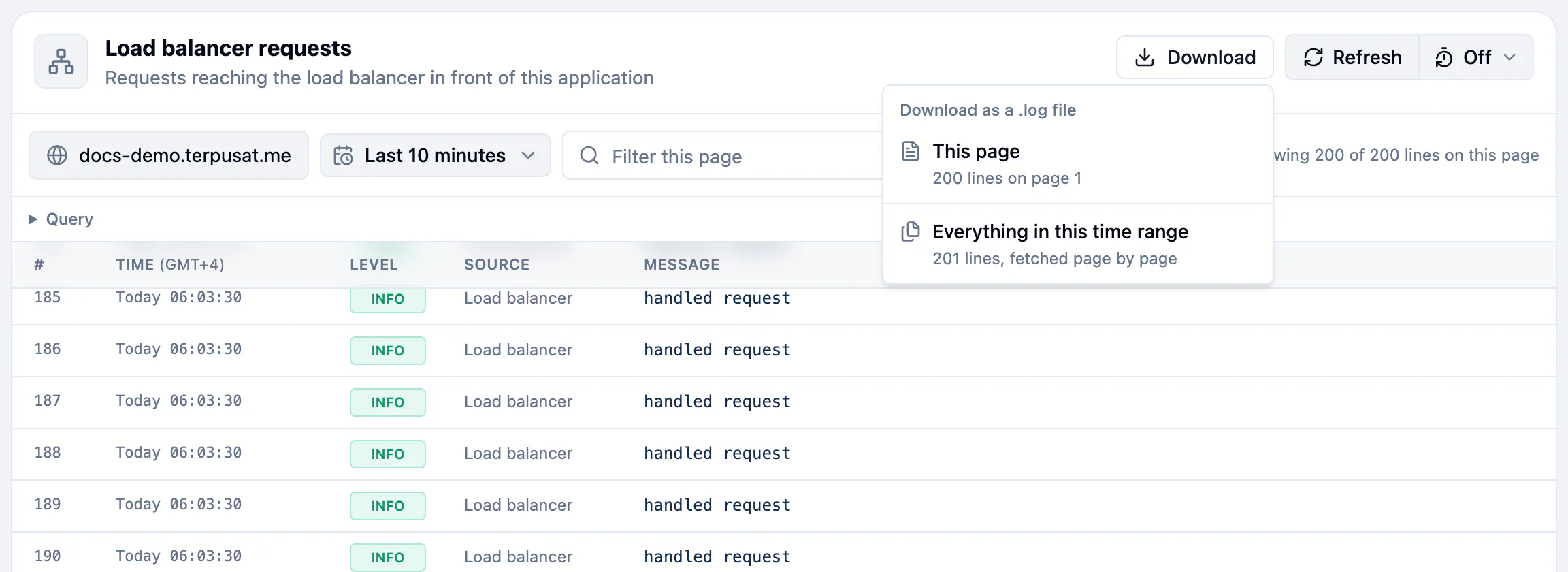
- Press Download. The menu reads Download as a .log file.
- Choose what to save:
- This page: the lines on the page you are on.
- Everything in this time range: every page, fetched one after another.
The file name says what is in it: the name of the log and the time window, such as db-manager_2026-11-05T01-00Z_to_2026-11-05T01-10Z.log, with _page-2 added for a single page. Lines are saved oldest first, as plain text you can open in any editor. Each line holds the time in UTC, the level, and the line exactly as it was written.
A long download shows its progress, such as Downloading 12,000 / 40,000 lines. Press Cancel download to stop it.
Build logs
In Artifact Logs, press Download. The file is named after the commit, such as build-04ccf00a1b2c.log, and holds the lines shown, up to the newest 500.
Before you share a log
A log can hold anything your code printed, including tokens or personal data. Read it before you send it anywhere.
Frequently asked questions
How many lines can I download?
Up to 100,000 lines at once with Everything in this time range. Narrow the time range, or download page by page, for more.
Can I download server logs?
Not as a file. Server logs show the newest 20 to 500 lines of one file. Select a line and use Copy raw line, or read it over SSH. See Connect over SSH.
What format is the file?
Plain text with a .log extension, one line per log entry, oldest first.