To deploy an app from GitHub with dPanel, you fill in a five-step form: the repository and branch, the server and runtime, the build and start commands, the environment, and a final preview. dPanel then clones, builds and starts your code as a systemd service on your server.
This walkthrough deploys dPanel-ID/go-example, a small Go web service. Any repository works the same way. Expect it to take 5 to 15 minutes, most of it the first build.
What you need first
- A server that is Ready in this workspace.
- GitHub connected. The GitHub button at the top of the page shows your login with a tick.
- The commands that build and start your code. For go-example they are
./scripts/build.shand./scripts/start.sh.
Open Applications and press Create Application. The form has five steps. The stepper at the top marks each one done, and the bar at the bottom says what is still missing before Continue unlocks.
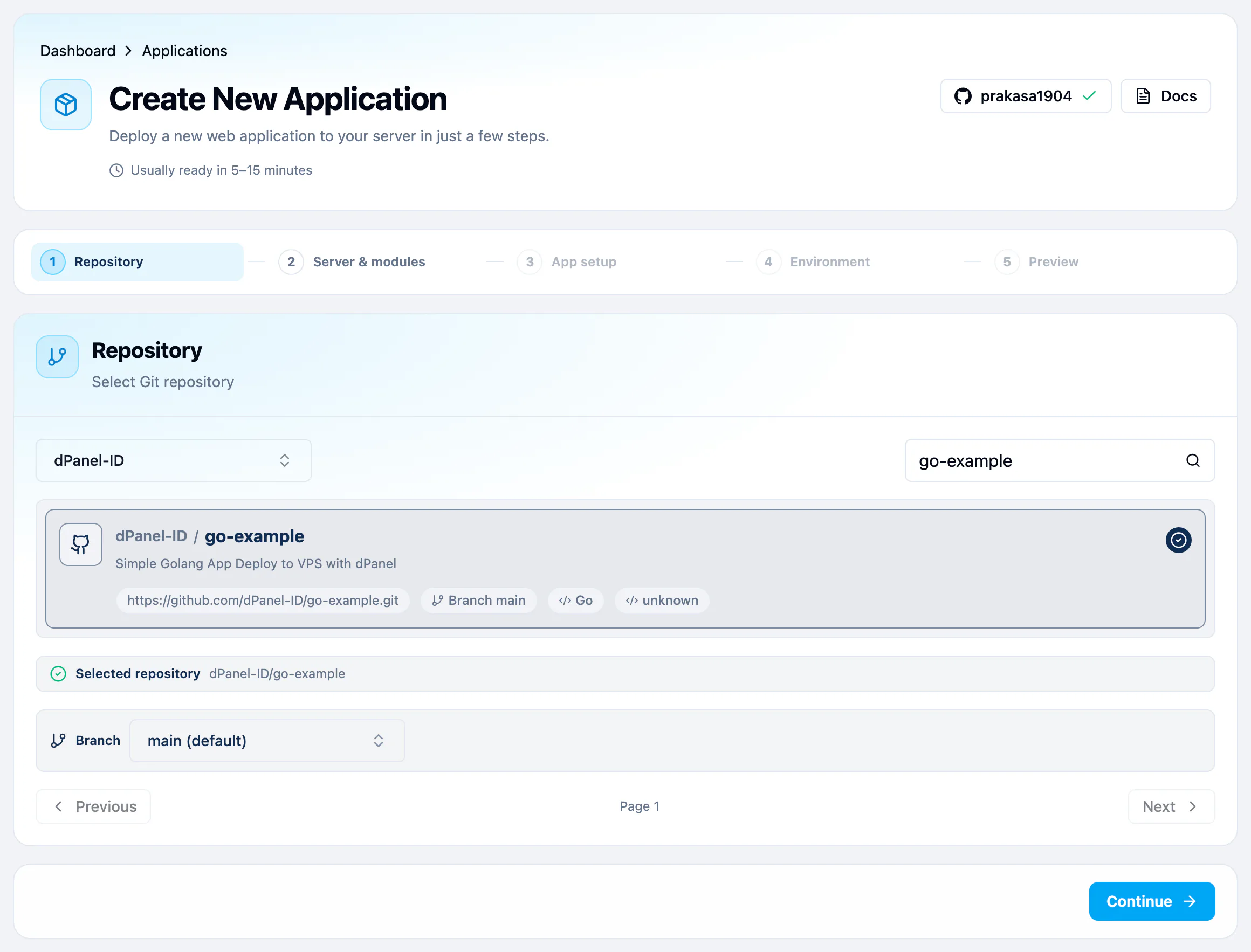
Step 1: Repository
- Open GitHub team and pick the account or organization that owns the repository. Add GitHub account at the end of the list connects another one.
- Type in Search repositories and press Enter.
- Select the repository. dPanel reads its details, and shows it under Selected repository.
- Check Branch. It defaults to the repository's default branch.
- Press Continue.
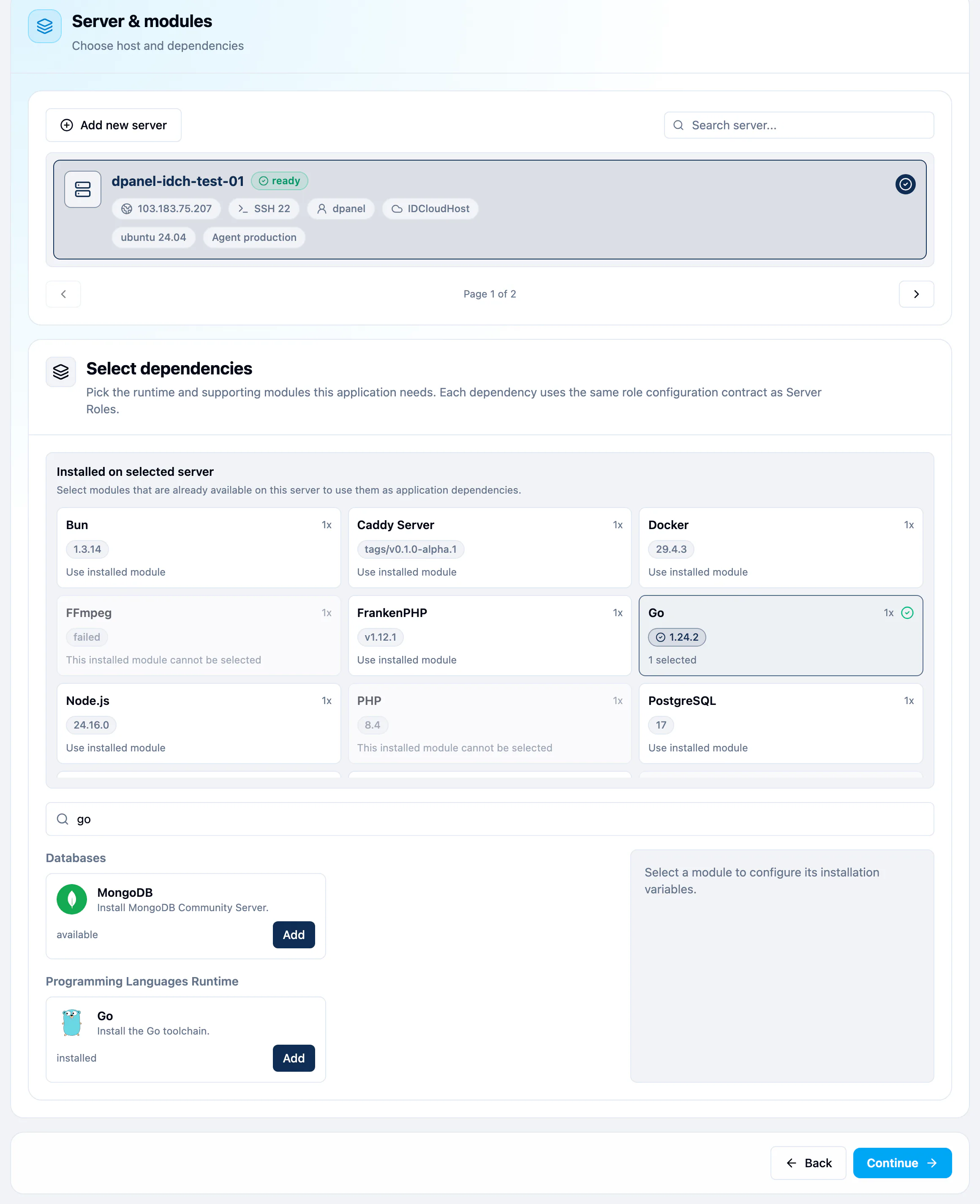
Step 2: Server & modules
- Under Select Server, select the server that will run the application. Only servers that are Ready are listed; use Search server... if you have many. If none is ready, the list says No ready servers found: add a server, or wait for one to finish setup.
- Under Select dependencies, add what the application needs to build and run. Type in Search modules, then press Add on a module. For go-example that is Go.
- The module's options open beside the list. Required fields are marked. Check them, then press Save options.
- Press Continue.
A module is a piece of software dPanel installs on the server for you, such as a language runtime or a database. See the Glossary.
If a module is already on the server, it appears under Installed on selected server. Select it there to reuse it instead of installing it again. Databases you created inside MariaDB or PostgreSQL, such as PostgreSQL Database, are not listed: they belong to their database server, not to the application. To give the application a database, create one on the server first, then pass its details as runtime variables in step 4. See Create a database for an application.
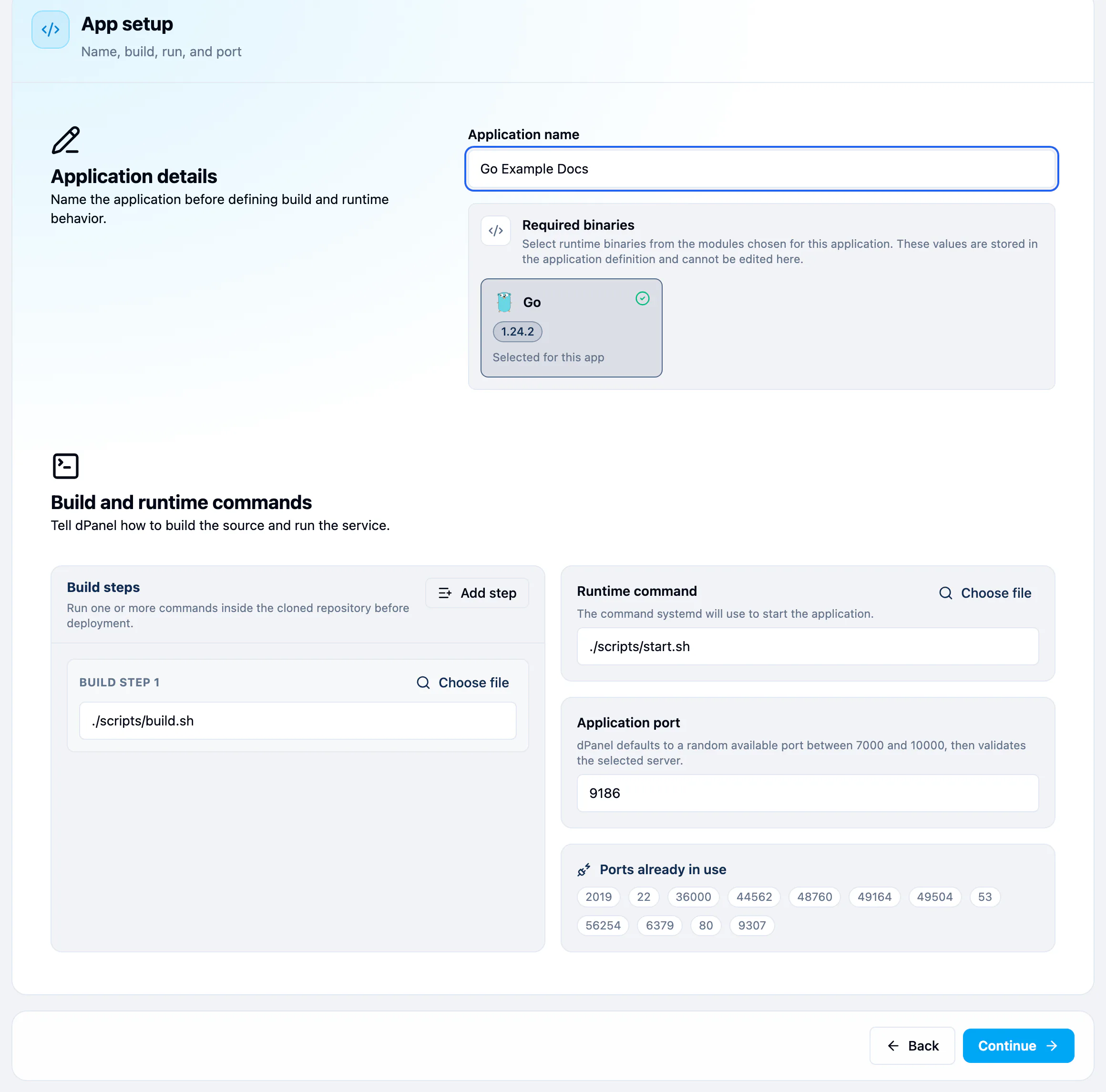
Step 3: App setup
- Application name: how the application appears in dPanel. Use letters, numbers and spaces only.
- Required binaries: the language runtime from the modules you picked. It is selected for you.
- Build steps: one or more commands run inside the cloned repository. Choose file picks a script from the repository; Add step adds another command.
- Runtime command: the command systemd uses to start the application.
- Application port: dPanel suggests a free port between 7000 and 10000. Ports already in use lists the ports you cannot take.
- Press Continue.
Step 4: Environment
Add variables the build or the service needs, one KEY=value per line. Build-time variables are used only while building; Runtime variables are given to the running service. Both are optional. See Environment variables.
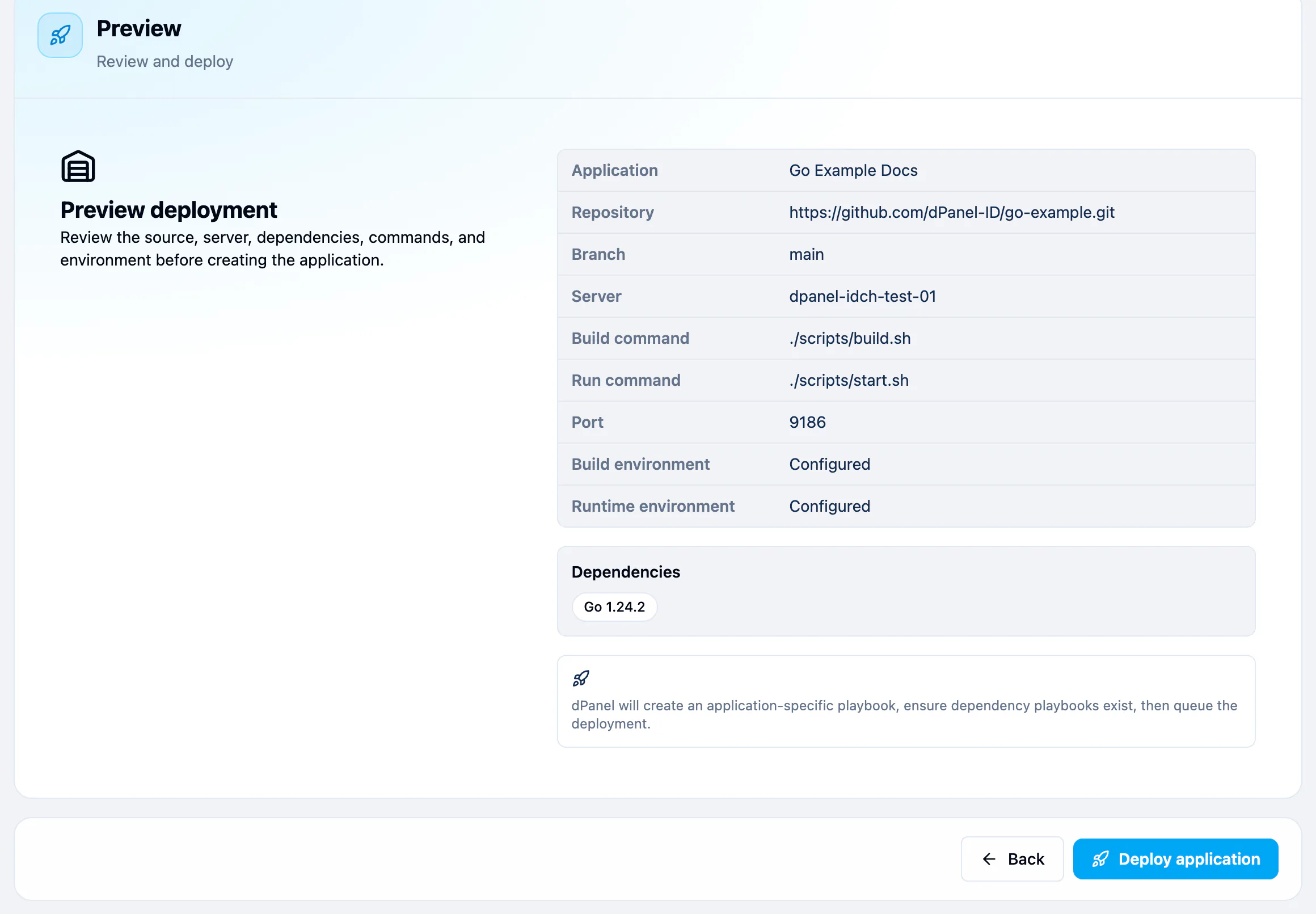
Step 5: Preview
Check the summary: application, repository, branch, server, commands, port, and whether each environment is Configured. Press Deploy application.
What happens next
A dialog confirms Successfully created your app! Press OK to go back to the list. dPanel then:
- Creates a playbook for this application (the list of setup steps its worker runs), and installs the modules you picked.
- Clones the branch on the server and runs the build steps.
- Installs the result and starts it as a service.
The application shows Building until the release finishes, then Running. Open it to follow the build, and see Deployments and rollback.
You can also ask Ask dPanel to do this for you; see Prompt cookbook.
Frequently asked questions
Which languages and frameworks can I deploy?
Any that run on Ubuntu. You pick the runtime, such as Go, as a module in step 2, and give the commands that build and start your code in step 3. dPanel runs them as you wrote them.
My build needs more than one runtime
Add every runtime as a module in step 2, such as PHP and Node.js for a Laravel app that builds its front end with npm. Step 3 selects all of them under Required binaries and stores them on the application. Only selected runtimes are on the build's path, so a missing one fails with command not found. You can add one later under the application's settings. See Deploy Laravel with PostgreSQL.
Why does the form refuse my application name?
The name may only contain letters, numbers and spaces. my-app or my_app is refused; use My App instead.
Why is my server not in the list?
Only servers that are Ready can host an application. A server that is still being set up, failed setup or was deleted is not listed. See Your server page.
Can I deploy from a GitHub organisation?
Yes. Install the dnocs-id GitHub App on the organisation with Add GitHub account, and it appears under GitHub team. See Connect GitHub.
Where is my database in the dependency list?
It is not a dependency. Pick the database server, such as MariaDB or PostgreSQL, if the application needs it on the same server. The databases you created inside it are not listed; connect to them with runtime variables. See Create a database for an application.
How long can a build take?
20 minutes by default. A slow build can get up to 3 hours. See Build timeout.
How do I give the application a domain with HTTPS?
Create a load balancer that routes your domain to the application. dPanel adds the DNS record and a Let's Encrypt certificate.