When you ask Ask dPanel, the dPanel AI assistant, for a change, it never makes the change by itself. It shows an approval card that says exactly what will happen, and the change runs only when you press Approve. Press Reject and nothing changes.
What needs approval
| Runs right away (read only) | Waits on a card (changes something) |
|---|---|
| Listing and explaining servers, apps, domains, load balancers | Launching a cloud server, running server setup again |
| Reading logs, certificates, jobs and audit history | Installing software (modules), creating databases |
| Searching the documentation | Creating, updating or deploying an application, setting environment variables |
| Checking what a firewall apply would change | Creating or re-routing load balancers, adding or removing firewall rules, applying the firewall |
| Refreshing a server's module list from its agent | Creating server groups and clusters, switching between shared and private workers |
| Every delete |
Read the card
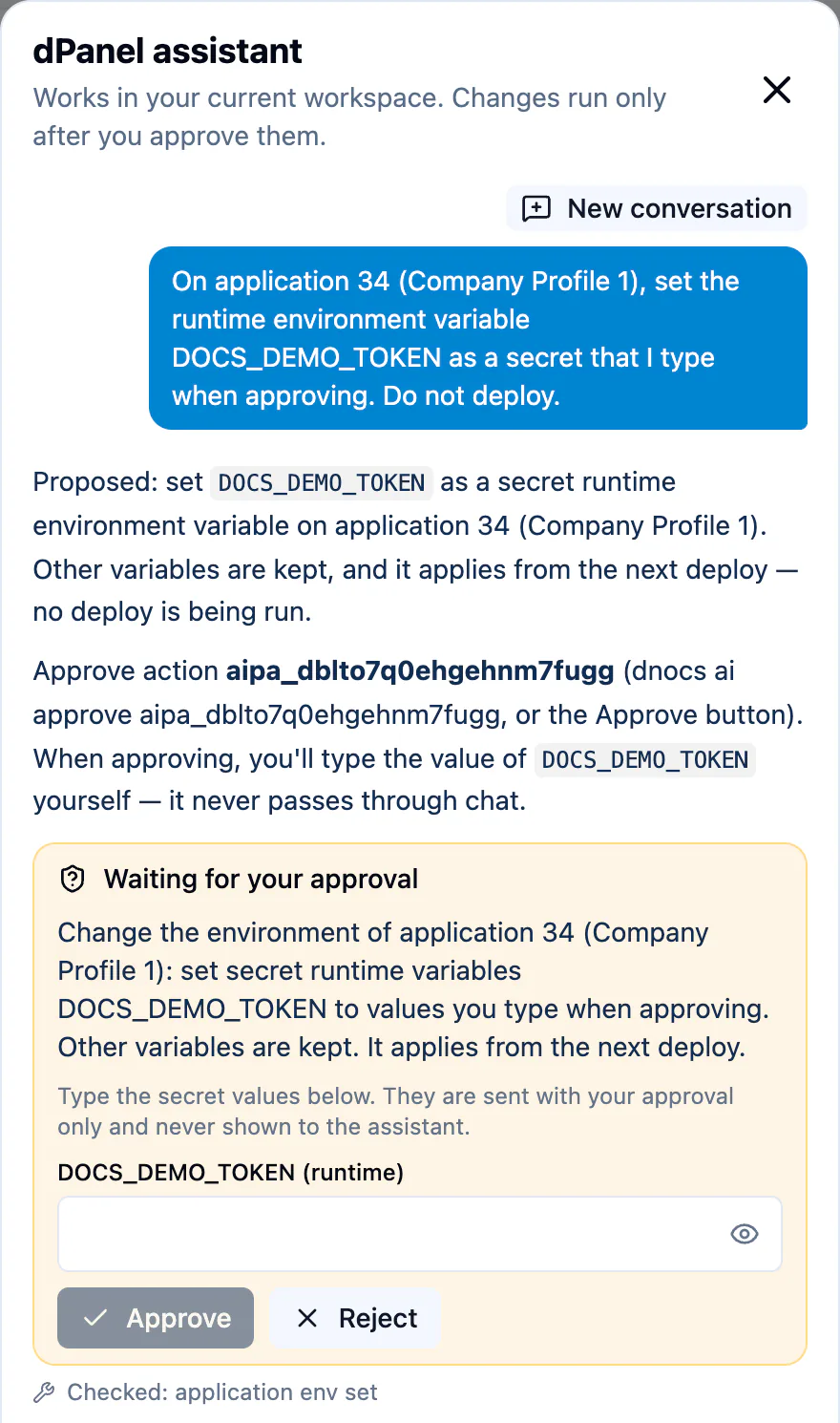
A card has four parts:
- The status, at the top: Waiting for your approval means nothing has happened yet.
- The summary: what will run, on which server or application, with which names and settings. For a cloud server it includes the size and the assistant's price estimate. For a load balancer it names the domain and the DNS record it creates.
- Secret fields, only when the change needs a value you must supply. See Secrets you type.
- Approve and Reject.
Above the card, the assistant's message repeats the plan in plain words and gives the action ID, such as aipa_dblto7q0ehgehnm7fugg. You need that ID only in a terminal.
Before you press Approve, check:
- Is it the right server, application or domain? Compare the ID and name with what you see in dPanel.
- Is it what you asked for, and nothing more?
- For a delete: are you sure? Deletes cannot be undone.
Approve or reject
- Read the card.
- Fill in any secret fields.
- Press Approve to run the change, or Reject to drop it.
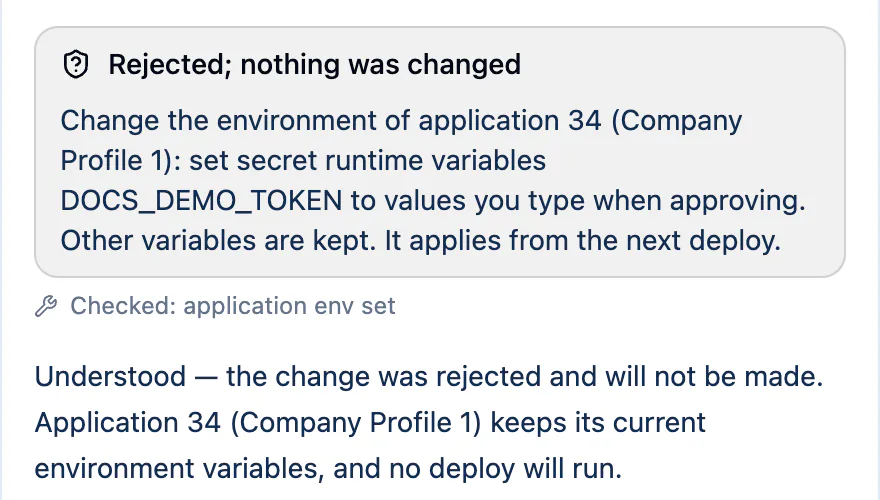
The card's status changes as the change runs:
| Status | Meaning |
|---|---|
| Waiting for your approval | Nothing has changed yet |
| Applying your decision | dPanel is acting on your press of Approve or Reject |
| Approved and started | dPanel started the change. Long jobs, such as a deploy, keep running; ask the assistant for progress |
| Approved; dPanel is still applying it | The change is still being applied |
| Approved, but it did not start | dPanel refused the change; the chat says why |
| Rejected; nothing was changed | You rejected it |
| Expired; ask the assistant to propose it again | Nobody answered within 24 hours |
After an approval, the assistant reports what happened and often proposes the next step on a new card, such as the deploy after creating an application. Approve one change at a time, and wait for each job to finish before the next on the same server: dPanel runs one job at a time per server.
Who can approve
- Only the person who started the conversation. Conversations are private; your teammates cannot see them or approve their cards.
- With your own access. The change runs as you, with your role in the workspace. If your role does not allow it, the card ends as Approved, but it did not start and the chat explains why. See Members and roles.
- Exactly once, exactly as shown. The arguments are frozen when the card is created. Asking for the same change again shows the same card instead of a second one, so a change cannot run twice by accident.
Secrets you type
Some changes need a value only you know, such as the database password an application connects with. The assistant never asks for it in the chat. Instead the card shows a field for each value, under Type the secret values below. They are sent with your approval only and never shown to the assistant.
- Type the value in the field, for example
WORDPRESS_DB_PASSWORD (runtime). - Press the eye icon (Show value) to check what you typed.
- Approve stays grey until every field is filled.
The value goes with your approval straight to dPanel. The assistant never sees it; it knows only the variable's name.
Secrets dPanel generates
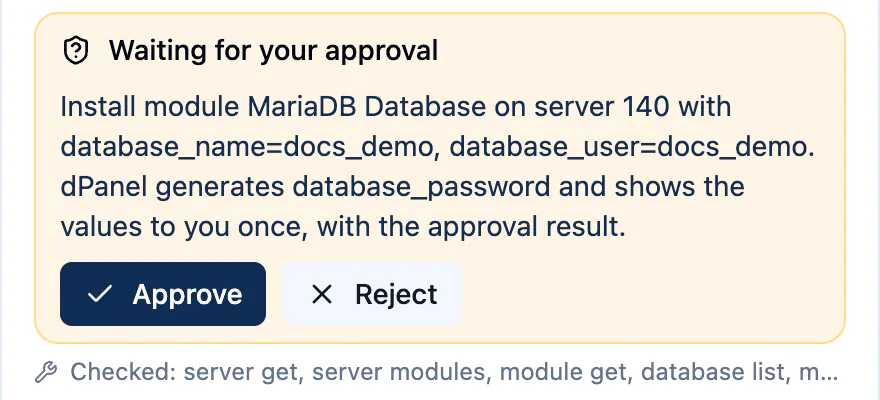
When a change creates a password, such as the password of a new database user or a new database's admin password, dPanel generates it. After you press Approve, the card shows Generated secrets: save them now, with each value and a Copy button.
If you close the chat
- The conversation stays. dPanel remembers your last conversation for each workspace in this browser. Open the panel again and it is there.
- Waiting cards come back. A card still waiting when you closed the panel or reloaded the page shows Approve and Reject again when you reopen it.
- They stay approvable for 24 hours, even when the panel is closed. After that the card shows Expired; ask the assistant to propose it again.
- Lost a card? If you started a new conversation or switched browser, ask "Show me the approval for the database again". The assistant proposes the same change, and you get the same card back while it is still waiting.
- Generated secrets do not come back. That is why you copy them at once.
Approve from a terminal
Every card has an action ID. In a terminal, run dnocs ai approve <action-id> to approve it or dnocs ai approve --reject <action-id> to reject it. See Use AI in the terminal.
Frequently asked questions
What if I approve something by mistake?
Ask the assistant to undo it, for example "Delete the database docs_demo I just created on server 140". The undo is a new change, so it comes back as a card too. Deletes cannot be undone, so read delete cards with extra care.
Can I approve a change by typing "yes" in the chat?
No. Only the Approve button or dnocs ai approve approves a change. Typing "yes" just sends a message.
Why is the Approve button grey?
The card has secret fields that are still empty. Fill in every field.
Can a teammate approve a change I asked for?
No. Only the person who started the conversation can approve its cards. A teammate can ask the assistant for the same change in their own conversation.
I wrote a password in the chat by mistake. What now?
Treat it as exposed: the message has already gone to the AI service. Change that password, and next time ask for it "as a secret I type when approving".