Your first conversation with Ask dPanel, the dPanel AI assistant, takes about two minutes: open the panel, ask a question, and read the answer. This page walks through it with screenshots. Nothing you do here changes your servers.
You need a dPanel account and to be signed in. See Sign in. It helps, but is not required, to have one server; without one, ask a how-to question instead.
1. Open the assistant
- Sign in and open any page, such as the Dashboard.
- Press Ask dPanel at the bottom right.
- The dPanel assistant panel opens. Under Ask about your infrastructure it offers three example questions.
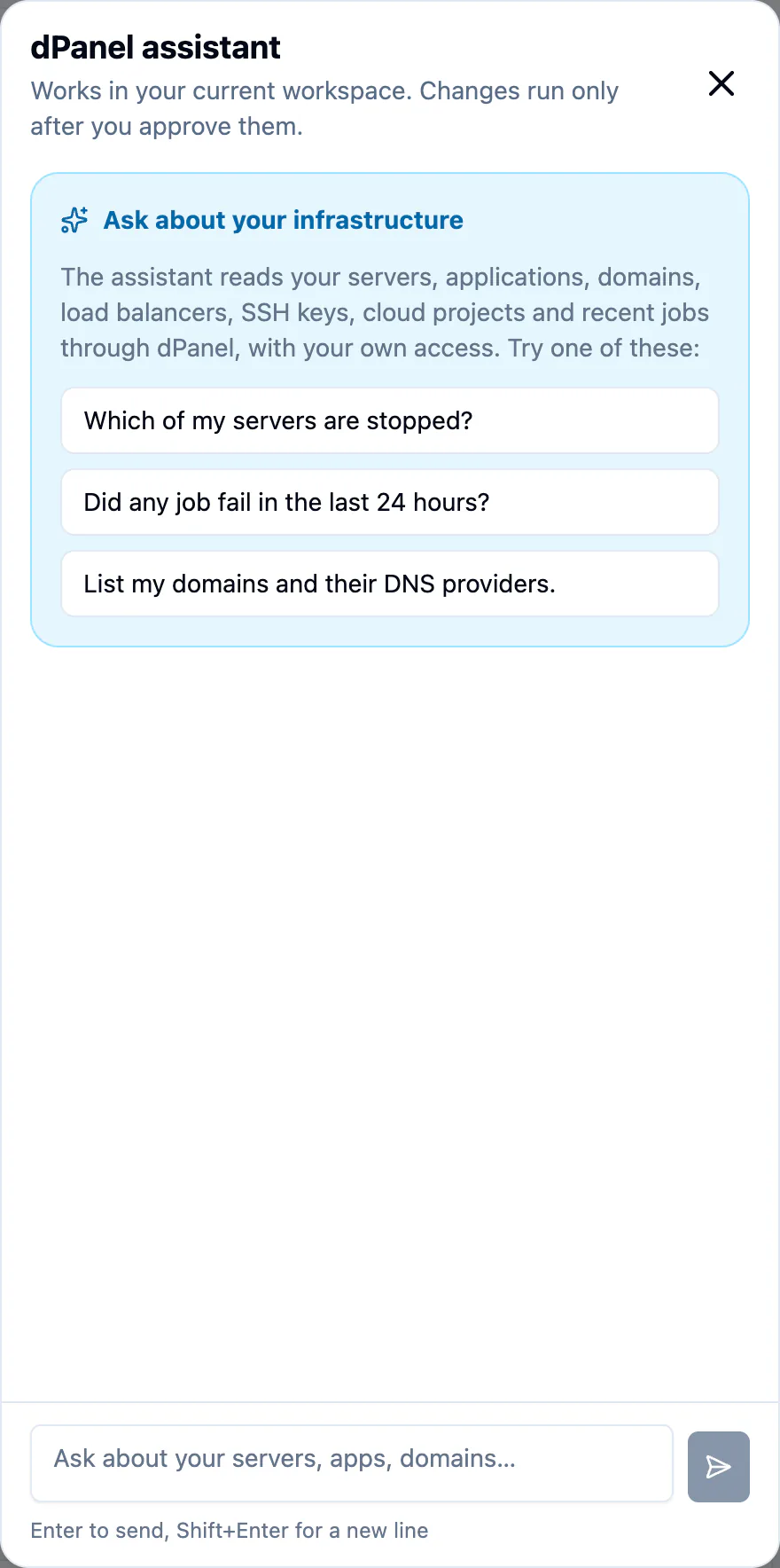
The line under the title, Works in your current workspace. Changes run only after you approve them., is the whole safety model in one sentence. The assistant sees only the workspace shown at the top of the sidebar. See Workspaces if you have more than one.
2. Ask a question
- Press Which of my servers are stopped?, or type your own question in Ask about your servers, apps, domains….
- Press Enter to send. Shift+Enter starts a new line instead.
- While it works, the panel says Checking dPanel… longer tasks can take a minute or two.
3. Read the answer
The answer appears under your question, often as a short table with each resource's ID and name.
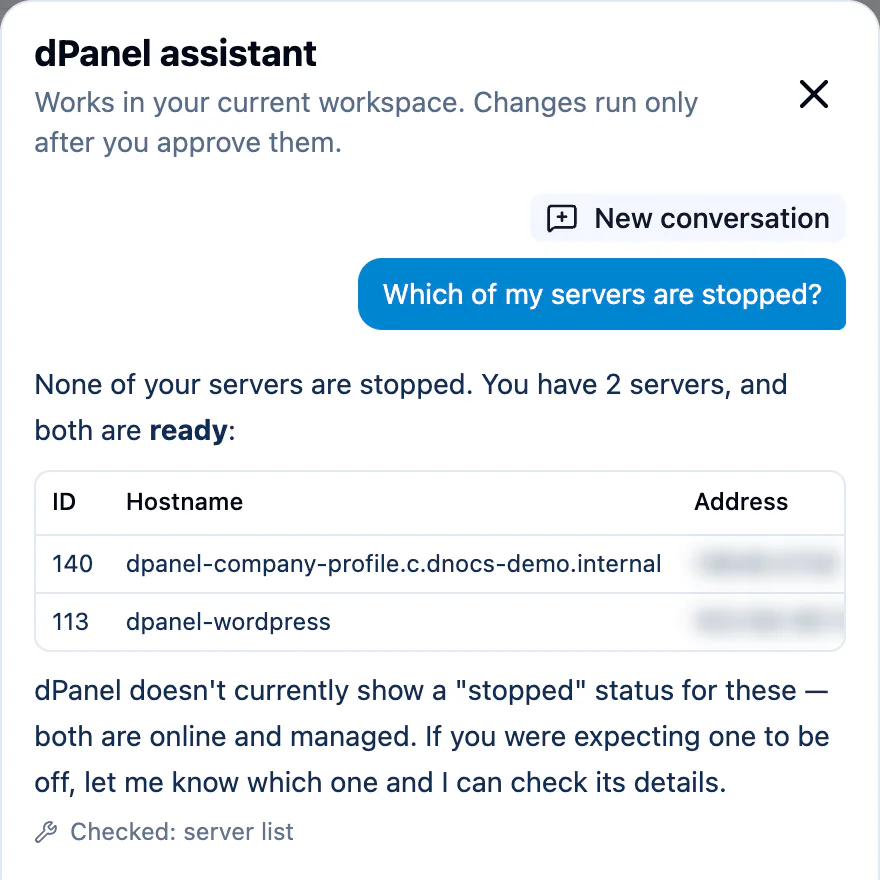
Under the answer, Checked: lists what the assistant looked at to answer, such as server list. It is how you know the answer comes from your real workspace and not from a guess.
The IDs in the answer are the same numbers you see in dPanel, so you can find the server or application yourself, or use the ID in your next question: "Show me the details of server 140".
4. Ask a how-to question
The assistant also knows this documentation. Ask how to do something and it answers with the steps and a link to the page.
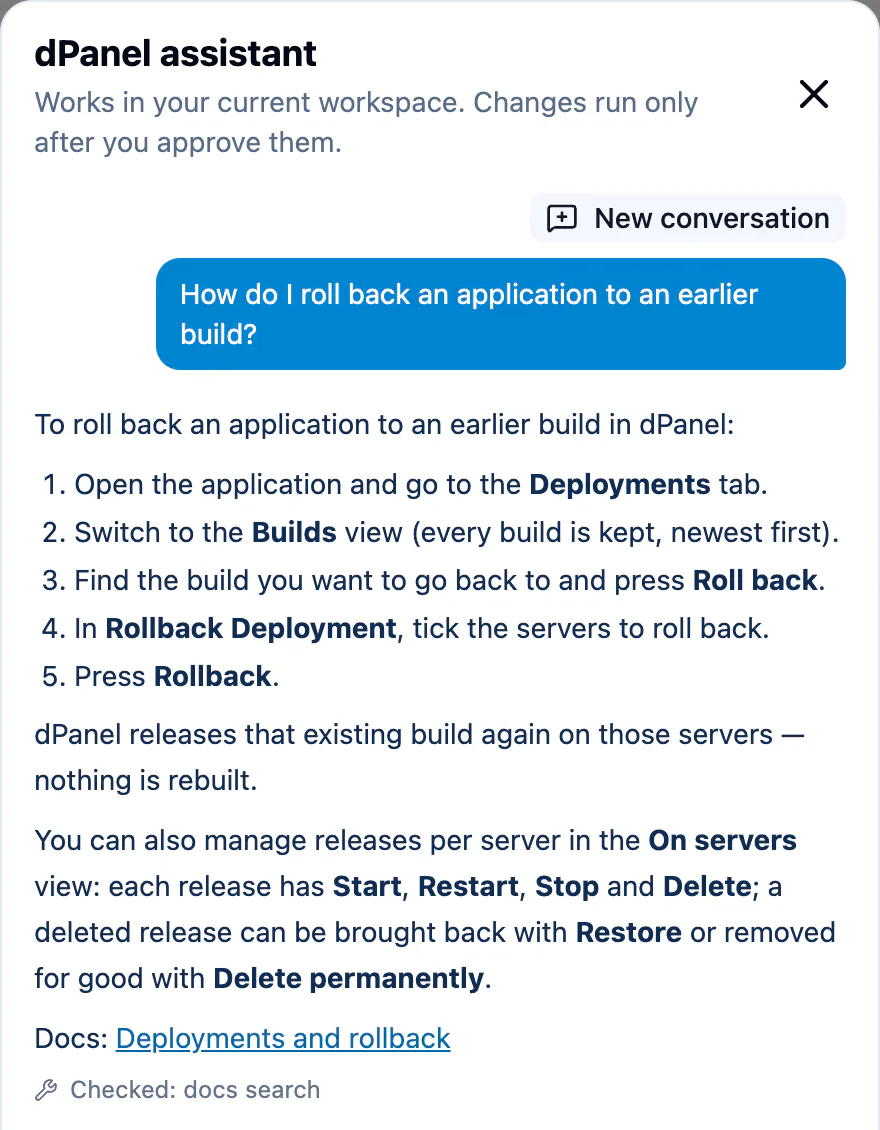
Good first how-to questions:
- "What is a load balancer, and do I need one?"
- "How do I connect my own server to dPanel?"
- "How do I roll back an application to an earlier build?"
- "What does the Builds view on an application show?"
5. Keep going, or start over
- Ask a follow-up. The assistant remembers the conversation, so "and which one uses the most disk?" works after a question about servers.
- Start over. Press New conversation at the top of the panel to clear the chat. Starting a new conversation does not undo anything.
- Close the panel. Press the ×. dPanel remembers your last conversation for each workspace in this browser, so it is there when you open the panel again, with any card still waiting for approval.
6. Try your first change (optional)
When you are ready, ask for something small, such as "On server 140, create a MariaDB database named blog with a user named blog". The assistant checks what it needs and shows a card marked Waiting for your approval. Read it, then press Approve to run it or Reject to drop it. See Approve or reject changes before your first approval.
Tips for good questions
- Be specific. "Why did the last build of My Shop fail?" beats "Something is broken".
- Name things. Use the server, application or domain name, or its ID.
- Say what you want, not how. "Put my app on shop.example.com with HTTPS" is enough; the assistant works out the steps.
- Never paste a password, token or key into the chat. See AI limits and privacy.
Frequently asked questions
The panel says "Sign in to use the assistant". What do I do?
Press Sign in. The assistant works with your own dPanel access, so it needs you signed in.
The panel says "The assistant isn't available yet". What now?
dPanel could not reach the assistant service. Wait a moment and press Check again.
An answer failed with "The assistant could not answer this message". Is something broken?
Usually not. Press Try again. If it keeps failing, ask a shorter, more specific question.
Why does a long question take a minute or two?
The assistant may read several things before it answers, such as a deployment, its build log and the server's disk usage. Each read takes a moment.