An application in dPanel is your code from a GitHub repository, built and running as a service on one of your own servers. dPanel does not host the code itself: it reads the repository and branch you point it at, runs your build commands on the server, starts the result, and keeps each build so you can roll back.
A service here means a systemd service: a program Linux starts for you, keeps running in the background and restarts after a reboot. You never have to set it up by hand. See the Glossary for this and other terms.
The three steps
- Point at a repository. Connect GitHub and pick the repository and branch to build from.
- dPanel builds it. Each build is kept, so you can see what shipped and roll back to an earlier one.
- It runs on your server. dPanel installs the build and starts it as a systemd service.
What you need first
- A server that is Ready. See Create a cloud server.
- A GitHub account connected to dPanel. See Connect GitHub.
- A repository with a build command and a start command. A single script for each is enough.
The Applications page
Open Applications in the sidebar. The page lists every application in the current workspace, with counts at the top.
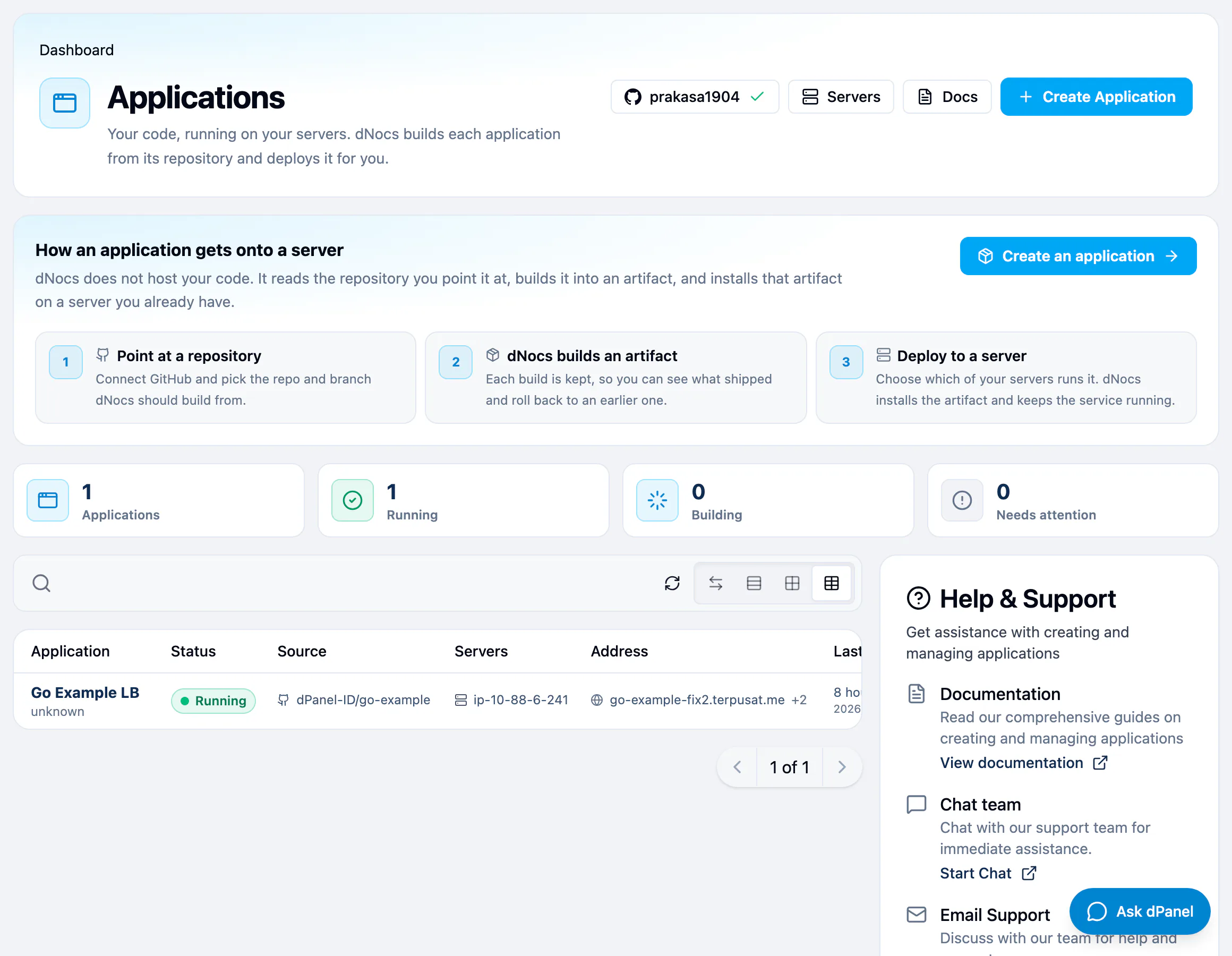
| Status | What it means |
|---|---|
| Running | The service is up on its server. |
| Building | A build or a release is in progress. |
| Needs attention | The last build or release failed. Open the application to see why. |
| Not running | Nothing has been released yet, or the service is stopped. |
The list opens as a table, with the status, the source repository, the servers and the public address of each application. Use Search by application name to find one quickly; upper and lower case do not matter. Select a row to open the application.
The GitHub button in the header shows which account dPanel reads repositories with, such as Connected to GitHub as your login. If it says Reconnect GitHub, GitHub stopped accepting the saved sign-in. Sign in again before you build.
The application page
Each application has four tabs.
| Tab | Use it to |
|---|---|
| Overview | See what is serving right now, open the site, read logs, or redeploy. |
| Deployments | Browse builds and releases, build again, or roll back. |
| Logs | Read the running service's logs, and the load balancer's if it has one. |
| Settings | Review and edit how it is built and run, or delete it. |
People are shown by name: who ran each build, who owns the application. Select a name to open that person's public profile.
Next steps
- Create an application from a GitHub repository.
- Deployments and rollback: release a new commit, or go back to an earlier build.
- Environment variables for settings and secrets.
- Publish it on a domain with HTTPS through a load balancer.
Frequently asked questions
Does dPanel host my code?
No. Your code stays in your GitHub repository, and it runs on a server you own. dPanel connects the two: it clones the repository on the server, builds it there and starts it.
Can one application run on several servers?
Yes. Each server builds and runs its own copy. Release a build to more than one server from Build and release, and see each copy under On servers.
What does "Needs attention" mean?
The last build or release failed. Open the application, go to Deployments, and press Logs on the failed build. The last lines usually name the step and the error.
Can I manage applications from the terminal?
Yes. The dnocs command-line tool has dnocs application list, detail, create, deploy and delete. See AI in the terminal to install it.