A worker in dPanel is the program that runs your workspace's jobs: setting up a server, installing a module, deploying an application, applying a load balancer. It connects to your servers over SSH (the secure way to log in to a server remotely) and reports back to dPanel. See the Glossary.
You do not need to set anything up. dPanel's shared workers run every job unless you choose your own.
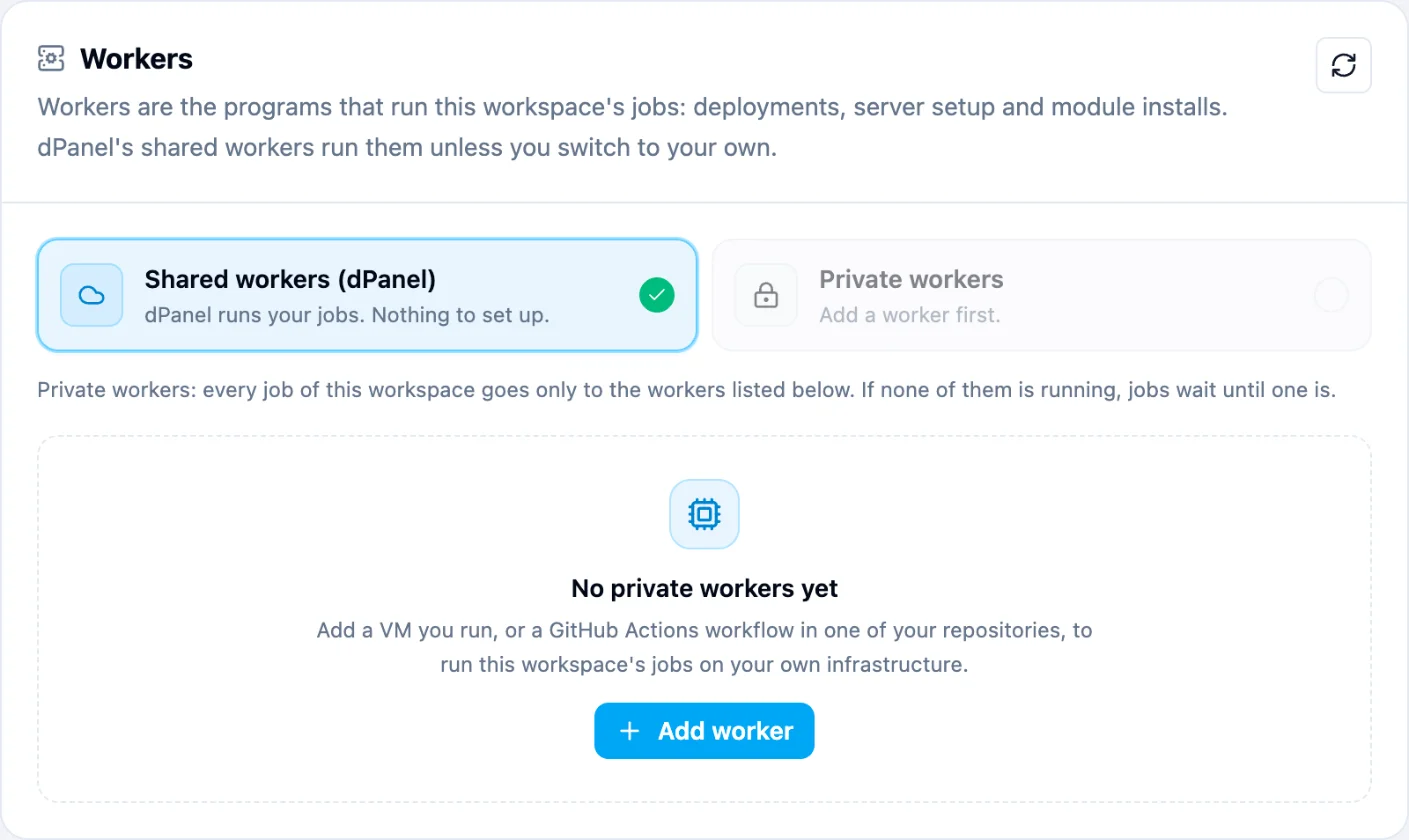
Shared or private
| Shared workers (dPanel) | Private workers (yours) | |
|---|---|---|
| Setup | None | Add a GitHub workflow or a VM |
| Who runs your jobs | dPanel | Only the workers you add |
| Good for | Getting started, most workspaces | Servers reachable only from your network, your own CI minutes, compliance |
Each workspace chooses on its own, in the Workers card under Where jobs run: your personal workspace on Profile, a team on its team page. Only team owners and admins can change a team's workers; other members see the card read-only. The option marked Current is the one in use.
Two kinds of private worker
| GitHub workflow | VM | |
|---|---|---|
| How it runs | dPanel starts your workflow when a job is waiting. One run takes one job and ends. | Runs all the time and asks dPanel for jobs. |
| Secret to keep | None. The run signs in with GitHub's identity token. | A token, shown once when you add it. |
| Setup | One short workflow file | Install and run the executor on the machine |
| Guide | GitHub Actions worker | VM worker |
Where jobs wait
When a workspace uses private workers, its jobs go only to those workers. If none of them is running, jobs wait until one is. Switching back to Shared workers (dPanel) sends new jobs to dPanel again; your workers stay registered so you can switch back later.
From the terminal
The dnocs command-line tool manages the workers of the workspace you selected. See AI in the terminal to install it.
| Command | What it does |
|---|---|
dnocs worker list | Shows the mode (shared or private) and your private workers. |
dnocs worker add --type github --name ci --repository acme/dpanel-workers | Registers a GitHub workflow worker and prints the workflow file. |
dnocs worker add --type vm --name office --executor-id office-01 | Registers a VM worker and prints its token once. |
dnocs worker mode private or dnocs worker mode shared | Sends jobs only to your workers, or back to dPanel's. |
dnocs worker rotate-token --id <worker ID> | Gives a VM worker a new token; the old one stops working at once. |
dnocs worker remove --id <worker ID> | Removes a private worker. |
You can also ask Ask dPanel to do this for you; see Prompt cookbook.
Frequently asked questions
Do I need my own worker?
No. dPanel's shared workers run every job by default. Add your own only if your servers are reachable only from your network, you want jobs to run on your own CI minutes, or you need to for compliance.
What happens to waiting jobs if my private worker is down?
They wait. Jobs of a workspace on Private workers go only to its own workers. Start the worker again, or switch back to Shared workers (dPanel).
Do I lose my workers when I switch back to shared?
No. They stay registered. Switch to Private workers again whenever you like.
Can a team and my personal workspace use different workers?
Yes. Each workspace has its own setting.