A machine you register with sudo dnocs machine register lands in the workspace your dnocs is pointed at. If that is your personal space, only you can see it. This tutorial puts homelab machines in a team workspace instead, so the whole team shares them: each member opens the same servers, installs software and deploys apps, within the role you give them.
We use a workspace called Home Lab with two machines:
homelab-nas, registered straight into the workspace (Part 2).homelab-pi, which was already registered in a personal space and is moved into the workspace (Part 3).
Both have no public IP and no open port. They reach dPanel through the agent, as explained in Register a private machine.
What you need first
- A team workspace, and a role that can add servers to it: Owner, Admin or DevOps. Create one from the workspace picker with New workspace (see Workspaces).
- The workspace ID. You find it in the workspace picker, or with
dnocs workspace list. - On each machine: Linux with systemd,
sudo, internet access, and dnocs installed (Install dnocs).
Part 1: Pick the team workspace
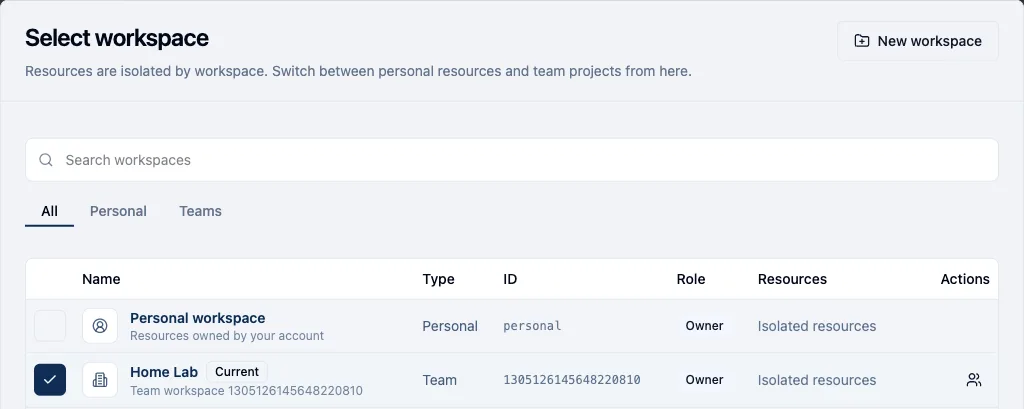
In dPanel, open the workspace picker at the top left. Personal resources and team workspaces are kept apart; the ID column shows each workspace's ID.
Part 2: Register a machine straight into the workspace
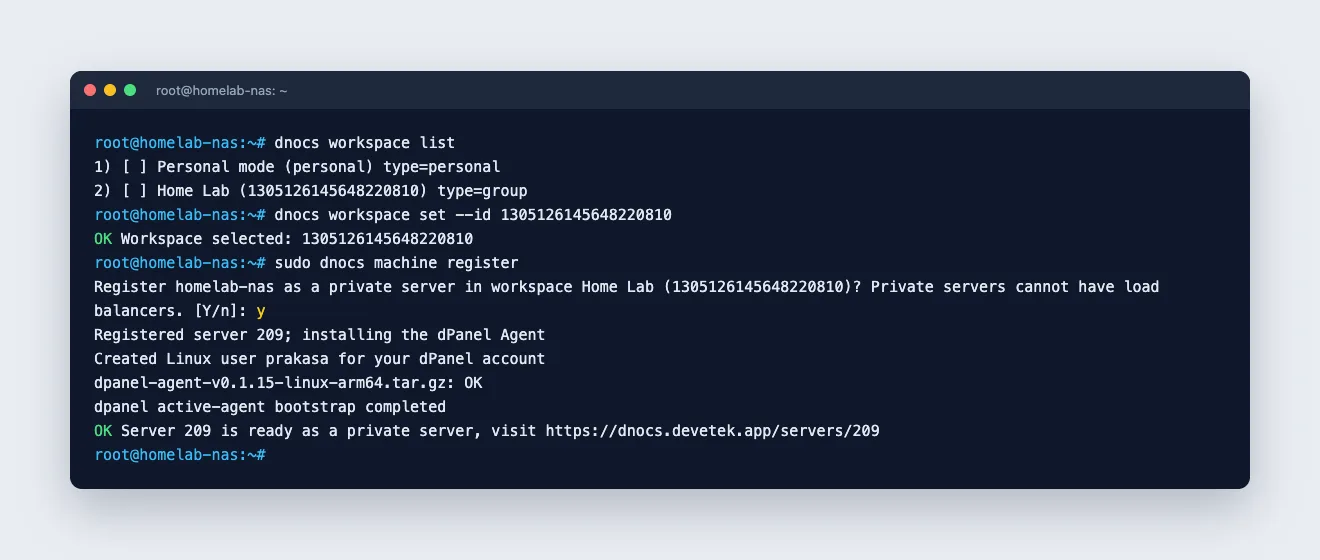
On the machine, sign in, point dnocs at the team workspace, then register:
dnocs auth login -u <your username>
dnocs workspace set --id <workspace id>
sudo dnocs machine register
dnocs names the workspace in its question, so you can check you picked the right one before you confirm. The server is created in that workspace.
Part 3: Move a machine from your personal space
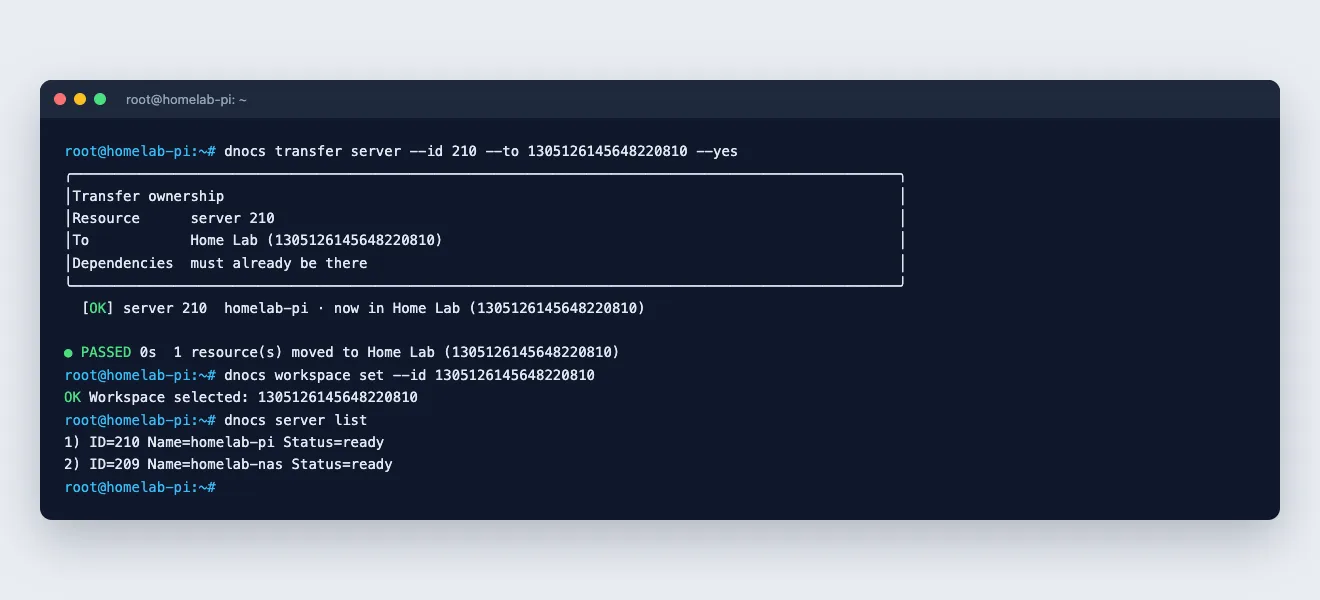
A machine you registered earlier in your personal space can move to the team with dnocs transfer. It keeps its server ID, its agent, its installed software and its apps:
dnocs transfer server --id <server id> --to "<workspace name or id>"
dnocs shows what moves and asks you to confirm (--yes skips the question). A move is one way: once a server is in a workspace, it cannot go back to a personal space or on to another workspace.
Running sudo dnocs machine register again on a moved machine works only from the workspace it now belongs to; from your personal space dnocs refuses, so a machine cannot be pulled out of the team by accident.
Part 4: Check the servers in the workspace
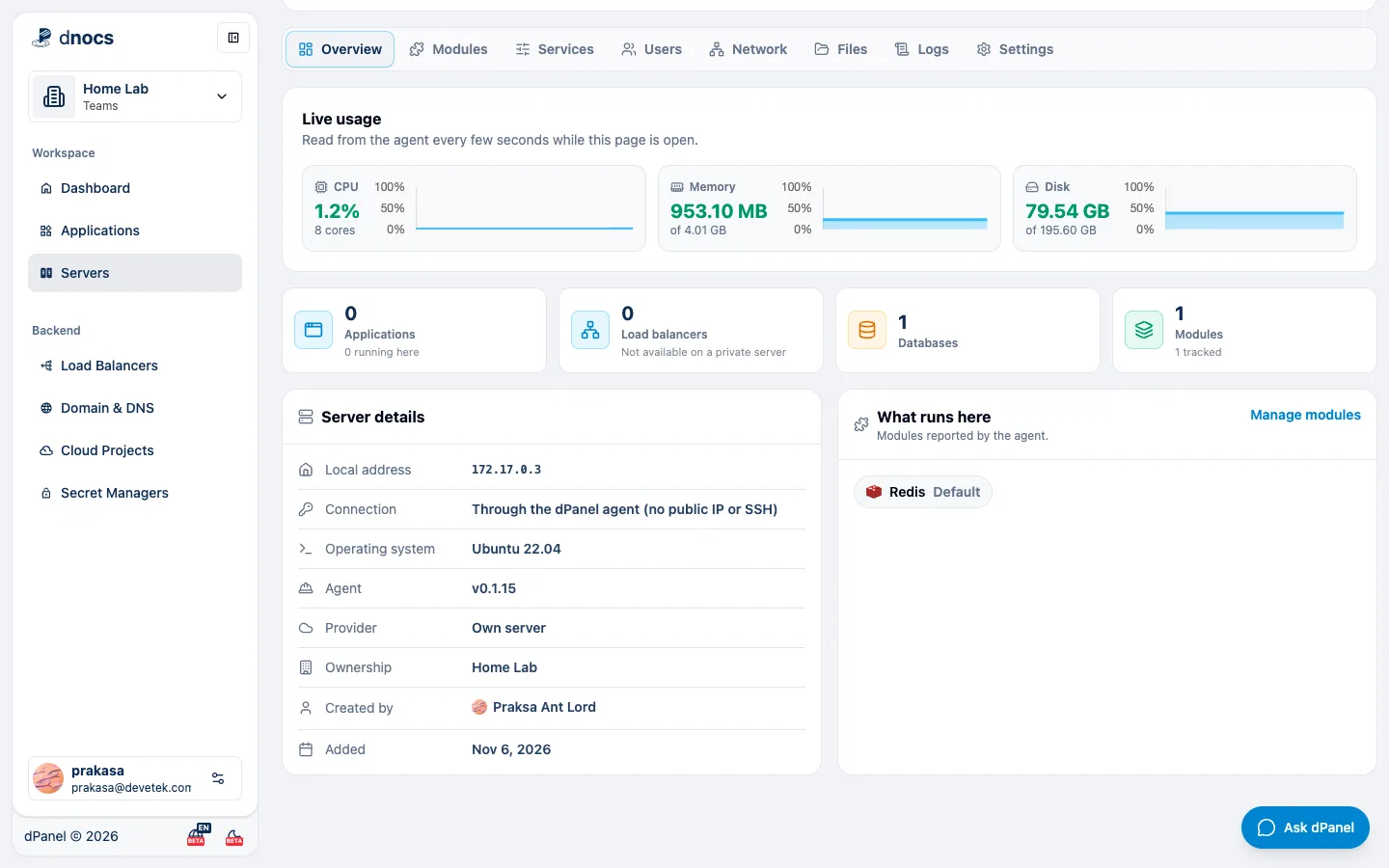
Switch dPanel to the team workspace and open Servers. Both machines are there with a Private badge, owned by the workspace, with who added them.
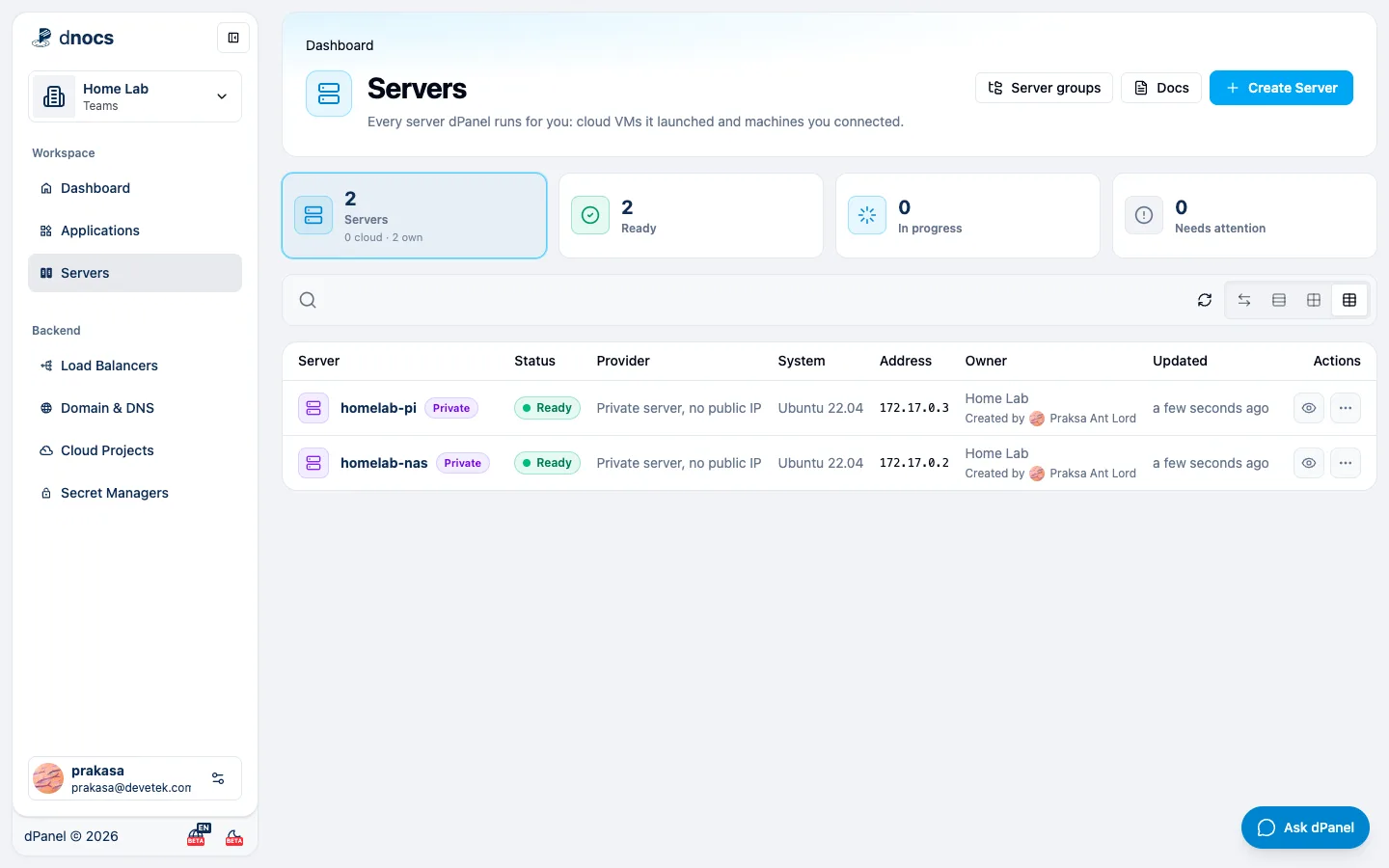
Each server page shows the workspace as its Ownership. Everything from the private machine guide works the same here: modules, apps, auto deployment, the terminal and the database manager. Jobs for these servers still run on the machines themselves, whatever workers the workspace uses.
Part 5: Invite your team
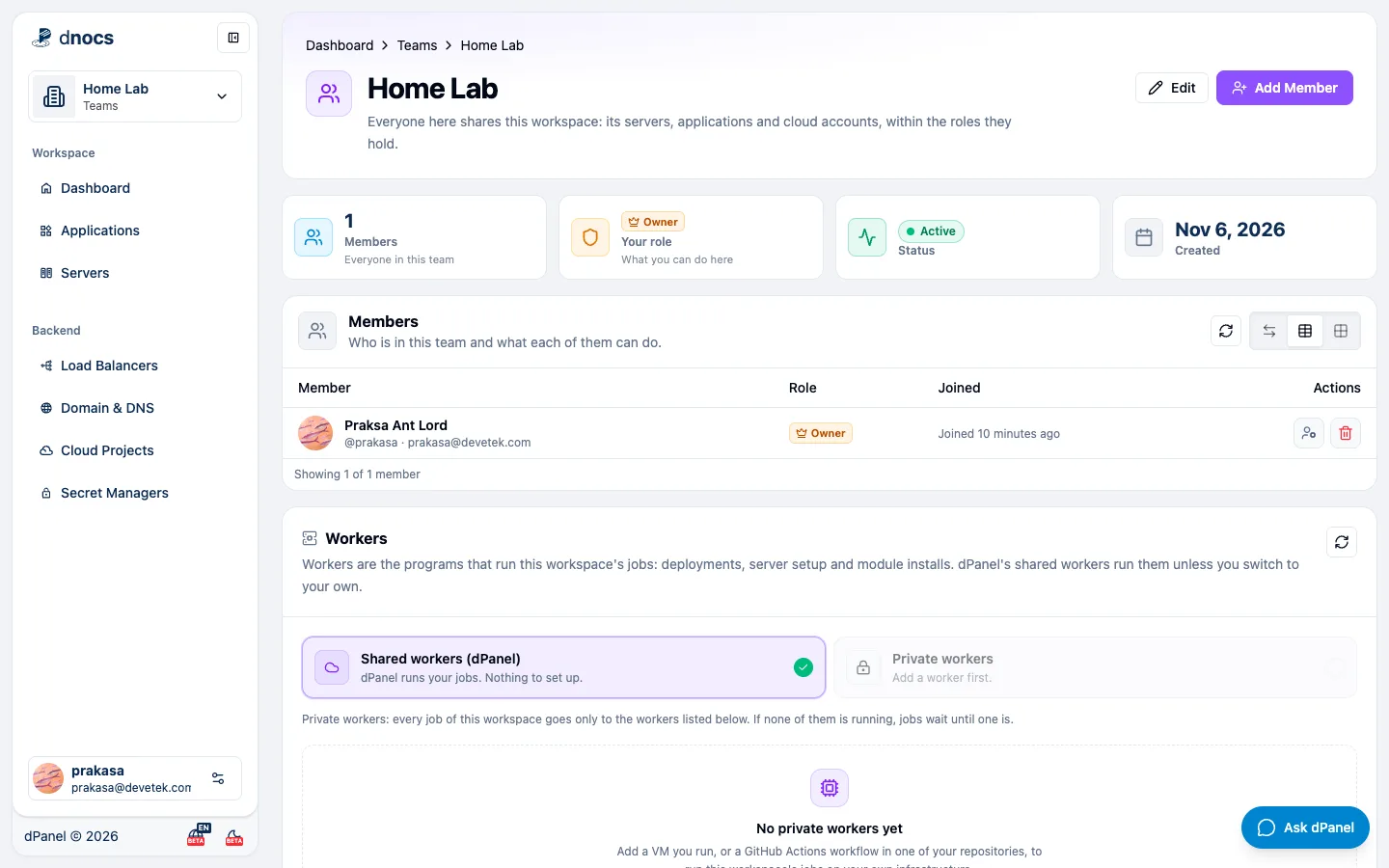
Open Teams, then the workspace, to see its members and the workspace's workers.
Choose Add Member, pick the person and the roles they get. The role decides what they can do with the homelab:
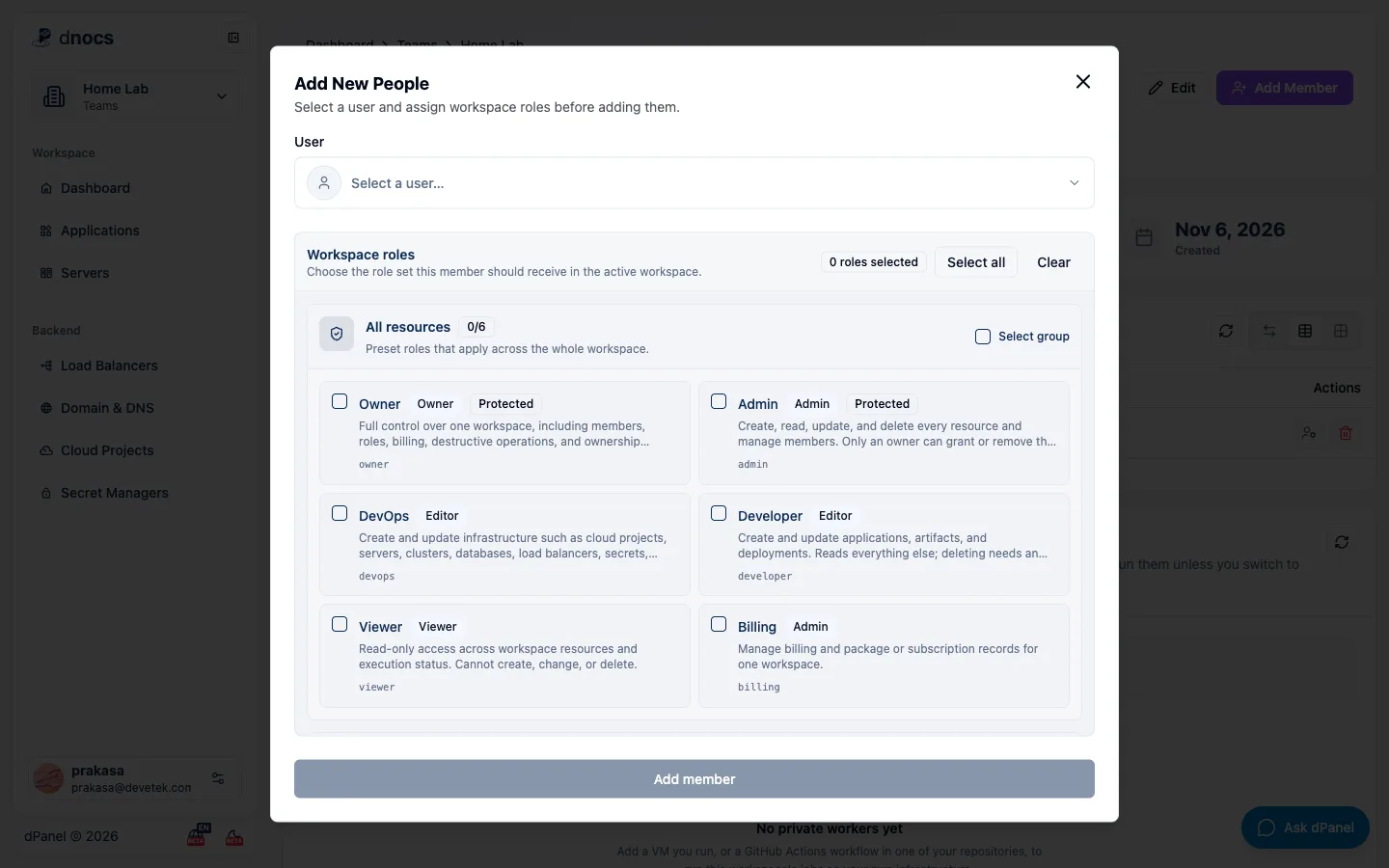
| Role | With the homelab servers |
|---|---|
| Owner, Admin | Everything, including adding and removing servers and members |
| DevOps | Add and manage servers, install modules, open the terminal and databases; cannot delete |
| Developer | Deploy and manage applications on the servers; sees the servers but cannot change them or open their terminal; cannot delete |
| Viewer | Look only: servers, usage, logs and jobs |
See Members and roles for every role in detail.
Good to know
- A workspace holds up to 10 private machines, and a machine belongs to one workspace at a time.
- Removing a person from the workspace takes their access to its servers away at once; the machines keep running.
- Deleting a server in dPanel removes it at once and revokes its agent. Stop the agent on the machine afterwards with
sudo systemctl disable --now dpanel-active-agent.